

HSMWorks tutorial №3 - 3+2 Machining

In this tutorial you will learn how to set up 3+2 Machining toolpaths.
▸ Job Setup
▸ Adaptive Machining, Pocket
▸ Pocket Clearing
Before proceeding, open the part Tutorial3.SLDASM into HSMWorks.
The files used in this manual can be found in the examples folder in the folder where HSMWorks is installed. Typically, this is something like C:\Program Files\HSMWorks\examples\
We will assume that the stock we start from is already roughed to a shape that only requires the machining of the two pockets using 3+2 toolpaths. The file for this tutorial is an assembly and contains the final component as well as the stock shape we start from.
𝐃𝐢𝐬𝐜𝐥𝐚𝐢𝐦𝐞𝐫: This tutorial is a representation of the original Help tutorial with the HSMWorks software suite.
This guide is intended for educational purposes and to make the features and tools of HSMWorks more accessible to the general public.
More information about purchasing, installing, and using HSMWorks can be found on the official website: https://www.autodesk.com/products/hsmworks
-
Step 1: Job Setup
We begin with setting up common job parameters.
➝ Open the operation manager
➝ Right-mouse click on Tutorial3 Operation(s) and select New Job...
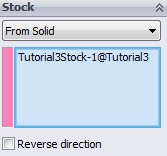
➝ In the group Stock, change the Stock Mode from Automatic to From Solid.
➝ Next, select the component Tutorial3Stock<1> as the stock by either:
▸ In the model window, right-click on the model.
▸ Choose Select Other.
▸ From the list, select Tutorial3Stock<1>.
or:
▸ In the model window click the + in front of Tutorial3 to expand the Assembly tree.
▸ Select the Tutorial3Stock<1> component feature.
Your selection should look like this:
➝In the group Model, right-click in the selection field and choose Clear Selections.
➝Next, select the component Tutorial3<1> as the surfaces by either:
▸ In the model window, click on the model.
or:
▸ In the model window click the + in front of Tutorial3 to expand the Assembly tree.
▸ Select the Tutorial3<1> component feature.
Click ✓ at the top of the property manager.
-
Step 2: Adaptive Machining, Pocket
We will use an Adaptive Clearing toolpath to clear the oval shaped pocket:
➝ Click the strategy Adaptive Clearing on the CAM toolbar. This opens the Property Manager and you will see the following groups.
1. Tool
➝ Press Library
➝ From the library Tutorial under Sample Libraries, select tool #12 - Ø8R1mm bullnose
➝ Press Select
2. Geometry
Tool Orientation
➝ Enable Tool Orientation
➝ Select Use Coordinate System
➝ From the tree view in the model window, expand the node Tutorial3<1>.
➝ Select Coordinate System1.
Machining Boundary
➝ For the machining boundary, select Selection.
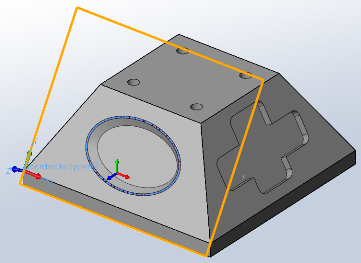
➝ In the graphics window, click on the outer oval edge of the pocket to select it.
➝ Select Tool Center on Boundary from the Tool Containment drop down.
3. Start calculation
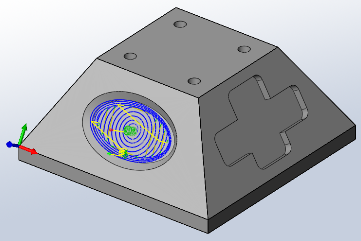
Click ✓ at the top of the property manager. The resulting toolpath will look like this:
4. Verification
To verify the toolpath use the stock simulation, right click on the Job node in the Operation Manager and select Stock Simulation (All). Press the Start button and watch the stock simulation up to the final stock shape.
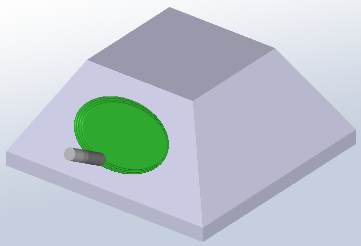
Click ✓ to exit the Stock Simulation.
-
Step 3: Pocket Clearing
We will use a Pocket Clearing toolpath to clear the cross shaped pocket on the adjacent face to the oval pocket.
➝ Click the strategy Pocket Clearing on the CAM toolbar. This opens the Property Manager and you will see the following groups.
1. Tool
➝ Press Library
➝ From the library Tutorial under Sample Libraries, select tool #4 - Ø5mm flat
➝ Press Select
2. Geometry
Tool Orientation
When adding a new operation, the tool orientation from the previous (or selected) operation is automatically used, so Tool Orientation is already enabled, and the Coordinate System1 feature is already selected.
➝ Click the Coordinate system selection field to make it active.
➝ From the tree view in the model window, expand the node Tutorial3<1>.
➝ Select Coordinate System2.
Machining Boundary
➝ For the machining boundary, select Selection.
➝ In the graphics window, click on the outer edge of the cross shaped pocket to select the circumference of the pocket automatically.
3. Start calculation
Click ✓ at the top of the property manager. The resulting toolpath will look like this:
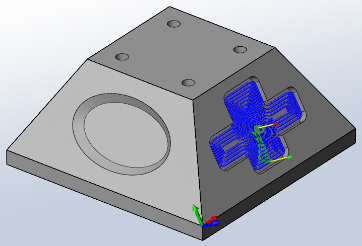
4. Verification
To verify the toolpath use the stock simulation, right click on the Job node in the Operation Manager and select Stock Simulation (All). Press the Start button and watch the stock simulation up to the final stock shape.
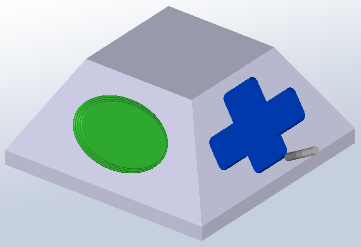
Click ✓ to exit the Stock Simulation.
Congratulations! You have completed this tutorial.

