Thousands of tutorials to learn from
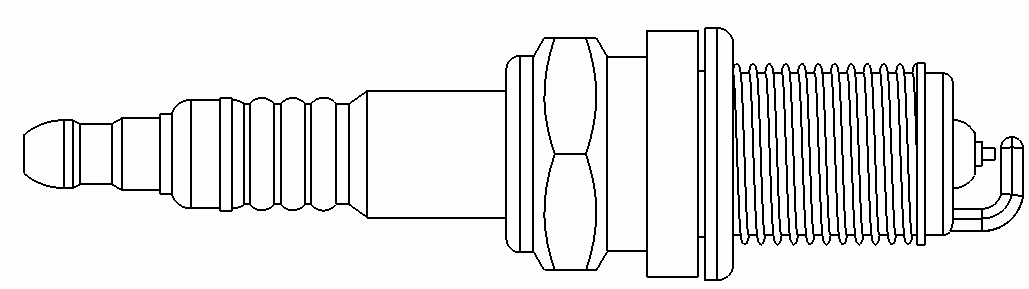
This tutorial mainly focus on using a image file to model a spark plug. I am no expert in SolidEdge but if you encounter any problem while performing any step let me know. I will help you in all possible ways.
The required Drawing file is attached with the model (Spark Plug) and also with the Question.
Step 1
Start SolidEdge in ISO Part mode. The tutorial is made in Synchronous Mode but will work same for ordered.
Step 2
Check the base reference planes to show them.
Step 3
Press CTRL+F for Front view.
Step 4
Click Image Icon.
Step 5
Click Browse.
Step 6
Select the Spark Plug drawing file. Click Open. Then Click OK.
Step 7
Now the image is inserted.
Step 8
Adjust it so that the center line is at origin.
Step 9
Select line tool.
Step 10
With snapped to the X axis start making line.
Step 11
Make the line vertical and click the end point.
Step 12
Choose curve.
Step 13
Select the end point of the line.
Step 14
Make the curve along the drawing.
Step 15
Now make a line.
Step 16
Click Tangent tool under sketching tab.
Step 17
Make the curve tangent to the line.
Step 18
Now again line.
Step 19
Make a horizontal line.
Step 20
Select arc by 3 points tool.
Step 21
Make the arc about the drawing curve.
Step 22
Now make a horizontal line.
Step 23
Select fillet tool.
Step 24
Fillet the arc and the line. This will also add an tangent relation.
Step 25
Now make lines.
Step 26
Arc by three points and line.
Step 27
Make lines.
Step 28
Arc by 3 points.
Step 29
Line and Arc by 3 points.
Step 30
Make similar geometry as in last step.
Step 31
Make line.
Step 32
Make horizontal line.
Step 33
Line and arc.
Step 34
Now make Horizontal line and when in half of Nut click.
Step 35
Make vertical line by snapping it the drawing other side lines.
Step 36
Make lines.
Step 37
Horizontal and vertical lines.
Step 38
Again trace lines.
Step 39
Arc & lines.
Step 40
Make lines.
Step 41
Make arc.
Step 42
Line tool.
Step 43
Trace arc and then line geometry.
Step 44
Fillet the arc and vertical line.
Step 45
Make lines.
Step 46
Make vertical line so as to pass the virtual center axis of the plug.
Step 47
Goto the left side and start making the line.
Step 48
Pass it through the whole image.
Step 49
Trim the lines to obtain closed region.
Step 50
Press CTRL+I for Isometric view.
Step 51
Select the region.
Step 52
Select revolve.
Step 53
Change the setting to 360º.
Step 54
Right click.
Step 55
Select the center line and the revolve is generated.
Step 56
Zoom to the Nut area.
Step 57
Select Polygon by center tool.
Step 58
Select this face. Press F3 to lock it so the sketch is generated on this plane.
Step 59
Keep the mouse on circular edge and the center of the circle appear by cross.
Step 60
Select the center and make the polygon.
Step 61
Select Extrude tool.
Step 62
Select the Polygon region.
Step 63
Front view.
Step 64
Symmetric type.
Step 65
Extrude it by keeping the Nut height in drawing in mind.
Step 66
CTRL+T for Top view.
Step 67
Draw a triangle using line tool.
Step 68
Mirror tool.
Step 69
Select the triangle by using selection polygon.
Step 70
Mirror it about the center line.
Step 71
Isometric view (CTRL+I). Revolve tool.
Step 72
Select both region while holding CTRL key.
Step 73
Change revolve extent to 360º.
Step 74
Change type to remove.
Step 75
Revolve it about the center axis.
Step 76
Now the nut is prepared.
Step 77
Front View.
Step 78
Select Ellipse by center point tool.
Step 79
Make it.
Step 80
Make a horizontal line along center axis.
Step 81
Select Helix tool in Add.
Step 82
Select the line.
Step 83
Select the ellipse region.
Step 84
Right click.
Step 85
Input 12 turns.
Step 86
Front View.
Step 87
Trace the lines.
Step 88
Fillet them.
Step 89
Revolve it by symmetric and about this line by 15º. Right click to accept.
Step 90
Select revolve tool and then select the end face of the thread.
Step 91
Revolve it by 360º along the face end line.
Step 92
Right click to accept it.
Step 93
Fillet the edges.
Step 94
Select circle tool and then select the end face of the body.
Step 95
F3 to lock and then snap to the center point of the edge.
Step 96
Make a circle.
Step 97
Select Extrude tool.
Step 98
Extrude it by remove inside the body.
Step 99
CTRL+I for Isometric View.
Step 100
Now our Spark plug is ready by tracing an image file.
too good this material, I used to practice in solidworks as yet do not learn as an image crosquizar
regards
can you provide me the spark plug drawing, b/c i have a project on it.
You may download it here..
https://www.facebook.com/photo.php?fbid=536474306372310&set=a.305653849454358.80236.100000292370142&type=3&theater