Learn about the GrabCAD Platform
Get to know GrabCAD as an open software platform for Additive Manufacturing
Visit our new homepage
Home
Control
Shop
Streamline Pro
Partner Program
Print
Community
Log in
Library
Challenges
Groups
Questions
Tutorials
Engineers
Blog
Log in
Na. Karma
Drafting Technician – Building Architecture
Follow
Hire me
2
followers
Meknès, Morocco
Tutorials
About
Models
1
Tutorials
0
More
Followers
2
Following
1
Likes
1
Following
1
Followers
2
Likes
1
Tutorials
Sort by:
Recent
Recent
Most liked
Most viewed
Most commented
Creating layers in AutoCAD
Na. Karma
in
Design & CAD
0
0
Beginner
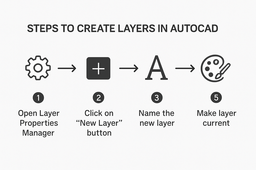
Creating layers in AutoCAD is a fundamental practice that helps you keep your drawings organized and easier to manage. Layers act like transparent sheets stacked on top of each other, where each sheet can hold different types of objects. By assigning objects to specific layers, you can control their visibility, color, linetype, and other properties independently, which improves both the clarity and efficiency of your work. Layers are especially useful in complex drawings where many objects coexist, such as architectural plans, engineering diagrams, or mechanical designs. For example, you might place walls on one layer, electrical wiring on another, and plumbing on a third. This separation allows you to hide or lock layers you aren't currently working on, reducing visual clutter and preventing accidental edits. Benefits of Using Layers: Visibility Control: You can toggle layers on or off to display only relevant parts. Color and Linetype Management: Assigning colors and line styles to layers helps differentiate object types visually. Editing Efficiency: Lock or unlock layers to protect certain elements from changes. Organization: Keeps your project structured, making collaboration and revisions smoother. Simple Procedure to Create Layers in AutoCAD: Open the Layer Properties Manager by clicking the Layers panel or typing LAYER in the command line. Click on the New Layer button (+ icon) to create a new layer. Name your layer with a descriptive title (e.g., Walls, Electrical, Furniture). Assign a color to the layer to visually distinguish it in your drawing. Set the linetype if you want lines in this layer to appear dashed, dotted, etc. Adjust the layer’s visibility or lock status as needed. Assign objects to the new layer by selecting them and changing their layer property.
AutoCAD
line types
visibility control
drawing organization
layer managem
cad drawing
creating layers
layers
autocad