

Cirular patter help solidworks

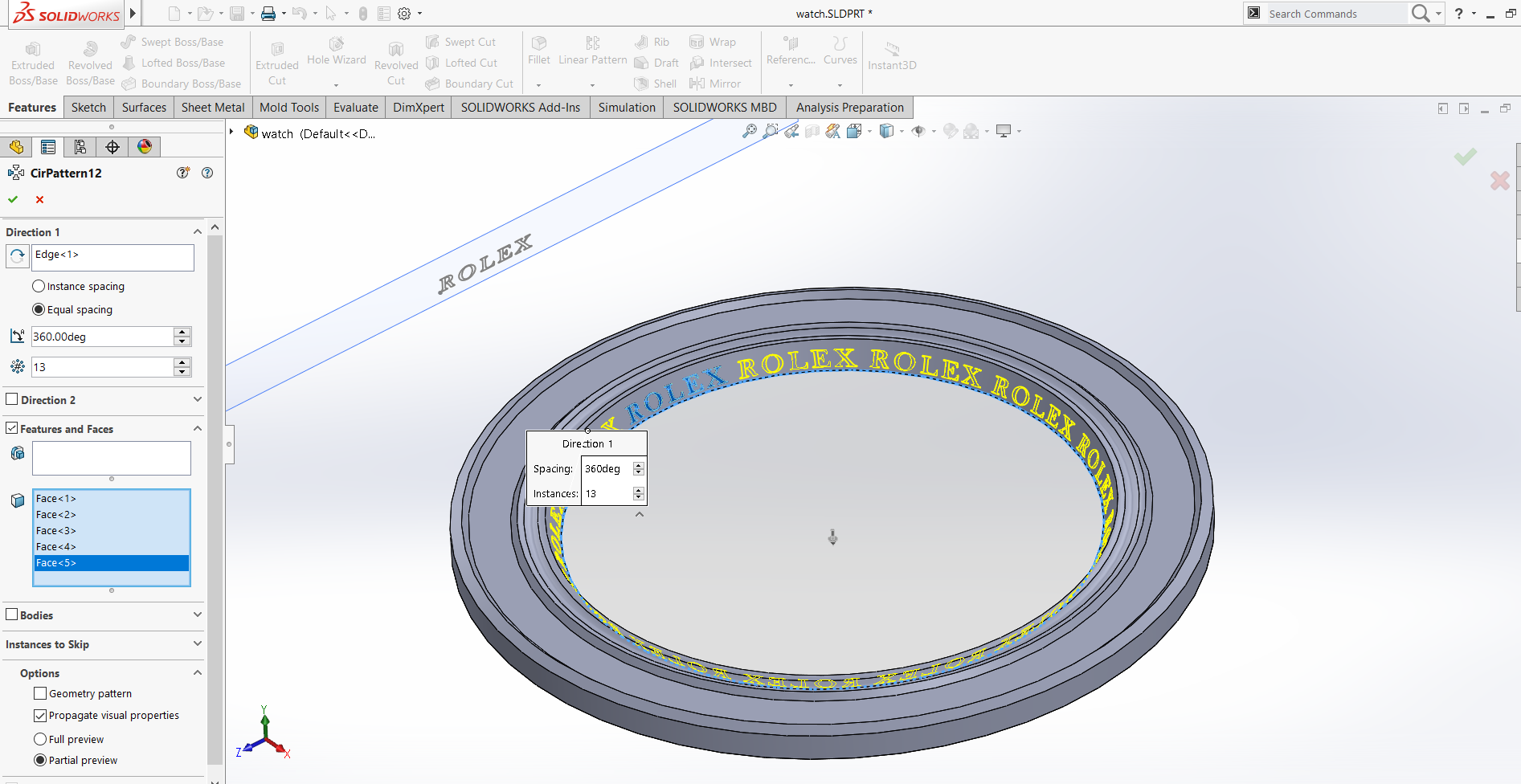
O I've started making a rolex on solidworks, however i would like to circular pattern the rolex word around the inside. I extruded the rolex word on there by making the sketch on separate plan outside and then extruding from surface/face/plane. I would like it to look like this but when i try I get an error. Could someone please help?
THis capture i have attached of the process preview is what I would like it to look like.
THanks
7 Answer

Be sure you don't have open profile (loose lines/points) somewhere.

If you can’t get it to solve the circular pattern, replicate the plane & sketch at the necessary angle

Hey Dan,
I'm still try to figure out why the circular pattern won't work with an offset extrude, but it the mean time if it works for you you can achieve a very similar effect by extruding cutting. Move the plane on which your sketch sits to be central. I coincident-ed your plane 1 to the right plane. Then extrude cut and select offest from surface. In the model I uploaded the offest is 0.1mm, but you may choose to do something different. Make sure your offest is the correct way round. If not it will come up with an error about not intersecting the model. Then circular pattern. If you choose to equally space and pick something such as 12 instances then the balance looks very decent, but this again is down to you or the rolex you are modelling. I hope this helps and if I can figure out why the boss extrude does not work ill let you know.
I'm using solidworks 18 and I think your model was 17 so you may not be able to open my version.
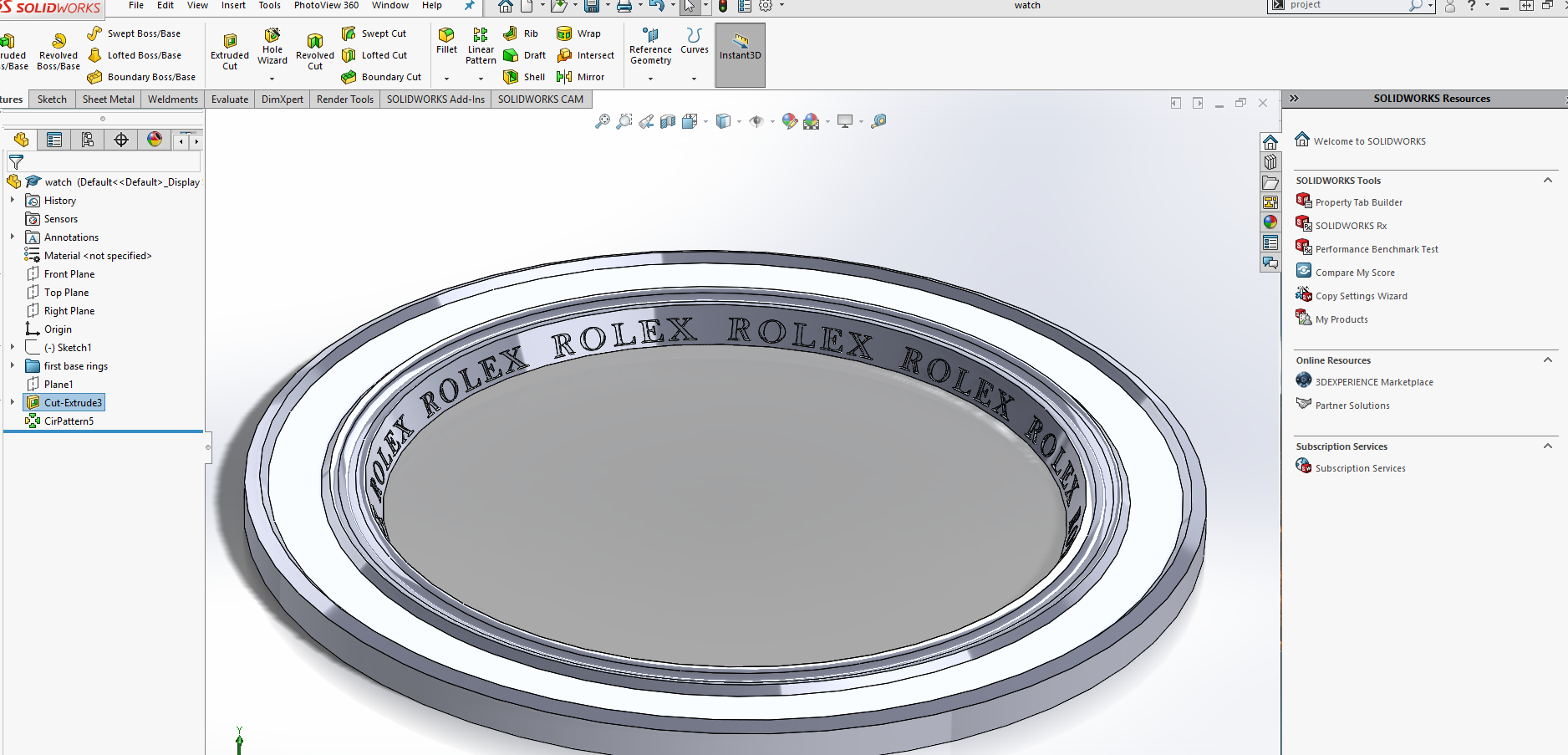

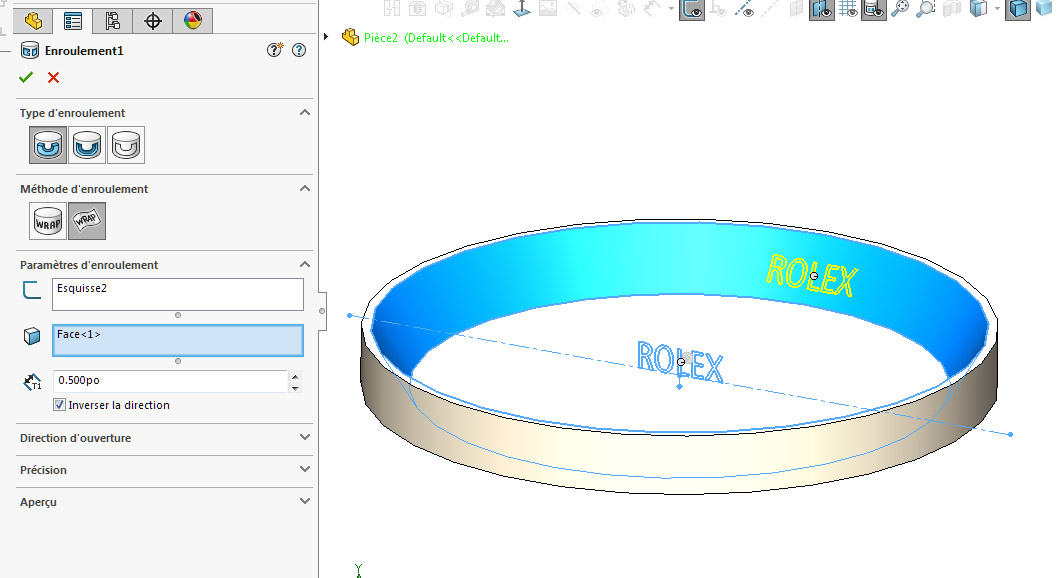
Why not use the "WINDING" tool and then repeat the function.
Here the piece is translucent.
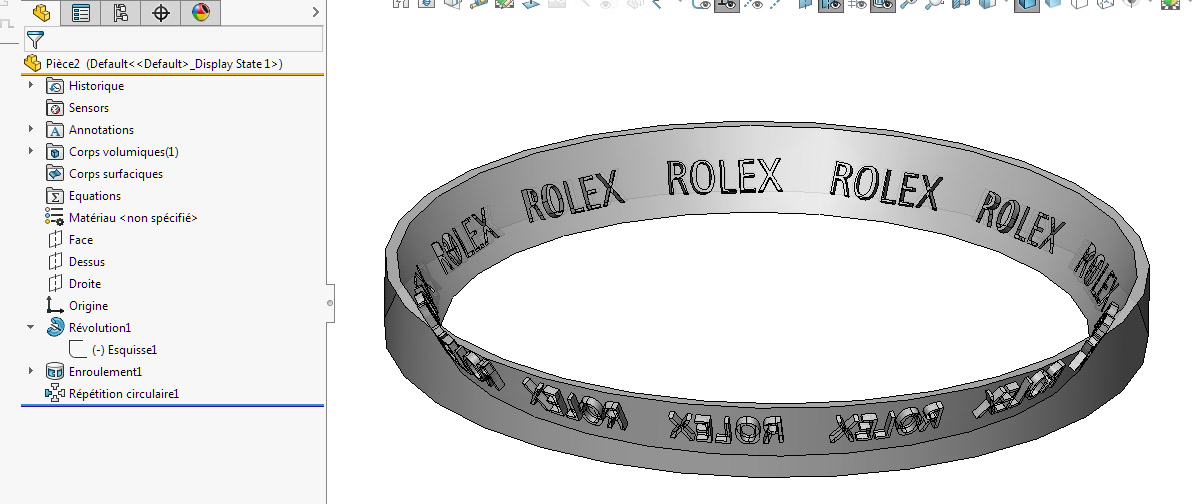

It is interesting that a circular pattern will work with up to three instances, but after that it fails.
I believe the root of the failure comes from the way the ROLEX extrude feature was defined (from Face) VS. the default Sketch Plane.
Extruding Up to Surface will give a functional result, but some trimming of excess material will be needed.
KJN offers good advice, but it really depends on if you want/need the text to be raised, or depressed. Cutting is the easiest method, but if raised text is needed, cutting won't work.
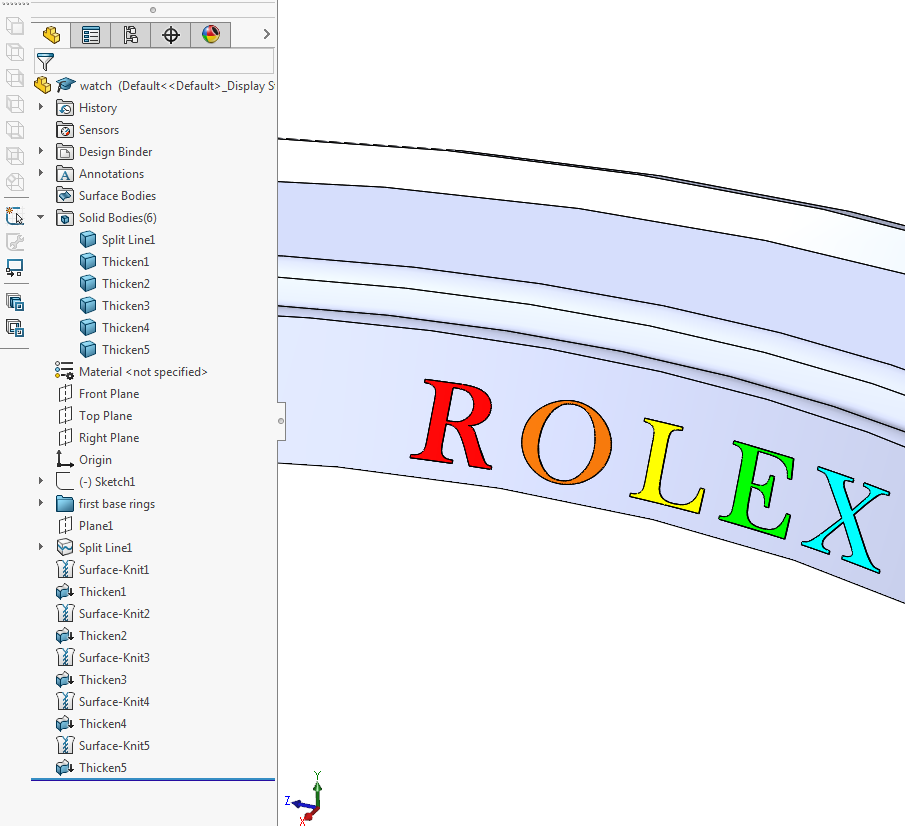
I've attached an example that uses a Split Curve to divide the faces, then each face is Knit into a surface before being thickened.
The resulting bodies can be duplicated as needed with the Circular Pattern tool. That is the reason for leaving the bodies un-merged when Thickening.
Or there is the option of using Wrap as Roger suggested.

Normally with circular pattern, there will be some warp to the extruded letter, and the worst case when there will be nesting of curves with each other thats why this is very critical operation and can easily fail.
The main cylindrical body will be changed to smaller surfaces , and this may have some number of faces limitation and made the part to fail after few instances, same advice from gentlemen before, if you split the face into multiple faces then this may succeed with careful controls.

Dan
Do not Circular pattern in sketch. Sometimes this is bug on SolidWorks. Only Circular pattern as Feature.
I hope to help

