Learn about the GrabCAD Platform
Get to know GrabCAD as an open software platform for Additive Manufacturing
Visit our new homepage
Home
Control
Shop
Streamline Pro
Partner Program
Print
Community
Log in
Library
Challenges
Groups
Questions
Tutorials
Engineers
Blog
Log in
Learn from thousands of free Tutorials.
New user?
Join the community
or
log in.
Tutorials
Most liked all time
Recent
Most liked
Most viewed
Most commented
This week
This month
All time
Category
Design & CAD
Modeling
Drafting
Assemblies
BOM
Dimensioning / Tolerancing
Translations
Manufacturing & CAM
3D Printing
Tooling
NC Machining
Composites
Measurement / Inspection
Simulation & CAE
FEM
CFD
Kinematics
Process Simulation
Engineering Fundamentals
Theory
Process
Standards
Other
Software
Snagit
Alibre Design
ArchiCAD
AutoCAD
AutoCAD Electrical
Autodesk 3ds Max
Autodesk Alias
Autodesk Inventor
Autodesk Maya
Autodesk Revit
Autodesk 123D
BricsCAD
Bentley MicroStation
BlenderCAD
BobCAD-CAM
CATIA
Delmia
DraftSight
FreeCAD
Femap
Fusion 360
Geomagic Design
IronCAD
JT
Kompas-3D
KeyCreator
KeyShot
Lagoa
Luxology
Mastercam
Moi3D
NX Unigraphics
OBJ
Onshape
OpenSCAD
Parasolid
Powermill
Powershape
Pro/Engineer Wildfire
PTC Creo Parametric
PTC Creo Elements
Rhino
SpaceClaim
SOLIDWORKS
solidThinking Evolve
Solid Edge
SolidFace
STEP / IGES
SketchUp
STL
TopSolid
TinkerCAD
T-Flex CAD
TurboCAD
VectorWorks
ViaCAD 3D
VRML / WRL
ZW3D
GrabCAD Print
Rendering
GrabCAD Community
GrabCAD Workbench
Text file
3D Manufacturing Format
Cinema 4D
Other
Skill level
All levels
Beginner
Intermediate
Expert
Drafting
×
AutoCAD
×
DraftSight
×
AutoCAD - Complete Tutorial for Beginners - Exercises 29
MRCAD
in
Drafting
1
0
Expert
FUNCTION KEY:- Ø ESC : To cancel Command Ø F1 : Autocad Help Ø F2 : Text Window on/off To see recently used command, options, Points. Ø F3 : Osnap button on/off. Ø F4 : Tablet on/off (Autocad 2010 & Prior Versions) 3DOSNAP ON/OFF (Autocad 2011 & Autocad 2012) Ø F5 : To change isoplane in isometric drawing. Ø F6 : DUCS (Dynamic user co-ordinate system) button on/off. Ø F7 : Grid button on/off. By default grid spacing is 0.5 inch in X- direction and Y - direction. Ø F8 : Ortho button on/off. Ø F9 : Snap button on/off If snap button is on mode from status bar than cursor will be Jump on the graphic one dot to another dot. Ø F10 : Polar button on/off. (Alternate off ortho button) Ø F11 : Otrack button on/off. (object snap tracking) Ø F12 : DYN button on/off. (Dynamic input) Short cut keys:- Ø Ctrl+A : select all Ø Ctrl+B : Snap on/off Ø Ctrl+C : Copy objects to clipboard Ø Ctrl+D : Dynamic UCS (DUCS) on/off Ø Ctrl+E : To change isoplane in isometric Ø Ctrl+F : Osnap on/off Ø Ctrl+G : Grid on/off Ø Ctrl+H : Set variable Ø Ctrl+I : Co-ordinate on/off Ø Ctrl+J : Repeat Last Command Ø Ctrl+K : Hyperlink Command Ø Ctrl+L : Ortho on/off Ø Ctrl+M : Repeat Last Command Ø Ctrl+N : To create new autocad file Ø Ctrl+O : To open autocad file Ø Ctrl+P : To print/plot autocad file Ø Ctrl+Q : To Quit/Exit from autocad Ø Ctrl+R : To cycle between viewports Ø Ctrl+S : To save autocad file Ø Ctrl+T : Tablet on/off Ø Ctrl+U : Polar on/off Ø Ctrl+V : Paste objects from clipboard Ø Ctrl+W : Otrack on/off (Autocad 2010 & prior ver.) Ø Ctrl+W : Selection cycling on/off (New Autocad 2011) Ø Ctrl+X : Cut objects to clipboard Ø Ctrl+Y : Redo Ø Ctrl+Z : Undo Ø Ctrl+0 : Clean Screen Ø Ctrl+1 : Properties Ø Ctrl+2 : Autocad design center Ø Ctrl+3 : Tool Palettes Ø Ctrl+4 : Sheet set Manager Ø Ctrl+5 : Info palette ( not working from Acad2008) Ø Ctrl+6 : Database Connect Ø Ctrl+7 : Markup set manager Ø Ctrl+8 : Quick calculator Ø Ctrl+9 : Show /Hide Commandline Window Ø Ctrl+Shift+C : Copy objects With basepoint Ø Ctrl+Shift+E : Presspull Command Ø Ctrl+Shift+H : Show /Hide Commandline window Ø Ctrl+shift+P : Quick properties Ø Ctrl+Shift+S : Save as Autocad file Ø Ctrl+Shift+V : Paste as block #Complete Tutorial for Beginners #AutoCAD - SolidWorks Beginners Tutorials - SolidWorks Sketching - SolidWorks Surface - SolidWorks Weldments - SolidWorks Assembly - SolidWorks Drawing - SolidWorks Sheet Metal - SolidWorks Mold Design - SolidWorks Simulation - SolidWorks Motion please subscribe our channel for more videos & projects in solidworks & dont forget to hit like & share the videos, thanks for watching. CADCREATIVE.IN Laptop Information Dell G3 3579 Core i5 8th Gen 15.6-inch FHD Item model number - G3 3579 Processor Type - Core i5 Processor Speed 2.3 GHz RAM Size - 16 GB Graphics Coprocessor - NVIDIA GeForce GTX 1050
AutoCAD
cadcreative
aakash
bhagat
akkiiii
Cara mengembalikan dan menghilangkan Menu bar Autocad
Abdul Azis
in
Drafting
1
0
Beginner
Perlu diketahui menubar berisi File, Edit, View, Insert, Tools, Draw, Dimension, Parametic, Window, Help,Express dan menu lain bila pengguna menambahkan exten tool tambahan itu sangat membantu bagi pemula yang belum begitu paham tentang perintah dalam command line. Untuk menampilkan dan menghilangkan menu bar di autocad sangat mudah. Ikuti Juga ! Facebook : https://web.facebook.com/pg/JagoAutoC... Instagram : https://www.instagram.com/jagoautocad/ Brlogger : https://jagoautocad.blogspot.com/ #JagoAutoCAD
AutoCAD
jagoautocad
Cara Mengatur Viewport Autocad
Abdul Azis
in
Drafting
1
0
Beginner
Viewport Autocad adalah Area yang digunakan untuk menampilkan bidang kerja sehingga anda dapat melakukan kegiatan menggambar (modeling) dengan berbagai sudut pandang, viewport ini memiliki luas, sudut pandang dan bentuk area yang sudah di tentukan sebelumnya. Biasasnya digunakan ketika kita menggambar 2D ataupun 3D. Ikuti Juga ! Facebook : https://web.facebook.com/pg/JagoAutoC... Instagram : https://www.instagram.com/jagoautocad/ Brlogger : https://jagoautocad.blogspot.com/ #JagoAutoCAD
AutoCAD
autodesk
jagoautocad
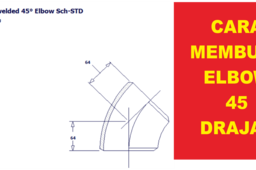
Cara Membuat Elbow 45 Derajat
Abdul Azis
in
Drafting
1
0
Beginner
Ada yang udah pernah dengar dengan nama elbow atau fitting ? Ia, kita jumpai ketika pipa mau belok 90͒ (drajat) atau 45͒ (drajat) kita membutuhkan yang nama nya elbow supaya bisa kita sambung dengan sempurna ketika pipa mau belok. Ikuti Juga ! Facebook : https://web.facebook.com/pg/JagoAutoC... Instagram : https://www.instagram.com/jagoautocad/ Brlogger : https://jagoautocad.blogspot.com/ #JagoAutoCAD #Autodesk
AutoCAD
jagoautocad
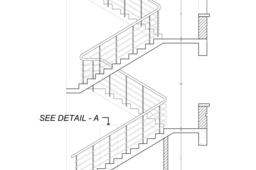
Stair Section
Tainul Islam
in
Drafting
1
0
Intermediate
The drawing is a Cross Section of Structural Buildings Stair Section
AutoCAD
section
stair
drawing
2d
autocad
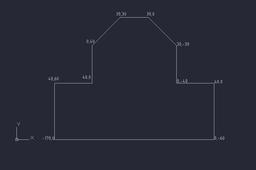
Drawing with coordinates in AutoCAD
Karajko CAD
in
Drafting
1
0
Intermediate
In this tutorial I am going to show you how to create drawings by using coordinates.
AutoCAD
coordinates
autocad
Path array in AutoCAD
Karajko CAD
in
Drafting
1
0
Beginner
Path array in AutoCAD.
AutoCAD
array
autocad
OBLIQUE dimension in AUTOCAD
Jasper Aaron
in
Drafting
1
0
Beginner
Oblique dimension is used to measure or annotate the isometric sketch.
AutoCAD
view
annotation
basics
sketch
isometric
dimension
oblique
dimensioning
tutorials
autocad
tricks
tips
Tutorial on AutoCAD Practice Design #2 | 2D Drafting
Ismail A Mohammed
in
Drafting
1
0
Beginner
In this AutoCAD video tutorial for beginners will guide you step by step to design the object.
AutoCAD
tutorial
drafting
2d
autocad
Tutorial on AutoCAD Practice Design #7 | 2D Drafting
Ismail A Mohammed
in
Drafting
1
1
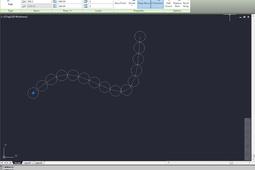
Beginner
In this AutoCAD video tutorial for beginners will guide you step by step to design the object.
AutoCAD
tutorial
drafting
2d
autocad
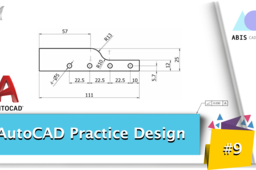
Tutorial on AutoCAD Practice Design #9 | 2D Drafting
Ismail A Mohammed
in
Drafting
1
0
Beginner
In this AutoCAD video tutorial for beginners will guide you step by step to design the object.
AutoCAD
tutorial
drafting
2d
autocad
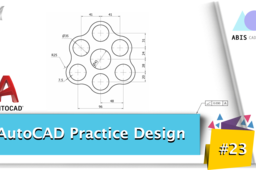
Tutorial on AutoCAD Practice Design #23 | 2D Drafting
Ismail A Mohammed
in
Drafting
1
0
Beginner
In this AutoCAD video tutorial for beginners will guide you step by step to design the object.
AutoCAD
tutorial
drafting
2d
autocad
Strip layout
Abhijeet pagare
in
Drafting
1
1
Beginner
How to create strip layout
AutoCAD
use
command
array
create
how
layout
strip
[CAD TIPS#11] ANGLEPOISE LAMP - AUTOCAD SMART BLOCK
Artur Izaak
in
Drafting
1
0
Beginner
🔧 Smart Anglepoise Lamp in AutoCAD – Dynamic Block Demo 💡 In this video, I show how to create a smart parametric Anglepoise lamp in AutoCAD using Dynamic Blocks. This setup allows flexible control over the lamp’s articulation with minimal constraints. You’ll see: ✅ Smart use of dynamic parameters ✅ Clean, adjustable geometry for multi-joint movement ✅ Useful tricks for mechanism-style blocks in AutoCAD 💬 Got ideas for other smart block mechanisms? Drop them in the comments! 👉 Like & subscribe for more CAD content!
AutoCAD
parametricmodeling
mechanicaldesign
dynamicblocks
cadtips
autocad
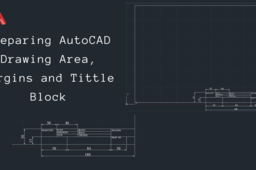
Preparing AutoCAD drawing area, Margins and Tittle block
Christopher Moris
in
Drafting
1
0
Beginner
Preparing AutoCAD drawing area, Margins and Tittle block for absolute beginner:
AutoCAD
saidi muya
1
…
6
7
8
…
18