Learn about the GrabCAD Platform
Get to know GrabCAD as an open software platform for Additive Manufacturing
Visit our new homepage
Home
Control
Shop
Streamline Pro
Partner Program
Print
Community
Log in
Library
Challenges
Groups
Questions
Tutorials
Engineers
Blog
Log in
Learn from thousands of free Tutorials.
New user?
Join the community
or
log in.
Tutorials
Most liked all time
Recent
Most liked
Most viewed
Most commented
This week
This month
All time
Category
Design & CAD
Modeling
Drafting
Assemblies
BOM
Dimensioning / Tolerancing
Translations
Manufacturing & CAM
3D Printing
Tooling
NC Machining
Composites
Measurement / Inspection
Simulation & CAE
FEM
CFD
Kinematics
Process Simulation
Engineering Fundamentals
Theory
Process
Standards
Other
Software
Snagit
Alibre Design
ArchiCAD
AutoCAD
AutoCAD Electrical
Autodesk 3ds Max
Autodesk Alias
Autodesk Inventor
Autodesk Maya
Autodesk Revit
Autodesk 123D
BricsCAD
Bentley MicroStation
BlenderCAD
BobCAD-CAM
CATIA
Delmia
DraftSight
FreeCAD
Femap
Fusion 360
Geomagic Design
IronCAD
JT
Kompas-3D
KeyCreator
KeyShot
Lagoa
Luxology
Mastercam
Moi3D
NX Unigraphics
OBJ
Onshape
OpenSCAD
Parasolid
Powermill
Powershape
Pro/Engineer Wildfire
PTC Creo Parametric
PTC Creo Elements
Rhino
SpaceClaim
SOLIDWORKS
solidThinking Evolve
Solid Edge
SolidFace
STEP / IGES
SketchUp
STL
TopSolid
TinkerCAD
T-Flex CAD
TurboCAD
VectorWorks
ViaCAD 3D
VRML / WRL
ZW3D
Rendering
GrabCAD Print
GrabCAD Community
GrabCAD Workbench
Text file
3D Manufacturing Format
Cinema 4D
Other
Skill level
All levels
Beginner
Intermediate
Expert
Drafting
×
Process Simulation
×
Process
×
DRAFTING OF TWO LEVER SHAFT
Hitesh Trivedi
in
Drafting
0
0
Expert
COMPLETE DRAFTING OF TWO LEVER DRIVE SHAFT WITH GD&T AND MACHINING SYMBOLS.
PTC Creo Parametric
Autocad 2d basic modify commands || Autocad 2020 2d drafting || 2d commands
S Satish kumar
in
Drafting
0
0
Beginner
Hi friends in this video i explain all the Modify commands in AutoCAD 2020 such as Move, Rotate,Trim, Array, Copy, Mirror, Fillet, Chamfer, Explode, offset and Scale
AutoCAD
move
drafting
2020
commands
modify
basic
2d
autocad
Aprende a hacer planos industriales GD&T con Drafting de Catia V5 con masterCAD
masterCAD S.A de C.V
in
Drafting
0
0
Beginner
www.mastercad.com.mx Este es el capitulo 1 completo de nuestro curso Online de Catia V5 de Drafting. Empieza desde cero a aprender el modulo de Drafting de Catia V5. Si te gustaría tomar el curso completo, puedes comprarlo en linea aquí: https://mastercad.com.mx/cursos-1?olsPage=products%2Fcurso-catiav5-gdt-online Tendrás acceso al curso inmediatamente después de acreditado tu pago. También puedes probar nuestros cursos Online gratuitamente aquí: https://mastercad.com.mx/start Si tienes dudas, escríbenos a: mastercad@mastercad.com.mx Whatsapp: 22 22 83 51 57 www.mastercad.com.mx
CATIA
planos
gd-t
formacion
online
curso
drafting
catiav5
SolidWorks Autotrace
taufik .
in
Drafting
0
0
Expert
SolidWorks Autotrace
SOLIDWORKS
autotrace
solidworks
Break tool in AutoCAD
Karajko CAD
in
Drafting
0
0
Beginner
Break tool in AutoCAD and how to use it instead of trim.
AutoCAD
break
autocad
AutoCAD Layout Page Setup Manager
Karajko CAD
in
Drafting
0
0
Beginner
A short tutorial about Page Setup Manager and modifying layouts.
AutoCAD
manager
setup
page
layout
autocad
2D Mirror in AutoCAD
Karajko CAD
in
Drafting
0
0
Beginner
Steps you need to do when you are working with mirror command in 2D.
AutoCAD
2d
mirror
autocad
AutoCAD | Create Logo and 3D text from image
Resa Ant
in
Drafting
0
0
Beginner
CREATE LOGO AND 3D TEXT FROM IMAGE.
AutoCAD
text
3d
autocad
AutoCAD Crescent Moon | AutoCAD Move Trim Join Rotate Hatch | How to Add Line Weight in AutoCAD
Ibrahim Omer
in
Drafting
0
0
Beginner
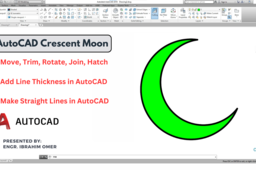
Hi friends welcome back to CADable. This is Engr. Ibrahim Omer. In this tutorial we will learn how to create a crescent moon shape in AutoCAD using essential commands like Move, Trim, Rotate, Join, and Hatch. This tutorial also covers adding line thickness, using Ortho mode for straight and non-straight lines, and enhancing your drafting skills. Explore more tutorials, YouTube Shorts, and daily technical quizzes in our community section. Subscribe to CADable for simple, effective learning! Chapters of the tutorial Introduction 0:00 Draw circles 0:46 AutoCAD move command and ortho mode 1:05 AutoCAD trim tool 1:43 AutoCAD join command 1:53 AutoCAD rotate command and ortho mode 2:14 Adding line thickness 2:37 AutoCAD hatch command (solid hatch) 3:03 Make sure to check out 3:32 Conclusion 4:05 #autocadcrescentmoon #autocad2ddrafting #autocadusefulcommands #CADable #CADabletutorials #AutoCADTutorial #CrescentMoonAutoCAD #AutoCADBasics
AutoCAD
cadable tutorials
cadable
autocad hatch command
add line thickness in autocad
autocad basic commands
autocad crescent moon
PhenQ Avis 2025: Results After 30 Days of Use
Lammy joon
in
Process
0
0
Beginner
Introduction In the ever-growing market of weight loss supplements, PhenQ Avis Complaints has gained significant attention and praise. Promising a multi-faceted approach to fat burning, appetite suppression, and energy boosting, PhenQ has become a top choice for many looking to shed pounds effectively. But does it really live up to the hype? Click Now> https://www.facebook.com/PhenQAvisComplaints/ https://www.facebook.com/avisphenq/ https://colorcovrage.com/phenq-avis/ #PhenQAvis #PhenQAvisWeightLoss #PhenQAvisWeightLossReview #PhenQAvisWeightLossReviews #PhenQAvisWeightLossWhereToBuy #PhenQAvisWeightLossReviewsPrice
phenqavis
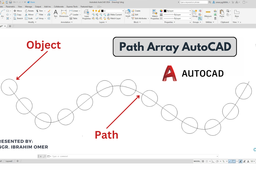
Path Array AutoCAD | What is an Array in CAD | How to Create Path Array | CADable Tutorial | CADable
Ibrahim Omer
in
Drafting
0
0
Beginner
Path Array AutoCAD | What is an Array in CAD | How to Create Path Array | CADable Tutorials | CADable Hi friends, welcome back to CADable! This is Engr. Ibrahim Omer, and in this short tutorial, we’ll learn how to use the Path Array in AutoCAD. I’m using AutoCAD 2024, but don’t worry — if you’re using an older or newer version, you can still follow along easily. First, we’ll understand what an array is in CAD — and remember, it’s different from arrays in computer science. Then we’ll briefly go over the three main types of arrays in AutoCAD with simple illustrations: Rectangular Array Polar Array Path Array Finally, we’ll focus on the Path Array, where we place objects along a spline. Let’s get started! Chapters of the tutorial: What is an array in CAD 0:00 Types of arrays in AutoCAD with examples 0:16 AutoCAD basic settings 0:34 Draw a spline (path) 0:56 Draw a circle (object) 1:20 AutoCAD polar array explanation 1:34 Conclusion 2:36 That's it for today's tutorial! I really hope you find it useful. If you have any questions or need help, please drop a comment below. I love hearing from you. Don't forget to subscribe for more fun and informative videos. I also make tutorials, Shorts, and even quizzes and polls to help refresh your memory, learn new things, or just revisit the basics. #PathArrayAutoCAD #WhatisanArrayinCAD #HowtoCreatePathArray #CADableTutorials #cadable Watch Tutorial: https://youtu.be/f3kruhSadDQ
AutoCAD
cadable
array examples autocad
what is an array in autocad
path array autocad
Catia v5 Create drawing
Catia v5 Automation Hub
in
Drafting
0
0
Intermediate
In this video, I demonstrate a fully automated process for creating a technical drawing in CATIA V5 using a custom VBA macro. The macro automatically inserts standard views, populates the title block with metadata from the 3D Part Properties, and uses an update mechanism to keep everything synchronized — even when the model changes. ✅ Key features: Open a predefined drawing template (empty or with standard views) Automatically insert the main view from the active 3D model Read values from Part Properties (part name, material, thickness, etc.) Fill in title block fields without manual input Refresh/update the drawing automatically when model data changes 🎯 Perfect for engineers, designers, and CAD admins who want to save time, reduce manual errors, and keep their 2D documentation perfectly synced with the 3D model.
CATIA
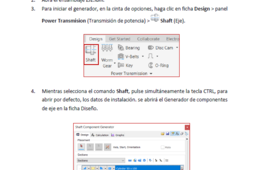
Tema 4: Elementos de maquina
LUIS GOMEZ
in
Drafting
0
0
Beginner
Diseño de Eje con Autodesk Inventor – Shaft Component Generator Este modelo fue desarrollado utilizando el Generador de Ejes (Shaft Component Generator) de Autodesk Inventor, una herramienta especializada para el diseño de componentes de transmisión de potencia. El proyecto incluye: Creación de un eje con secciones cilíndricas y cónicas. Configuración de apoyos (rodamientos) y cargas aplicadas. Cálculo automático de esfuerzos, factores de seguridad y diagramas de corte/momento. Integración del eje en un ensamble mayor (aplicable a maquinaria de construcción, minería o agrícola). 🔧 Aplicaciones: Eje de transmisión en mezcladoras de concreto. Eje excéntrico en chancadoras cónicas. Eje portadiscos en cortadoras de concreto. Ejes de compresores o bombas. Este ejemplo es ideal para estudiantes y profesionales que deseen comprender cómo Inventor permite combinar modelado paramétrico y análisis mecánico en un solo entorno de trabajo.
Autodesk Inventor
diseno
ejes
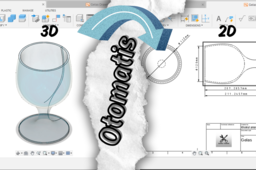
Cara Mudah 3D menjadi 2D di Fusion 360
khoirul anam
in
Drafting
0
0
Beginner
Cara mudah membikin desain 3D menjadi 2D di software Fusion 360
Fusion 360
mechanical engineering
BASIC DRAFTING AUTODESK INVENTOR
Sutrisno Birowo
in
Drafting
0
0
Beginner
www.youtube.com/@CAD-Autodesk
Autodesk Inventor
wwwyoutubecomcad-autodesk
1
…
44
45
46
…
51