

HSMWorks tutorial №4 - Advanced 3D machining

In this tutorial we will learn how to machine a 3D part using the following steps:
▸ Create a Machining Assembly
▸ Create a Coordinate System
▸ Job Settings
▸ Facing
▸ Outside Contouring (2D)
▸ Adaptive Clearing
▸ Adaptive Clearing Rest Machining
▸ Horizontal
▸ Contour Finishing
▸ Parallel
▸ Pencil 1
▸ Pencil 2
▸ Pencil 3
▸ Post Processing
Before proceeding, open the part Tutorial4.SLDPRT into HSMWorks.
The files used in this manual can be found in the examples folder in the folder where HSMWorks is installed. Typically, this is something like C:\Program Files\HSMWorks\examples\
𝐃𝐢𝐬𝐜𝐥𝐚𝐢𝐦𝐞𝐫: This tutorial is a representation of the original Help tutorial with the HSMWorks software suite.
This guide is intended for educational purposes and to make the features and tools of HSMWorks more accessible to the general public.
More information about purchasing, installing, and using HSMWorks can be found on the official website: https://www.autodesk.com/products/hsmworks
-
Step 1: Create a Machining Assembly
Before proceeding we will make a new machining assembly to keep the machining operations and toolpaths in.
➝ From the File menu choose Make Assembly from Part. This will create a new assembly file, and preselect the already opened part document as the component to insert.
➝ Click ✓ at the top of the property manager.
➝ Rotate the part with the Z-axis (blue) upwards so it corresponds better to the placement on the machine:

➝ Save the new assembly as Tutorial4.SLDASM in the examples folder, next to the part file, or choose a name and location of your own choice.
When saving the assembly you may receive a message that referenced models have been modified:
➝ The following models referenced in this document have been modified. They will be saved when the document is saved.
You receive this message if using a newer version than the one the tutorial part was created with, and you can safely select Save All.
It is almost always better to save machining operations and toolpaths as an assembly. This helps maintain associativity with the model by alerting you of any changes when the assembly is opened.
For more information see Machining Assemblies.
-
Step 2: Create a Coordinate System
First you have to create the coordinate system specific for the following operations.
➝ From the Insert menu select Reference Geometry -- Coordinate System.
➝ In the model window click the + in front of Tutorial4 to unfold the feature tree.
➝ In the feature tree, locate Sketch1 on the Extrude1 feature in the Tutorial4 component.
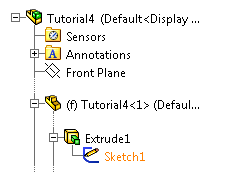
➝ Right click Sketch1 and choose Show.
➝ Select the point on the sketch as is shown below. This will make it the Origin of your coordinate system.
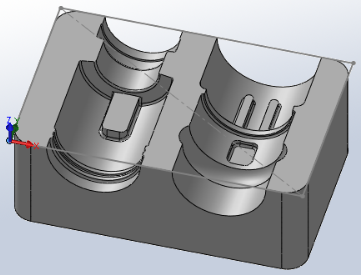
Notice that the coordinate system is now drawn at this position and the point is selected in the Origin field on the property page.
Depending on your machine set up, you can change the location of the origin and the direction of the axes by selecting different entities here. For example, if the X and Y axes don't have a the correct direction you can select a line of the sketch for X axis and another for the Y axis. It is also possible to select any plane or planar face which gives the axis perpendicular to that face or plane.
➝ Click ✓ at the top of the property manager.
-
Step 3: Job Settings
➝ Go to the HSMWorks operations manager by clicking on the Machining Operations tab
➝ Right click on Tutorial4 Operation(s) and select New Job.
1. Set the Work Coordinate System (WCS)
When creating a new job, the default WCS can often be used.
The default WCS depends on the the design of the assembly or part. In this case HSMWorks detects that a single coordinate system exists and uses that for the default WCS.
In the following section, we show how to manually select a coordinate system for the WCS even though the default could be used. This allows you to change the WCS if you are not happy with the default selection, or if you have created more than one coordinate system feature.
➝ Scroll down to the group Work Coordinate System (WCS).
➝ In the drop down menu Tool Orientation Selection, make sure that Use Coordinate System is chosen.
➝ Make sure that the WCS origin field is active by clicking on it.
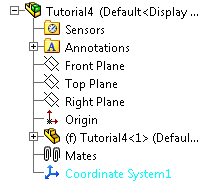
➝ In the model window click the + in front of Tutorial4 to expand the Assembly tree.
➝ Make sure that the Coordinate System1 feature is selected:
2. Define the Stock
Defining the stock on a simple example like this is not strictly necessary since by default HSMWorks uses an Automatic stock as the bounding box of the model.
Defining the stock to match that actually used on the machine does, however, make the stock simulation more accurate.
On machining assemblies with multiple parts and/or fixtures in the assembly, this exercise will prove important.
➝Scroll up to the group Stock.
➝ From the Stock Definition drop down menu select Automatic.
➝ From the Stock Offset Mode drop down select Add Stock to Sides and Top-Bottom.
➝ Set the values Stock side offset to 0mm and Stock top offset and Stock bottom offset to 1mm.
3. Define the Model Surfaces
Again, the defaults can be used, but we perform the selection manually to show how to correctly define surfaces in an assembly with more than one component.
➝ Scroll up to the group Model.
➝ Click the selection field to set the selection focus.
➝ Click anywhere on the model in graphics window to select the part as the machining surfaces.
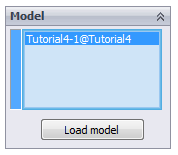
➝ Click ✓ at the top of the property manager.
-
Step 4: Facing
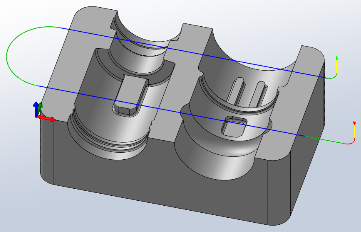
To clear the top face of our stock and ensure that it is completely horizontal, we will begin with a facing operation.
➝ Click Face on the CAM toolbar or select it form the CAM, Toolpaths menu.
This creates a new operation and opens the Property Manager where you can edit the individual parameters controlling the toolpath, as well as selecting the actual geometry to machine.
The property page is divided into number of groups, and in this tutorial we will go through each one by one changing the necessary settings in each group as we go along.
1. Tool
➝ Press Library
➝ From the library Tutorial under Sample Libraries, select tool #1 - Ø50mm flat
➝ Press Select
2. Geometry
For the facing operation we can use the Sketch1 feature that we made visible when creating the coordinate system.
➝ From the feature tree, locate Sketch1 like we did when creating the coordinate system feature.
➝ Click Sketch1 to select it as the facing geometry.
We are now done using the sketch, and can hide it to avoid unnecessary items shown on our model.
➝ Right click Sketch1 and choose Hide.
3. Passes
Face
The parameters in this group controls how the actual facing toolpath is laid out.
When you selected the 50mm tool, the Stepover and Pass Extension parameter were automatically updated to reflect the new tool diameter. We will leave the parameters at their defaults, except the pass extension, which we can increase.
➝ Change Pass Extension: 5mm
4. Start calculation
Click ✓ at the top of the property manager. This will automatically start calculation of the toolpath.
The toolpath will now be calculated and a preview will be shown in the model view:
-
Step 5: Outside Contouring (2D)
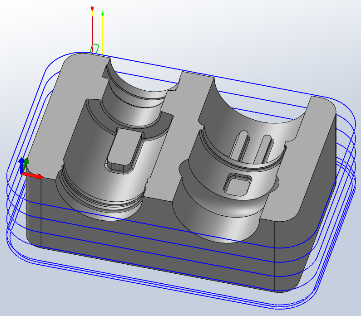
We want to run a contouring toolpath along the outer edges of the part to create the rounded corners and to finish the walls properly.
➝ Click 2D Contour on the CAM toolbar or select it from the CAM, Toolpaths menu.
1. Tool
By default, newly created operations use the same tool as the previous operation. In this case, we get the tool from the facing operation selected. This is not useful for this operation, so we will select a different tool instead.
➝ Press Library
➝ From the library Tutorial under Sample Libraries, select tool #2 - Ø16mm flat
➝ Press Select
2. Geometry
Here we select the geometry we want to machine. We want to run the tool around the outside edge of the part.
➝ Select the edges to be machined. Move the mouse over the bottom front edge, it will be highlighted, then click on it. Depending on the side of the edge you click you can determine the direction of the contour. By clicking closer to the desired start of an edge you can determine the direction of the contour. For climb milling click close to the bottom right side of the edge. After you finished your geometry selections, the graphics window should look like this:

3. Heights
Since our job stock is set to have 1mm Z offset, we need the contouring toolpath to go below the height of the selected geometry.
➝ Change Bottom: -2.0mm
4. Passes
2D Contour
To machine the contour in steps of 10mm, set these parameters:
➝ Enable Multiple Depths
➝ Change Maximum Roughing Stepdown: 10.0mm
To avoid leaving marks at every step, we can do a single finishing pass at the final depth by setting these parameters:
➝ Enable Roughing Passes
➝ Enable Finish Only At Final Depth
5. Start calculation
➝ Click ✓ at the top of the property manager.
The toolpath will now be calculated and shown in the graphic area.
-
Step 6: Adaptive Clearing
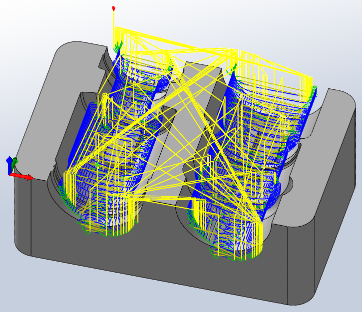
In this tutorial, we will use the Adaptive Clearing strategy to rough out the bulk of material.
Adaptive Clearing is a modern HSM (High Speed Machining) strategy designed for roughing on modern machines capable of running complex NC files at high speeds.
The defining parameters in Adaptive Clearing is the Optimal Load and the Stepdown, but whereas traditional roughing strategies requires you to set the load (or stepover) and stepdown for the worst case scenario, Adaptive Clearing allows you to use the recommended maximum values provided by your tool vendor. This is possible since the specified Maximum Load is guaranteed not to be exceeded.
The Maximum Load is the Optimal Load + the Load Deviation.
➝ Click Adaptive Clearing on the CAM toolbar or select it form the CAM, Toolpaths menu.
1. Tool
➝ Press Library
➝ From the library Tutorial under Sample Libraries, select tool #11 - Ø10R1mm bullnose
➝ Press Select
2. Geometry
Rest Machining
By default, the adaptive clearing strategy does rest machining from the job stock.
In this tutorial, we have already removed some of the stock with the previous operations, so to avoid having the adaptive clearing strategy remove the same material, we need to specify that rest machining should take the previous operations into account.
➝ Select From Previous Operation(s) from the Rest Material Source drop down
Other settings in this group we will leave unchanged.
3. Passes
Adaptive Clearing
The parameters in this group control the for Adaptive Clearing passes.
In this tutorial we will use the default parameters. Generally, however, you will have to look up the values for the stepdown and load parameters in your tool catalog.
Stock to Leave
The Stock to leave parameter control the amount of material to leave in the radial (in the XY-plane) and axial (along the Z-axis) directions. The default values of 0.5mm are suitable in this example, so we will leave them unchanged.
4. Start calculation
➝ Click ✓ at the top of the property manager. The resulting toolpath will look like this:
5. Verification
To verify the toolpath use the stock simulation, right click on the Job node in the Operation Manager and select Stock Simulation (All). Press the Start button and watch the stock simulation up to the final stock shape.
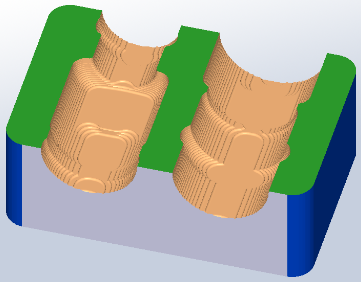
Click ✓ to exit the Stock Simulation.
If you want to see the entire model during the stock simulation right click on the screen and select Fit to window in the bottom of menu. You can also switch to various views to se the final part from exactly directions.
Once the verification is complete, you can do a comparison with the stock by using the stock compare feature.
Press Stock to compare the model and stock. This will color the verified part depending on the amount of material left.
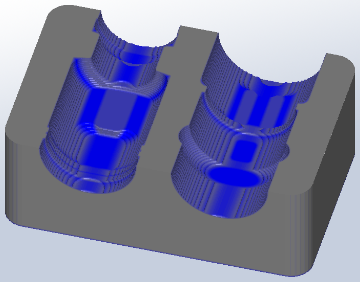
The color in comparison depends on the amount of material left.
Grey indicate that there is no stock left while blue indicate that there is more stock left.
You can measure the exact amount of stock left by moving your mouse over the model and watching the Distance display update in the Stock group on the property page.
Additionally, the Comparison group lets you control the number of steps in calculated in the comparison, as well of the size of the steps. The default is 100 steps of 0.01 mm. This means that the coloring is done beween 0.0 and 1.0 mm stock in 100 steps.
The comparison clearly shows that there are a number of areas that our 10mm tool cannot reach. In the next step we will rough these areas using rest machining.
-
Step 7: Adaptive Clearing Rest Machining
To rough out the remaining stock where the 16 mm tool could not fit, we will remove the rest material using the Adaptive Clearing with a smaller tool.
We will start by making a copy of the previously created operation.
➝ Right click on the Adaptive1 operation
➝ Choose Duplicate
➝ Right click on the newly created operation and select Rename from the context menu.
Alternatively, you can use F2 key to rename.
➝ Change the name to Adaptive2-Rest.
➝ Right click on the new operation
➝ Choose Edit
This will open the property page for the new operation. Notice that all parameter values are the same as the Adaptive Clearing operation created before.
In many cases creating a copy (using Cut and Paste, or the Duplicate option) is faster than creating a new operation since you often use similar parameter settings in successive operations.
1. Tool
➝ Press Library
➝ From the library Tutorial under Sample Libraries, select tool #14 - Ø5R0.5mm bullnose
➝ Press Select
2. Passes
Adaptive Clearing
➝ Change Optimal Load: 1.0mm
➝ Change Maximum Roughing Stepdown: 5mm
➝ Change Fine Stepdown: 1mm
Stock to Leave
➝ Change Radial (Wall) Stock To Leave: 0.3mm
➝ Change Axial (Floor) Stock To Leave: 0.3mm (Automatically updated)
3. Start calculation
➝ Click ✓ at the top of the property manager. The resulting toolpath will look like this:
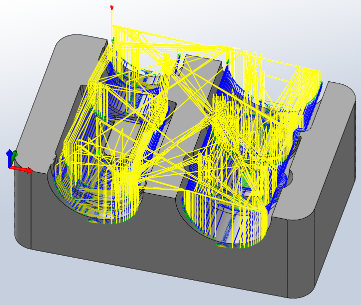
4. Verification
To verify the toolpath use the stock simulation, right click on the Job node in the Operation Manager and select Stock Simulation (All). Press the Start button and watch the stock simulation up to the final stock shape. Press Stock to compare the model and stock. This will color the verified part depending on the amount of material left.
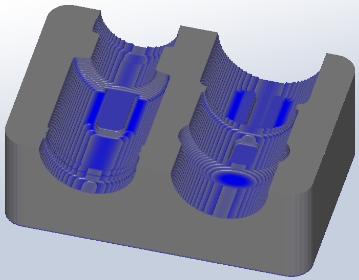
Click ✓ to exit the Stock Simulation.
There is now primarily material left in the narrow slots on the part.
-
Step 8: Horizontal
In next operation we will use Horizontal strategy to finish the horizontal parts of the part.
➝ Click Horizontal on the HSMWorks toolbar or select it from the CAM, Toolpaths menu.
1. Tool
The 5mm bull nose tool used in the adaptive rest operation can be used for clearing the small horizontal areas left on the part, and using this will save a tool change.
2. Heights
➝ From the Top drop-down, select From Model Top
➝ Set Top: -1mm
When you set the Top value to 1mm under the top plane of the part, the tool will machine only inside cavities of the part and not on the upper surface.
Alternatively we could have included the top surfaces in the check surface selection.
3. Passes
The Adaptive Clearing operations have left a maximum of 0.3mm (Stock to leave) + 1.0mm (fine stepdown) + 0.1mm (tolerance) = 1.4mm. This is a little too much for the tool to remove in one pass, so we will do it in 3 x 0.4 mm passes instead.
➝ Enable Axial Offset Passes
➝ Change Maximum Roughing Stepdown: 0.4mm
➝ Change Number Of Stepdowns: 3
4. Linking
➝ Change Retraction policy to Minimum Retraction.
5. Start calculation
Click ✓ at the top of the property manager. The resulting toolpath will look like this:
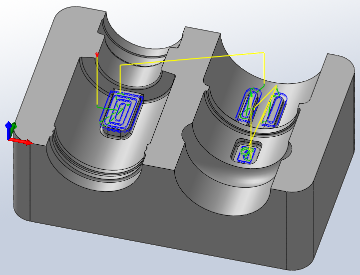
-
Step 9: Contour Finishing
In this operation we will use the 3D contour finishing strategy to finish the steep areas of the part.
➝ Click Contour on the CAM toolbar or selected it from the HSMWorks Toolpaths menu.
1. Tool
For this operation we will need a 6mm ball end mill. Again, we select this from the Tutorial sample library.
➝ Press Library
➝ From the library Tutorial under Sample Libraries, select tool #21 - Ø6mm ball
➝ Press Select
2. Geometry
Machining Boundary
➝ Change Tool Containment to Tool Center on Boundary.
➝ Change Additional Offset: 1.0mm
Slope
➝ Enable Slope
➝ Change From Slope Angle: 30deg
3. Passes
Contour
In this group change only the following settings:
➝ Change Maximum Stepdown: 0.3mm
➝ Disable Flat Area Detection
4. Linking
➝ Change Retraction policy to Minimum Retraction.
➝ Change Safe Distance: 5mm
➝ Change Maximum Stay-Down Distance: 8mm
5. Start calculation
Click ✓ at the top of the property manager. The resulting toolpath will look like this:
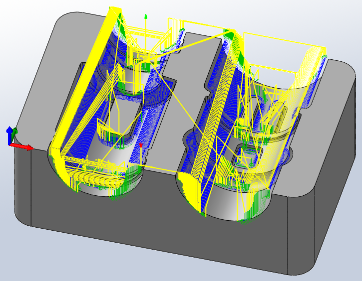
-
Step 10: Parallel
In this operation we will use the parallel finishing strategy to machine the part .
➝ Click Parallel on the CAM toolbar or select it from the CAM, Toolpaths menu.
1. Tool
The previous tool #21 - Ø6mm ball should still be selected.
2. Geometry
Slope
The contour operation have covered the slope range from 30 to 90 degrees. Thus, if we specify that this parallel operation should machine from 0 to 35 degrees this gives us a 5 degree overlap between the two operation.
➝ Enable Slope
➝ Change To Slope Angle: 35deg
Check Surfaces
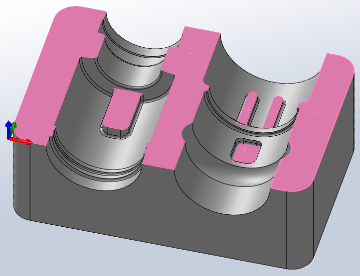
We want to finish the shallow areas of the part. Specifically those under 30 degrees not reached by the contour finishing operation. But since we have already finished the flat areas, we want to prevent the tool from touching these flat surfaces. For this purpose we can use check surfaces.
➝ Enable Check Surfaces
➝ In the Check surface selection field, select all of the flat faces:
3. Heights
➝ Set Top: -1mm
When you set the Top value to 1mm under the top plane of the part, the tool will machine only inside cavities of the part and not on the upper surface.
Alternatively we could have included the top surfaces in the check surface selection.
4. Passes
Parallel Finishing
➝ Change Stepover: 0.2mm
➝ Change Pass Direction: 45deg
4. Linking
➝ Change Retraction policy to Minimum Retraction.
➝ Change Safe Distance: 6mm
Leads & Transitions
➝ Change Transition method to Straight line.
5. Start calculation
➝ Click ✓ at the top of the property manager. The resulting toolpath will look like this:
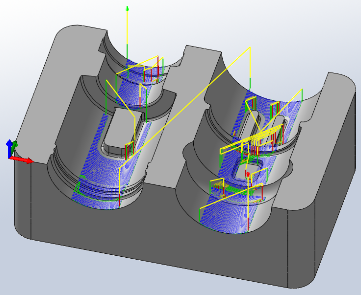
6. Verification
To verify the toolpath use the stock simulation, right click on the Job node in the Operation Manager and select Stock Simulation (All). Press the Start button and watch the stock simulation up to the final stock shape. Press Stock to compare the model and stock. This will color the verified part depending on the amount of material left.
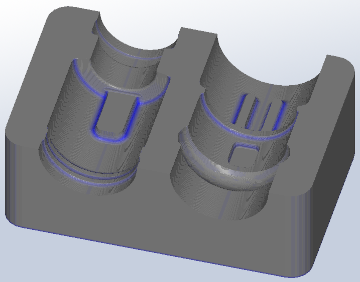
Click ✓ to exit the Stock Simulation.
From the comparison we can see that we have now finished most areas of the part, but that we are still missing material in the smaller fillets.
-
Step 11: Pencil 1
To remove the material in the smaller fillets we can use the Pencil finishing strategy.
The Pencil strategy is a special finishing strategy which detects inner corner edges on the surface and creates a toolpath here. This method is particularly effective for finishing small radius fillets.
➝ Click Pencil on the HSMWorks Toolbar or select it from the CAM, Toolpaths menu.
1. Tool
By looking at the comparison in the previous step, we could see that the maximum amount of material left is about 1.4mm.
Also, by investigating the model, we find that we have some fillets with a radius of 1.0mm and some smaller ones of 0.5mm.
In this pencil operation we will remove most of the material not reachable by the previous tools by using a 3mm ball mill.
➝ Press Library
➝ From the library Tutorial under Sample Libraries, select tool #22 - Ø3mm ball
➝ Press Select
2. Passes
Pencil
➝ Change Number Of Stepovers: 12
➝ Change Stepover: 0.14
3. Start calculation
Click ✓ at the top of the property manager. The resulting toolpath will look like this:
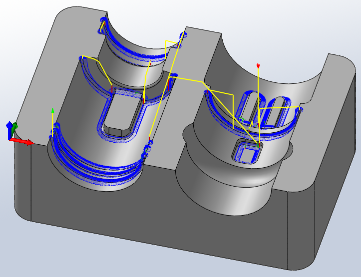
-
Step 12: Pencil 2
Since the 3mm tool does not remove all the material in the R1.0mm and R0.5mm fillets we will create a second pencil operation with a 2mm ball mill to handle the 1mm fillets.
➝ Click Pencil on the HSMWorks Toolbar or select it from the CAM, Toolpaths menu.
1. Tool
➝ Press Library
➝ From the library Tutorial under Sample Libraries, select tool #23 - Ø2mm ball
➝ Press Select
2. Passes
Pencil
➝ Change Number Of Stepovers: 11
➝ Change Stepover: 0.08mm
3. Start calculation
Click ✓ at the top of the property manager. The resulting toolpath will look like this:
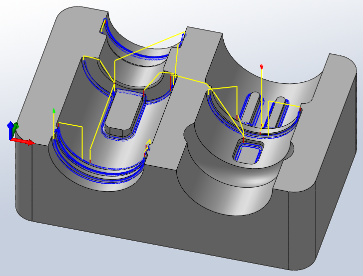
4. Verification
To verify the toolpath use the stock simulation, right click on the Job node in the Operation Manager and select Stock Simulation (All). Press the Start button and watch the stock simulation up to the final stock shape. Press Stock to compare the model and stock. This will color the verified part depending on the amount of material left.
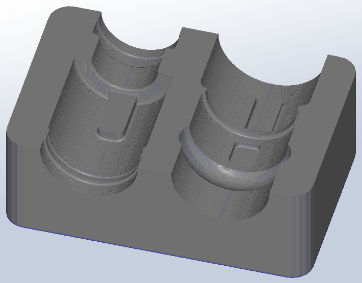
Click ✓ to exit the Stock Simulation.
By zooming in on the comparison we see that we have are still missing a bit of material in the fillets with radius 0.5mm.
-
Step 13: Pencil 3
Since the 2mm tool does not remove all the material in the R0.5mm fillets we will create a third pencil operation with a 1mm ball mill to handle the 0.5mm fillets.
➝ Click Pencil on the HSMWorks Toolbar or select it from the CAM, Toolpaths menu.
1. Tool
➝ Press Library
➝ From the library Tutorial under Sample Libraries, select tool #24 - Ø1mm ball
➝ Press Select
2. Passes
Pencil
➝ Change Number Of Stepovers: 15
➝ Change Stepover: 0.05mm
3. Start calculation
Click ✓ at the top of the property manager. The resulting toolpath will look like this:
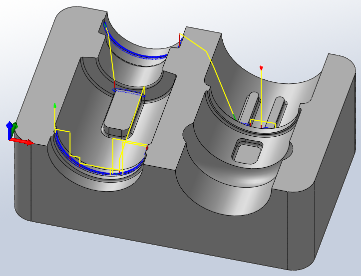
4. Verification
To verify the toolpath use the stock simulation, right click on the Job node in the Operation Manager and select Stock Simulation (All). Press the Start button and watch the stock simulation up to the final stock shape. Press Stock to compare the model and stock. This will color the verified part depending on the amount of material left.

Click ✓ to exit the Stock Simulation.
We have essentially finished our part to within the tolerance specified in the various operations, and the only stock that is remaining is that between the stepovers of the various toolpaths.
If we want an even better finish, you can edit the operations and use a higher tolerance and smaller steps in the toolpath.
-
Step 14: Post Processing
We are now ready to post process the toolpaths in order to make the NC-code which can be used by the machine tool.
➝ Right click on Job in the operation manager.
➝ Select Post process (All).
➝ From the pull down Post processor configuration select heidenhain.cps Generic Heidenhain.
➝ Select an output folder of your choice.
➝ Start the post processor by clicking Post button.
By default the post processed file will be opened in Autodesk HSM Edit which allows you to inspect the generated NC-code as well as transferring it to your machine.
Congratulations! You have completed this tutorial.

