Learn about the GrabCAD Platform
Get to know GrabCAD as an open software platform for Additive Manufacturing
Visit our new homepage
Home
Control
Shop
Streamline Pro
Partner Program
Print
Community
登录
Library
Challenges
Groups
Questions
Tutorials
Engineers
Blog
登录
Learn from thousands of free Tutorials.
New user?
Join the community
or
log in.
Tutorials
Most liked all time
Recent
Most liked
Most viewed
Most commented
This week
This month
All time
Category
Design & CAD
Modeling
Drafting
Assemblies
BOM
Dimensioning / Tolerancing
Translations
Manufacturing & CAM
3D Printing
Tooling
NC Machining
Composites
Measurement / Inspection
Simulation & CAE
FEM
CFD
Kinematics
Process Simulation
Engineering Fundamentals
Theory
Process
Standards
Other
Software
Snagit
Alibre Design
ArchiCAD
AutoCAD
AutoCAD Electrical
Autodesk 3ds Max
Autodesk Alias
Autodesk Inventor
Autodesk Maya
Autodesk Revit
Autodesk 123D
BricsCAD
Bentley MicroStation
BlenderCAD
BobCAD-CAM
CATIA
Delmia
DraftSight
FreeCAD
Femap
Fusion 360
Geomagic Design
IronCAD
JT
Kompas-3D
KeyCreator
KeyShot
Lagoa
Luxology
Mastercam
Moi3D
NX Unigraphics
OBJ
Onshape
OpenSCAD
Parasolid
Powermill
Powershape
Pro/Engineer Wildfire
PTC Creo Parametric
PTC Creo Elements
Rhino
SpaceClaim
SOLIDWORKS
solidThinking Evolve
Solid Edge
SolidFace
STEP / IGES
SketchUp
STL
TopSolid
TinkerCAD
T-Flex CAD
TurboCAD
VectorWorks
ViaCAD 3D
VRML / WRL
ZW3D
GrabCAD Print
Rendering
GrabCAD Community
GrabCAD Workbench
Text file
3D Manufacturing Format
Cinema 4D
Other
Skill level
All levels
Beginner
Intermediate
Expert
cadable tutorials
×
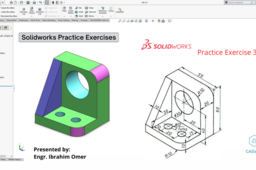
Solidworks Practice Exercises | Solidworks Practice Exercise 36 | Use of Solidworks Evaluate Command | CADable | CADable tutorials
Ibrahim Omer
in
Design & CAD
0
0
Beginner
Hi friends welcome back to CADable. This is Engr. Ibrahim Omer. In this tutorial, we will draw a mechanical block in solidworks using solid modeling features. Commands and features used in this tutorial are listed below: 1) 2D Commands 2) Extrude Boss 3) Fillet 4) Hole Wizard 5) Extrude Cut 6) Rib 7) Evaluate 8) Color It is a good exercise for beginners and it will be a good practice for beginners. Kindly use play pause technique for practice. Feel free to ask your queries in comment section. I will try to answer each and every question. Keep practicing as practice makes a man perfect. For Files: https://grabcad.com/library/practice-exercise-36-1 #solidworkspracticeexercises #solidmodelingsolidworks #practiceexercise36solidworks- #solidworksevaluatecommand #CADable #CADabletutorials Follow our Channel: https://www.youtube.com/c/CADable
SOLIDWORKS
solidworks 3d exercise
cadable tutorials
cadable
solidworks practice exercises
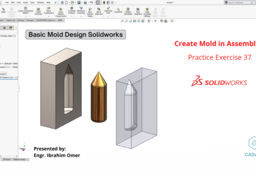
Basic Mold Design Solidworks | Create Mold in Assembly | Solidworks Practice Exercise 37 | CADable | CADable tutorials
Ibrahim Omer
in
Assemblies
0
0
Beginner
How to Create a Mold in SolidWorks Using Assembly Mode (Beginners Tutorial) Hi friends, welcome back to CADable. In this tutorial, I will show you how to create a mold in SolidWorks using assembly mode. This tutorial is for beginners, so I will start by creating the main part in part mode. Then, I will show you how to constrain the part planes (front, top, and right) with the planes of the assembly. Finally, I will create the mold using the cavity feature. This type of mold can be used to create symmetric and basic parts. Here are the steps involved in creating a mold in SolidWorks using assembly mode: Create the main part in part mode. Constrain the part planes with the planes of the assembly. Create the mold using the cavity feature. Here are some tips for creating a mold in SolidWorks using assembly mode: Use a symmetric part for the main part. This will make the mold creation process easier. Constrain the part planes with the planes of the assembly. This will ensure that the mold is created correctly. Use the cavity feature to create the mold. This is the easiest way to create a mold in SolidWorks. Later we will create exploded view animation. I hope this tutorial was helpful. If you have any questions, please leave a comment below. Thanks for watching! #solidworkspracticeexercises #basicmolddesignsolidworks #practiceexercise37solidworks #createmoldinassembly #CADable #CADabletutorials
SOLIDWORKS
cadable tutorials
cadable
create mold in aseembly
basic mold design solidworks
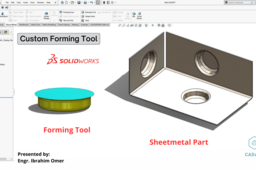
Custom Forming Tool | How to add missing design library | Inserted as derived part error | CADable | CADable tutorials
Ibrahim Omer
in
Design & CAD
0
0
Intermediate
Custom Forming Tool | How to add missing design library | Inserted as derived part error | CADable | CADable tutorials Hi friends, welcome back to CADable. I'm Engr. Ibrahim Omer, and in this tutorial, we're going to discuss a very important feature in SolidWorks that is used in the sheet metal domain. First, we'll draw a forming tool or die, and then we'll save it in the design library. After that, we'll create a sheet metal part and use the forming tool on the newly created sheet metal part. I'll also show you how to add missing design library, and how to troubleshoot the inserted as derived part error. This tutorial is specifically designed for beginners, providing a great opportunity to practice and enhance your skills. Throughout the video, I encourage you to use the play-pause technique to follow along effectively. Don't hesitate to leave your questions in the comment section, as I'll make sure to address each and every one of them. Remember, practice makes perfect, so keep honing your skills. Thank you for joining me on CADable. #customformingtool #howtoaddmissingdesignlibrary #insertedasderivedparterror #solidworkssheetmetalexercise #CADable #CADabletutorials
SOLIDWORKS
inserted derived part error
cadable tutorials
cadable
design library missing
custom forming tool
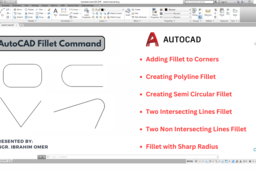
AutoCAD Fillet Command | How to Use Different Kinds of Fillets in AutoCAD | Sharp Corner Fillet AutoCAD | CADable | CADable tutorials
Ibrahim Omer
in
Design & CAD
0
0
Beginner
Welcome to CADable! I'm Engr. Ibrahim Omer, and in today's tutorial, we'll explore the various types of fillets you can create in AutoCAD. Whether you're using AutoCAD 2018, an earlier version, or a newer one, you can follow along with this guide. In a recent quiz on my channel, many believed that fillets are only for creating round corners. However, you can also use them to create sharp corners with a 0 unit radius. In this tutorial, we'll cover: 1) Adding fillets to corners (both single and multiple fillets) 2) Creating polyline fillets 3) Making semi-circular fillets 4) Filleting two intersecting lines 5) Filleting two non-intersecting lines 6) Fillet with sharp radius (fillet with sharp corner) This tutorial was requested by one of our subscribers and is packed with practical tips and examples. Remember, practice is key to mastering AutoCAD. Let's dive in and enhance our skills together! #AutoCADFilletCommand #SharpCornerFillet #CADable #CADableTutorials
AutoCAD
cadable tutorials
cadable
sharp corner fillet autocad
different kinds of fillets in autocad
autocad fillet command
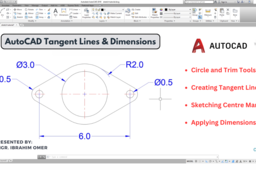
AutoCAD Tangent Lines & Dimensions | Sketching Centre Marks in AutoCAD | AutoCAD Basic 2D Sketching
Ibrahim Omer
in
Drafting
0
0
Beginner
AutoCAD Tangent Lines & Dimensions | Sketching Centre Marks in AutoCAD | AutoCAD Basic 2D Sketching | CADable | CADable Tutorials Hi everyone, welcome back to CADable! I'm Engr. Ibrahim Omer, and in this tutorial, we'll be learning how to create a gasket in AutoCAD. This exercise focuses on basic 2D sketching. I'll guide you step by step through the Circle and Trim commands, and we'll put special emphasis on drawing tangent lines in AutoCAD. We’ll be creating four tangent lines so you can grasp the concept clearly. We’ll also cover how to change layers in AutoCAD (without creating new ones), sketch center marks, and finally, add dimensions to your part. Chapters of the tutorial: Introduction 0:00 Sketching construction line i.e. pitch 0:28 Creating different circles 0:46 Sketching tangent lines 1:34 Trim command 2:47 Autocad centre marks 3:09 Applying dimensions 3:31 Conclusion 4:28 This tutorial was requested by one of our subscribers and is filled with practical tips. Remember, the more you practice, the better you’ll get at AutoCAD. Let’s get started and improve our skills together! #AutoCADTangentLines #SketchingCenterMarks #AutoCAD2DSketching #CreatingGasketInAutoCAD #CADableTutorials #CADable
AutoCAD
cadable tutorials
cadable
autocad tutorials
autocad tangent lines
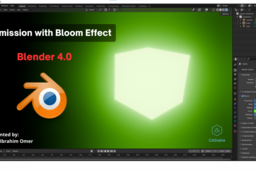
Glowing Objects in Blender 4.0 | Blender Emission with Bloom Effect | Bloom in EEVEE | CADable | CADable tutorials
Ibrahim Omer
in
Other
0
0
Beginner
Hi friends welcome back to CADable. This is Engr. Ibrahim Omer. In this video, we'll explore how to make objects glow using Blender 4.0. Starting with the basic default cube, you'll learn how to use emission shaders to add vibrant light to your scenes. Learn how to create stunning glow effects by applying the bloom effect using the EEVEE render engine. This simple yet powerful technique will bring your 3D creations to life with captivating luminosity. Chapters of the tutorial: Introduction 0:00 Applying emission (material properties) 0:16 Changing background (world properties) 0:34 Applying bloom effect (render properties) 0:44 Conclusion 1:07 Whether you're new to Blender or a seasoned user, this tutorial offers valuable insights that will help enhance your 3D artwork. Join us on CADable and discover the magic of glowing objects in Blender! #blenderbloomeffect #glowobjectsinblender #blender4tutorials #cadable #cadabletutorials #emissioneffectblender
cadable tutorials
cadable
bloom in eevee
blender emission with bloom effect
glowing objects in blender 40
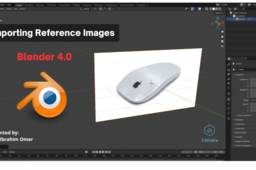
Importing Reference Images in Blender 4.0 | How to Add Reference Image in Blender | CADable
Ibrahim Omer
in
Other
0
0
Beginner
Importing Reference Images in Blender 4.0 | How to Add Reference Image in Blender | CADable | CADable tutorials Welcome back to CADable! I'm Engr. Ibrahim Omer, and today I'm excited to guide you through the process of importing reference images in Blender 4.0. Whether you're using this version or one above or below, you're in the right place! Let's kick things off by clearing out the default cube, light, and camera. With that done, hit Shift + A to add your reference image. Now, here's a little trick: initially, the image might not be perfectly placed, but fear not! Press Alt + R, and voilà, your image snaps into place just right. Need to tweak its orientation? Simply hit R to rotate it, perhaps aligning it to the xy plane. Chapter's of the tutorial: Introduction 0:00 Adding reference image 0:11 Press Alt + R to correctly place image 0:28 Press R to rotate reference image 0:38 Conclusion 1:01 This tutorial is perfect for beginners looking to hone their skills in Blender. Practice along with the video, pausing where needed, and don't hesitate to drop your questions in the comments below. I'm here to help you every step of the way. Remember, practice makes perfect, so keep at it and watch your Blender skills soar! #ImportReferenceImagesBlender #ReferenceImagesBlender #CADable #BlenderTips #BeginnerTutorialBlender #CADabletutorials
cadable tutorials
cadable
how to insert reference image in blender
importing reference images in blender 40
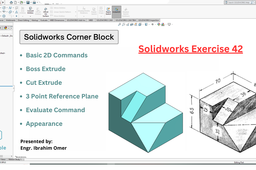
Solidworks Corner Block | Solidworks Exercise 42 | 3 Point Reference Plane | Solidworks Evaluate | CADable | CADable tutorials
Ibrahim Omer
in
Modeling
0
0
Beginner
Hi friends, welcome back to CADable. I’m Engr. Ibrahim Omer, and in this tutorial, we will learn how to model a mechanical part a corner block in SolidWorks. I’m using SolidWorks 2020, however, whether you’re using an older version or a newer version, you can still follow along with this tutorial. This tutorial emphasizes the basics. I will cover fundamental 2D commands, the user interface, and units, as well as 3D commands such as adding material, removing material, and the very important feature of creating a three-point reference plane using vertices or points. After modeling our corner block, we will evaluate the part using the Evaluate command a crucial tool in SolidWorks and learn how to use its Measure function. Finally, we will apply color to our part, concluding the tutorial. I hope you like this tutorial. If you encounter any difficulties or have any questions about this or any other tutorial in my list, please feel free to ask in the comments section. You’re always welcome. Please don’t forget to like and share with anyone who wants to learn SolidWorks. Thanks for watching. Chapters of the tutorial: Introduction 0:00 What you will learn in this tutorial 0:24 Solidworks user interface (units and background) 0:44 Sketching step (front view of part)1:07 Adding material (extruded boss command) 2:57 Creating sketch for cut out 3:22 Removing material (extruded cut command) 4:28 Creating sketch / point (for 3 point reference plane) 4:45 3 point reference plane 5:45 Creating sketch on 3 point reference plane 6:13 Removing material at inclined plane 6:40 How to check parts dimension using evaluate command 7:20 Applying appearance / color on part 9:16 Conclusion 10:04 #SolidworksCornerBlock #SolidworksMechanicalParts #3PointReferencePlane #CADable #cadabletutorials #solidworksexercise42 #solidworkspracticeexercises
SOLIDWORKS
solidworks evaluate
cadable tutorials
cadable
3 point reference plane
solidworks exercise 42
solidworks corner block
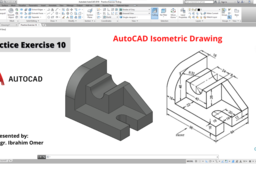
Autocad Practice Exercise 10 | Autocad Isometric Drawing | Changing Plane in Autocad 3d | CADable
Ibrahim Omer
in
Modeling
0
0
Beginner
Autocad 3d practice drawing | Autocad Practice Exercise 10 | Autocad Isometric Drawing | Changing Plane in Autocad 3d | CADable | CADable tutorials Hi friends welcome back to CADable. This is Engr. Ibrahim Omer. In this tutorial, we will draw isometric drawing using a reference drawing. This is autocad practice exercise 10. I hope you like it. We will learn the following features and commands: 1) AutoCAD Basic Settings 2) AutoCAD 2d commands 3) Press Pull 4) Visual Settings 5) Changing Plane in AutoCAD 3d 6) 3d Move 7) Solid Union It is a good exercise for beginners and it will be a good practice for beginners. Kindly use play pause technique for practice. Feel free to ask your queries in comment section. I will try to answer each and every question. Keep practicing as practice makes a man perfect. Follow our Channel: https://www.youtube.com/c/CADable #autocadisometricdrawing #autocadpresspullcommand #autocadpracticeexercise10 #CADable #autocadpracticeexercises #cadabletutorials
AutoCAD
cadable tutorials
cadable
autocad practice exercises
autocad 3d exercises
changing plane in autocad 3d
autocad isometric drawing
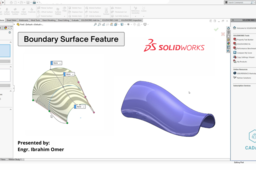
Boundary Surface Feature | Solidworks Boundary Surface | Boundary Surface with Guide Curves | CADable | CADable tutorials
Ibrahim Omer
in
Design & CAD
0
0
Beginner
Boundary Surface Feature inHi friends, welcome back to CADable! This is Engr. Ibrahim Omer. In today's tutorial, we will learn how to use the SolidWorks Boundary Surface feature with guide curves. We'll walk through an example, creating different sections and curves, and then using the boundary surface command to generate a smooth surface. Here's what you'll learn: Creating sections and guide curves. Using the Boundary Surface command. Converting the surface body to a solid body using the Thicken command. Applying appearance to the solid body. Using the Fillet command to remove sharp edges. This tutorial is perfect for beginners. I hope you find it helpful! Take your time, hit pause if needed, and feel free to drop any questions in the comments. Remember, practice makes perfect! Don't forget to subscribe to our channel for more tutorials like this: https://www.youtube.com/c/CADable #solidworksboundarysurface #boundarysurfacefeature #surfaceswithguidecurves #CADable #CADabletutorials
SOLIDWORKS
cadable tutorials
cadabvle
boundary surface with guide curves
solidworks boundary surface
boundary surface feature
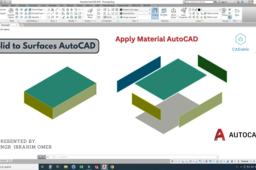
Solid to Surfaces AutoCAD | Apply Material AutoCAD | Convert Solid Objects to Surfaces | CADable | CADable tutorials
Ibrahim Omer
in
Modeling
0
0
Beginner
Welcome back to CADable! I'm Engr. Ibrahim Omer, and in this tutorial, we'll cover two essential topics in AutoCAD. First, we'll explore the process of converting solids to surfaces, and then we'll delve into applying materials in AutoCAD. This concise video tutorial is designed to provide you with a clear understanding of these concepts. To begin, I'll demonstrate how to create a solid box and then apply materials to it using the MAT command. Following that, we'll move on to converting the solid object into surfaces using the explode command. Moreover, I'll guide you through the process of applying materials to individual surfaces resulting from the explosion. Join me on this learning journey, where I aim to simplify these techniques and help you master solid-to-surface conversions and material applications in AutoCAD. Don't forget to leave your feedback and suggestions in the comments—I greatly value your input. Subscribe to our channel to stay updated with future tutorials, and let's enhance our AutoCAD skills together! Follow our Channel: https://www.youtube.com/c/CADable #solidtosurfacesautocad #applymaterialautocad #autocad3dmodelingtips #CADable #autocadpracticeexercises #cadabletutorials
AutoCAD
cadable tutorials
cadable
apply material autocad
solid to surfaces autocad
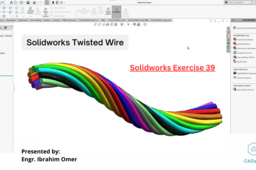
Solidworks Twisted Wire | Twisted Wire Rope Design Solidworks | Solidworks Exercise 39 | CADable
Ibrahim Omer
in
Modeling
0
0
Beginner
olidworks Twisted Wire | Twisted Wire Rope Design Solidworks | Solidworks Exercise 39 | CADable Welcome to CADable! In this tutorial, Engr. Ibrahim Omer will guide you through the process of modeling twisted wire or twisted wire rope in SolidWorks. This exercise is perfect for beginners looking to improve their SolidWorks skills. The modeling process is straightforward and utilizes the sweep feature in SolidWorks. First, a path is sketched using a spline on the front plane, followed by creating a profile using a circle. Circular sketch patterns are then used to create a total of 10 circles along the path. With the path and profile sketched, the sweep feature is applied using a complex sweep technique. The sweep has a specified number of revolutions (1.5) and is merged with tangent faces to achieve the desired result. To enhance the visual appearance of the twisted wire, different appearances are applied, totaling 10 appearances. This step adds realism to the model, making it look like a real twisted wire. Whether you're a beginner or looking to expand your SolidWorks skills, this tutorial is a great opportunity to practice and improve your modeling techniques. Follow along with the video and don't hesitate to ask any questions in the comments section. For more tutorials and SolidWorks tips, make sure to subscribe to CADable and stay updated with our latest content! #twistedwiresolidworks #twistedwireropesolidworks #solidworksexercise39 #solidworksadvancedtutorials #CADable #CADabletutorials Follow our Channel: https://www.youtube.com/c/CADable
SOLIDWORKS
cadable tutorials
cadable
twisted wire rope solidworks
twisted wire rope design solidworks
solidworks twisted wire
Applying Load on Particular Area | Applying Forces on Selected Region Solidworks | CADable | CADable Tutorials
Ibrahim Omer
in
FEM
0
0
Beginner
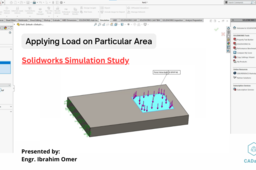
Hello everyone, and welcome back to CADable with Engr. Ibrahim Omer. Today, we're diving into a neat tutorial on SolidWorks where we'll learn how to apply loads to specific areas on a model. So, let's break it down step by step. First, we'll start by drawing a simple rectangle. Then, we'll extrude it to give it some depth. Next, we'll sketch another rectangle on the surface where we want to apply our forces. We'll use the split line command here to divide the face using our sketch. But remember, even after splitting, it's still just one solid body. No need to worry about multiple bodies here. Now comes the exciting part. We'll enable the SolidWorks Simulation add-in and proceed with all the necessary steps like applying materials and fixing boundaries (think of these as constraints). It's essential to ensure our model behaves realistically under the loads we're about to apply. After setting up our boundaries, it's time to apply the load to our chosen area or segment. Imagine this as putting weight on a specific spot of your model to see how it reacts. Once that's done, we'll mesh our model. Think of meshing like dividing your model into tiny elements to simulate its behavior accurately. Finally, we'll run our study, and voila! We'll get results showing us things like stresses, displacements, and strains. Now, I won't dive deep into explaining these results here, please watch tutorials at the end if you want to learn how to interpret results etc. If you're curious about how static structural analysis works, stick around for some extra videos I'll share later on. This tutorial is crafted especially for beginners, so don't hesitate to pause and replay if needed. And if you have any questions along the way, drop them in the comments below. We're here to help each and every one of you learn and grow in your CAD skills. Remember, practice is key! Keep tinkering with SolidWorks, and stay tuned for more easy-to-follow tutorials right here on CADable #applyingloadonparticulararea #applyloadonparticularareasolidworks #solidworksstaticstructuralsimulation #CADable #CADabletutorials
cadable tutorials
cadable
applying forces on particular region solidworks
applying load on particular area
Autocad 3d practice drawing | Autocad Practice Exercise 7 | Autocad Isometric Drawing | CADable | CADable tutorials
Ibrahim Omer
in
Modeling
0
0
Beginner
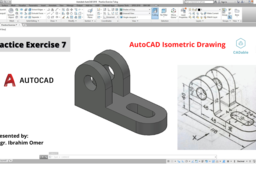
Hi friends welcome back to CADable. This is Engr. Ibrahim Omer. In this tutorial, we will draw isometric drawing using a reference drawing. This is autocad practice exercise 7. I hope you like it. We will learn the following features and commands: 1) Basic Settings 2) Autocad 2d commands 3) Press Pull 4) Visual Settings 5) Autocad view cube 6) 3d Move 7) 3d Copy 8) Solid Union It is a good exercise for beginners and it will be a good practice for beginners. Kindly use play pause technique for practice. Feel free to ask your queries in comment section. I will try to answer each and every question. Keep practicing as practice makes a man perfect. Follow our Channel: https://www.youtube.com/c/CADable #autocadisometricdrawing #autocadpresspullcommand #autocadpracticeexercise7 #CADable #autocadpracticeexercises #cadabletutorials
AutoCAD
autocad isometric drawing
cadable tutorials
cadable
autocad 3d practice drawing
Autocad 2d drafting | Autocad Practice Exercise 5 | Autocad 2d practice drawing | CADable Tutorials
Ibrahim Omer
in
Drafting
0
0
Beginner
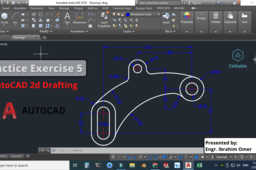
utocad 2d drafting | Autocad practice exercise 5 Hi friends welcome back to CADable. This is Engr. Ibrahim Omer. In this tutorial, we will learn how to make a 2d drawing in autocad. This is autocad practice exercise 5. I hope you like it. We will learn the following features and commands: 1) Line Weight 2) Use of Layers 3) Offset Command 4) Tan Tan Radius 5) Trim Command 6) Annotate Centre Mark 7) Join Command 8) Dimensions It is a good exercise for beginners and it will be a good practice for beginners. Kindly use play pause technique for practice. Feel free to ask your queries in comment section. I will try to answer each and every question. Keep practicing as practice makes a man perfect. Follow our Channel: https://www.youtube.com/c/CADable #autocad2ddrafting #autocadpracticeexercise5 #autocad2dpracticedrawing #CADable #CADabletutorials
AutoCAD
cadable tutorials
cadable
autocad practice exercise 5
autocad 2d drafting
1
2
3
4