Learn about the GrabCAD Platform
Get to know GrabCAD as an open software platform for Additive Manufacturing
Visit our new homepage
Home
Control
Shop
Streamline Pro
Partner Program
Print
Community
Log in
Library
Challenges
Groups
Questions
Tutorials
Engineers
Blog
Log in
Learn from thousands of free Tutorials.
New user?
Join the community
or
log in.
Tutorials
Most liked all time
Recent
Most liked
Most viewed
Most commented
This week
This month
All time
Category
Design & CAD
Modeling
Drafting
Assemblies
BOM
Dimensioning / Tolerancing
Translations
Manufacturing & CAM
3D Printing
Tooling
NC Machining
Composites
Measurement / Inspection
Simulation & CAE
FEM
CFD
Kinematics
Process Simulation
Engineering Fundamentals
Theory
Process
Standards
Other
Software
Snagit
Alibre Design
ArchiCAD
AutoCAD
AutoCAD Electrical
Autodesk 3ds Max
Autodesk Alias
Autodesk Inventor
Autodesk Maya
Autodesk Revit
Autodesk 123D
BricsCAD
Bentley MicroStation
BlenderCAD
BobCAD-CAM
CATIA
Delmia
DraftSight
FreeCAD
Femap
Fusion 360
Geomagic Design
IronCAD
JT
Kompas-3D
KeyCreator
KeyShot
Lagoa
Luxology
Mastercam
Moi3D
NX Unigraphics
OBJ
Onshape
OpenSCAD
Parasolid
Powermill
Powershape
Pro/Engineer Wildfire
PTC Creo Parametric
PTC Creo Elements
Rhino
SpaceClaim
SOLIDWORKS
solidThinking Evolve
Solid Edge
SolidFace
STEP / IGES
SketchUp
STL
TopSolid
TinkerCAD
T-Flex CAD
TurboCAD
VectorWorks
ViaCAD 3D
VRML / WRL
ZW3D
Rendering
GrabCAD Print
GrabCAD Community
GrabCAD Workbench
Text file
3D Manufacturing Format
Cinema 4D
Other
Skill level
All levels
Beginner
Intermediate
Expert
cadable tutorials
×
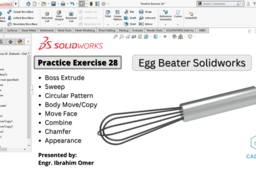
Practice Exercise 28 | Egg Beater Solidworks | Direct Editing Solidworks | Hand Blender Solidworks | CADable | CADable tutorials
Ibrahim Omer
in
Design & CAD
0
0
Intermediate
Practice Exercise 28 | Egg Beater Solidworks | Direct Editing Solidworks | Hand Blender Solidworks | CADable | CADable tutorials In this tutorial, we will model egg beater in solidworks using direct editing. Commands and features used in this tutorial are listed below: 1) Boss Extrude 2) Sweep 3) Circular Pattern 4) Body Move/Copy 5) Move Face 6) Combine 7) Chamfer 8) Appearance It is a good exercise for beginners and it will be a good practice for beginners. Kindly use play pause technique for practice. Feel free to ask your queries in comment section. I will try to answer each and every question. Keep practicing as practice makes a man perfect. For Files: https://grabcad.com/library/egg-beater-9 #practiceexercise28solidworks #eggbeatersolidworks #CADable #solidworksdirectediting #CADabletutorials #handblendersolidworks Follow our Channel: https://www.youtube.com/c/CADable
SOLIDWORKS
hand blender solidworks
move copy body solidworks
solidworks direct editing
cadable tutorials
cadable
egg beater solidworks
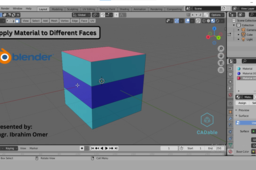
How to create new material in blender | How to apply material to different faces in blender | CADable | CADable tutorials
Ibrahim Omer
in
Modeling
0
0
Beginner
Hi friends welcome back to CADable. This is Engr. Ibrahim Omer. In this tutorial, we will learn how to create a new material in blender. I am using blender 2.93 and if you are using a below version or a future version you can still follow this tutorial. We will use blender's default cube. First we will divide cube by using loop cut command. Then we will apply a single color to whole object. Then we will apply color to different faces of the cube. After that, we will reuse a material and apply to another face. In a nutshell, learning goals will be: 1) Creating a new material 2) Apply material to different faces 3) Reuse of material and apply to a face It is a good exercise for beginners and it will be a good practice for beginners. Kindly use play pause technique for practice. Feel free to ask your queries in comment section. I will try to answer each and every question. Keep practicing as practice makes a man perfect. Follow our Channel: https://www.youtube.com/c/CADable #creatingamaterialinblender2.93 #applycolortodifferentfacesblender #blendertutorialforabsolutebeginners #CADable #CADabletutorials #reuseamaterialinblender
BlenderCAD
reuse of material and assign to another face
cadable tutorials
cadable
apply material to different faces
create material in blender
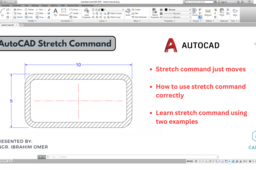
AutoCAD Stretch Command | How to use stretch command correctly | Stretch command just moves
Ibrahim Omer
in
Drafting
0
0
Beginner
AutoCAD Stretch Command | How to use stretch command correctly | Stretch command just moves | CADable | CADable tutorials Welcome back to CADable, my friends! I'm Engr. Ibrahim Omer, and in this tutorial, we'll dive into a crucial CAD command: the stretch command. I'll walk you through two practical examples to demonstrate how to use it effectively. One common mistake many people make is selecting the entire object and then applying the stretch command. That's not the way to go! Instead, I'll show you the right approach. You'll learn to select a cross window or polygon, choose a base point for your stretch operation, and then apply the stretch command. This method ensures your objects are manipulated precisely. This tutorial is perfect for beginners, providing essential exercises and practice opportunities. Use the play-pause technique to follow along, and don't hesitate to ask any questions you have in the comment section below. I'm here to help and answer all your queries. Chapters of the tutorial: 0:00 Introduction 0:19 Stretch command just moves 0:43 How to use stretch command correctly (First Example) 1:33 Same example stretching vertically 2:16 Stretch command using polygon (Second Example) 2:53 Conclusion Remember, practice is the key to perfection. So, keep honing your CAD skills, and you'll become a pro in no time. Thanks for joining me on CADable! Follow our Channel: https://www.youtube.com/c/CADable #autocadstretchcommand #howtousestretchcommandcorrectly #CADable #cadabletutorials
AutoCAD
cadable tutorials
cadable
stretch command just moves
how to use stretch command correctly
stretch command autocad
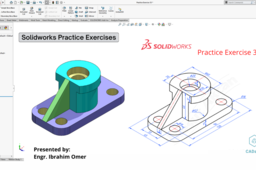
Solidworks Practice Exercises | Solidworks Practice Exercise 35 | Use of Solidworks Evaluate Command | CADable | CADable tutorials
Ibrahim Omer
in
Design & CAD
0
1
Beginner
Hi friends welcome back to CADable. This is Engr. Ibrahim Omer. In this tutorial, we will sketch 3d mechanical block in solidworks using solid modeling features. Commands and features used in this tutorial are listed below: 1) 2D Commands 2) Geometric Relations 3) Extrude Boss 4) Extrude Cut 5) Fillet 6) Rib 7) Evaluate 8) Color It is a good exercise for beginners and it will be a good practice for beginners. Kindly use play pause technique for practice. Feel free to ask your queries in comment section. I will try to answer each and every question. Keep practicing as practice makes a man perfect. #solidworkspracticeexercises #solidmodelingsolidworks #practiceexercise35solidworks #solidworksevaluatecommand #CADable #CADabletutorials Follow our Channel: https://www.youtube.com/c/CADable
SOLIDWORKS
solidworks evaluate command
solidworks color
cadable tutorials
cadable
solidworks practice exercise 35
solidworks practice exercises
Practice exercise 19 solidworks | 3d Mechanical Part Design| Verify part evaluate | SolidWorks Color
Ibrahim Omer
in
Design & CAD
0
0
Beginner
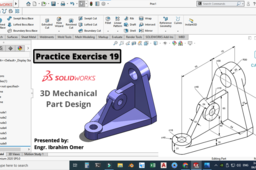
d Mechanical Part Design | Practice exercise 19 solidworks | Hi friends welcome back to CADable. This is Engr. Ibrahim Omer. In this tutorial, we will model a complex mechanical part in solidowrks. This is solidworks practice exercise 19. This is solidworks advanced part modelling tutorial. After modelling the bracket, we will apply color to each feature and to whole part. We will also check part using solidworks evaluate. I hope you like it. It is a good exercise for beginners and it will be a good practice for beginners. Kindly use play pause technique for practice. Feel free to ask your queries in comment section. I will try to answer each and every question. Keep practicing as practice makes a man perfect. Follow our Channel: https://www.youtube.com/c/CADable #complexpartmodelingsolidworks #solidworksevaluate #solidworksexercise19 #CADable #solidworksextrudefeature #solidworkscolortoeachfeature #3dmechanicalpartdesign
SOLIDWORKS
cadable tutorials
cadable
practice exercise 19 solidworks
Practice Exercise 26 | Emboss deboss and scribe wrap | Solidworks parametric equations | CADable
Ibrahim Omer
in
Design & CAD
0
0
Intermediate
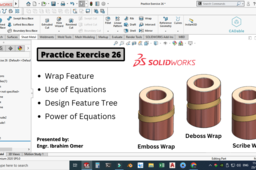
In this tutorial, We will learn solidworks wrap feature. We will be doing all three kinds of wrap features in solidworks i.e. emboss wrap, deboss wrap and scribe wrap. We will use a simple equation to create wrap feature. After creating wrap feature I will use solidworks design feature and I will drag it and insert another feature a cut out then I will drag it back and you will see all features will be adjusted accordingly. Then we will apply appearance to the cylinder and a different appearance to wrap feature. Lastly I will show you how powerful a equation is in solidworks. I will change the diameter of the cylinder and the wrap will be adjusted according to the new diameter. This is the power of parametric equations in solidworks. It is a good exercise for beginners and it will be a good practice for beginners. Kindly use play pause technique for practice. Feel free to ask your queries in comment section. I will try to answer each and every question. Keep practicing as practice makes a man perfect. #solidworkswrapfeature #useofequationsinsolidworks #practiceexercise26solidworks #CADable #powerofequationssolidworks #solidworksdesignfeaturetree #CADabletutorials Kindly Subscribe our Channel for more Videos and Projects in SOLIDWORKS, Keyshot, AutoCAD, Solid Edge, Blender etc. We offer services related to CAD, Product Design, Animations etc. Kindly Like and Share Our Videos. Thanks for Watching. Follow our Channel: https://www.youtube.com/c/CADable
SOLIDWORKS
parametric equations solidworks
use of equations in solidworks
cadable tutorials
cadable
solidworks wrap feature
AutoCAD Crescent Moon | AutoCAD Move Trim Join Rotate Hatch | How to Add Line Weight in AutoCAD
Ibrahim Omer
in
Drafting
0
0
Beginner
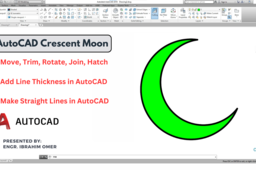
Hi friends welcome back to CADable. This is Engr. Ibrahim Omer. In this tutorial we will learn how to create a crescent moon shape in AutoCAD using essential commands like Move, Trim, Rotate, Join, and Hatch. This tutorial also covers adding line thickness, using Ortho mode for straight and non-straight lines, and enhancing your drafting skills. Explore more tutorials, YouTube Shorts, and daily technical quizzes in our community section. Subscribe to CADable for simple, effective learning! Chapters of the tutorial Introduction 0:00 Draw circles 0:46 AutoCAD move command and ortho mode 1:05 AutoCAD trim tool 1:43 AutoCAD join command 1:53 AutoCAD rotate command and ortho mode 2:14 Adding line thickness 2:37 AutoCAD hatch command (solid hatch) 3:03 Make sure to check out 3:32 Conclusion 4:05 #autocadcrescentmoon #autocad2ddrafting #autocadusefulcommands #CADable #CADabletutorials #AutoCADTutorial #CrescentMoonAutoCAD #AutoCADBasics
AutoCAD
cadable tutorials
cadable
autocad hatch command
add line thickness in autocad
autocad basic commands
autocad crescent moon
Setting a Monkey Head on Fire | Monkey Head on Fire Blender 4.0 | Blender 4.0 | CADable | CADable tutorials
Ibrahim Omer
in
Other
0
0
Beginner
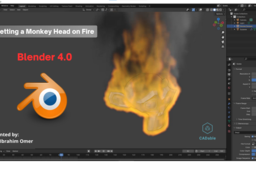
Welcome back to CADable! In this tutorial with Engr. Ibrahim Omer, we're going to use Blender 4.0 to make something cool: setting a monkey head on fire! We'll learn how to make smoke and fire animations super quick. It's going to be fun and easy, so let's get started! Chapters of the tutorial: Introduction 0:00 Quick effects (fire and smoke) 0:18 Basic settings and properties 0:52 Calculating animation frames 1:13 Conclusion 1:46 Don't forget to subscribe to our channel for more easy-to-follow tutorials. Let's have some Blender fun together! Follow our Channel: https://www.youtube.com/c/CADable #quicksmokeanimationblender #blenderquickanimation #blender2024 #CADable #CADabletutorials #quicksmokeanimation
cadable tutorials
cadable
blender 40
monkey head on fire blender 40
setting a monkey head on fire
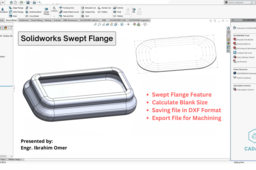
Solidworks Swept Flange | Calculate Blank Size in Solidworks | Export Solidworks File to AutoCAD DXF | CADable | CADable tutorials
Ibrahim Omer
in
Modeling
0
0
Beginner
Hi friends welcome back to CADable, this is Engr. Ibrahim Omer. In today's CADable tutorial, we're focusing on SolidWorks sheet metal and exploring how to use the swept flange feature. If you're new to this, don't worry – we'll guide you through it step by step. We'll start by drawing a rectangle, then turning it into a base flange/tab. Remember, swept flanges are a bit different – they need a sketch and a profile. So, we'll sketch four lines and adjust some settings to make a simple sheet metal box. Once our box is done, we'll figure out the blank size using the 'flatten' command. Then, we'll move on to exporting the file to machining software for cutting – like laser, wire cut, or EDM. We'll save it in DXF format, all set for machining. This tutorial is great for beginners. Take your time, pause if needed, and feel free to ask questions in the comments. Remember, practice makes perfect! Don't forget to subscribe to our channel for more tutorials like this one: https://www.youtube.com/c/CADable #solidworkssheetmetal #solidworkssweptflange #sweptflangesolidworks #blanksizeinsolidworks #CADable #CADabletutorials
SOLIDWORKS
cadable tutorials
cadable
how to use swept flange feature in solidworks
solidworks flatten feature
calculate blank size in solidworks
solidworks swept flange
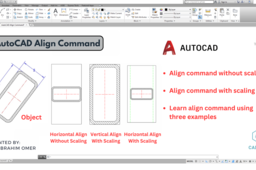
AutoCAD Align Command | Align command Without Scaling | Align Command With Scaling | CADable
Ibrahim Omer
in
Drafting
0
0
Intermediate
AutoCAD Align Command | Align command Without Scaling | Align Command With Scaling | CADable | CADable tutorials Welcome to CADable! In this tutorial, Engineer Ibrahim Omer is here to help you learn an important tool in AutoCAD called the Align command. This tool can save you time and make your work more precise. In the first example, we'll show you how to move an object horizontally to match another one without changing its size. This is great for getting things to line up perfectly. In the second example, we'll teach you how to move an object vertically while also changing its size. This can be handy when you need to adjust things both in position and size. In the third example, we'll guide you on aligning an object horizontally between two lines while also changing its size. This is super useful for more complex drawings. Forget about using the rotate command, which can be confusing and take up a lot of your time. With the Align command, you'll work faster and smarter. This tutorial is designed for beginners, so don't worry if you're just starting out. You can pause the video and practice each step at your own pace. If you have any questions, feel free to ask in the comments. Engineer Ibrahim Omer is here to help you out. Remember, practice makes perfect! So, keep watching CADable for more easy-to-follow tutorials and keep improving your AutoCAD skills. Keep practicing as practice makes a man perfect. Follow our Channel: https://www.youtube.com/c/CADable #aautocadaligncommand #aligncommandwithoutscaling #aligncommandwithscaling #CADable #CADabletutorials
AutoCAD
cadable tutorials
cadable
align command without scaling
align command with scaling
autocad align command
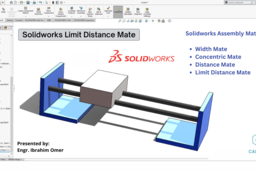
Solidworks Limit Distance Mate | Distance vs Limit Distance Mate | How to Use Width Mate | CADable
Ibrahim Omer
in
Assemblies
0
0
Intermediate
Welcome back to CADable with Engr. Ibrahim Omer! It's been a while, and I'm excited to bring you another SolidWorks tutorial based on your feedback. As requested by 73% of our subscribers in the community poll, we're diving into the world of SolidWorks today. In this tutorial, we'll explore various mates using an assembly example, with a special focus on the limit distance mate. We'll cover the following mates: width mate, concentric mate, distance mate, and the limit distance mate. One of the key takeaways will be understanding the distinction between the distance mate (static) and the limit distance mate (dynamic). We'll demonstrate how to apply a limit distance mate effectively, and we'll make use of the 'evaluate' command to precisely determine distances for our mates. Whether you're a beginner looking to learn the ropes or seeking valuable practice, this tutorial is for you. Remember, practice is the path to perfection! Feel free to utilize the play-pause technique for effective learning and don't hesitate to ask any questions in the comment section. I'm here to help you on your SolidWorks journey. Let's get started and enhance our 3D modeling skills together!
SOLIDWORKS
solidworks advanced mates
cadable tutorials
cadable
how to use width mate in solidworks
distance vs limit distance mate
solidworks limit distance mate
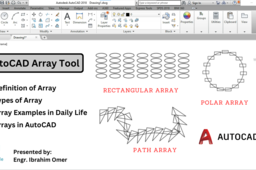
AutoCAD Array Tool | How to Use Array Tool in AutoCAD | Types of Array AutoCAD | Example of Arrays
Ibrahim Omer
in
Drafting
0
0
Intermediate
AutoCAD Array Tool | How to Use Array Tool in AutoCAD | Types of Array AutoCAD | Example of Arrays | CADable | CADable Tutorials Hi friends welcome back to CADable. This is Engr. Ibrahim Omer. In this tutorial, we will learn how to use Array Command in AutoCAD. I will use three examples to demonstrate each type and we will discuss each array briefly. We will explore the following: 1) Definition of Array 2) Types of Array 3) Array Examples in Daily Life 4) Arrays in AutoCAD We have three types of Arrays in AutoCAD which are, rectangular array, polar array and path array. It is a good exercise for beginners and it will be a good practice for beginners. Kindly use play pause technique for practice. Feel free to ask your queries in comment section. I will try to answer each and every question. Keep practicing as practice makes a man perfect. Follow our Channel: https://www.youtube.com/c/CADable #autocadarraytool #howtousearraytoolinautocad #typesofarrayautocad #CADable #cadabletutorials #arrayexamplesindailylife
AutoCAD
array examples in daily life
type of arrays in autocad
how to use array command in autocad
cadable tutorials
cadable
autocad array tool
Autocad practice exercise 2 | Orthogonal projections | Layers in Autocad | Isometric to orthographic
Ibrahim Omer
in
Drafting
0
0
Beginner
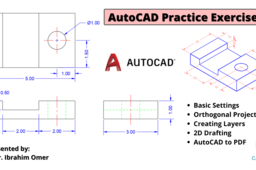
In this tutorial, we will learn how convert isometric drawing to orthographic drawing. This is autocad practice exercise 2. . I hope you like it. We will learn the following features and commands: 1) Basic Settings 2) Orthogonal Projections 3) Creating Layers 4) 2D Drafting 5) AutoCAD to PDF It is a good exercise for beginners and it will be a good practice for beginners. Kindly use play pause technique for practice. Feel free to ask your queries in comment section. I will try to answer each and every question. Keep practicing as practice makes a man perfect. Follow our Channel: https://www.youtube.com/c/CADable #3dto2dconversionautocad #layersinautocad #autocadpracticeexercise2 #CADable #isometrictoothographic
AutoCAD
cadable tutorials
create layers in autocad
cadable
autocad isometric to orthographic
Modeling Egg in AutoCAD | AutoCAD Basic 3D Modeling | Draw 3d Egg in AutoCAD | AutoCAD Revolve | CADable
Ibrahim Omer
in
Modeling
0
0
Beginner
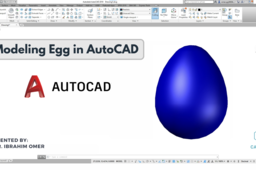
Hi friends welcome back to CADable. This is Engr. Ibrahim Omer and in this tutorial we will learn AutoCAD revolve by modeling egg. Along the way, we’ll also explore commands like Join, Trim, Revolve, and how to change the visual style. Chapters of the tutorial: Introduction 0:00 AutoCAD basic settings 0:15 Creating sketch for egg 0:32 AutoCAD trim command 1:17 AutoCAD join command 1:52 Charging workspace to 3d + AutoCAD revolve command 2:13 AutoCAD visual style 2:49 Conclusion 3:14 That's it for today's tutorial! I really hope you find it useful. If you have any questions or need help, please drop a comment below. I love hearing from you. Don't forget to subscribe for more fun and informative videos. I also make tutorials, Shorts, and even quizzes and polls to help refresh your memory, learn new things, or just revisit the basics. #ModelingEgginAutoCAD #AutoCADBasic3DModeling #Draw3dEgginAutoCAD #AutoCADRevolve #CADable #cadabletutorials #Autocad3dmodeling Watch Tutorial: https://youtu.be/k-bHIfJRhA8
AutoCAD
cadable tutorials
cadable
autocad basic 3d modeling
autocad 3d modeling
modeling egg in autocad
1
2
3
4