Learn about the GrabCAD Platform
Get to know GrabCAD as an open software platform for Additive Manufacturing
Visit our new homepage
Home
Control
Shop
Streamline Pro
Partner Program
Print
Community
Log in
Library
Challenges
Groups
Questions
Tutorials
Engineers
Blog
Log in
Learn from thousands of free Tutorials.
New user?
Join the community
or
log in.
Tutorials
Most liked all time
Recent
Most liked
Most viewed
Most commented
This week
This month
All time
Category
Design & CAD
Modeling
Drafting
Assemblies
BOM
Dimensioning / Tolerancing
Translations
Manufacturing & CAM
3D Printing
Tooling
NC Machining
Composites
Measurement / Inspection
Simulation & CAE
FEM
CFD
Kinematics
Process Simulation
Engineering Fundamentals
Theory
Process
Standards
Other
Software
Snagit
Alibre Design
ArchiCAD
AutoCAD
AutoCAD Electrical
Autodesk 3ds Max
Autodesk Alias
Autodesk Inventor
Autodesk Maya
Autodesk Revit
Autodesk 123D
BricsCAD
Bentley MicroStation
BlenderCAD
BobCAD-CAM
CATIA
Delmia
DraftSight
FreeCAD
Femap
Fusion 360
Geomagic Design
IronCAD
JT
Kompas-3D
KeyCreator
KeyShot
Lagoa
Luxology
Mastercam
Moi3D
NX Unigraphics
OBJ
Onshape
OpenSCAD
Parasolid
Powermill
Powershape
Pro/Engineer Wildfire
PTC Creo Parametric
PTC Creo Elements
Rhino
SpaceClaim
SOLIDWORKS
solidThinking Evolve
Solid Edge
SolidFace
STEP / IGES
SketchUp
STL
TopSolid
TinkerCAD
T-Flex CAD
TurboCAD
VectorWorks
ViaCAD 3D
VRML / WRL
ZW3D
Rendering
GrabCAD Print
GrabCAD Community
GrabCAD Workbench
Text file
3D Manufacturing Format
Cinema 4D
Other
Skill level
All levels
Beginner
Intermediate
Expert
SOLIDWORKS
×
cadable tutorials
×
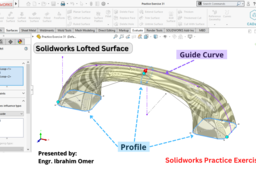
Solidworks Lofted Surface | How to use loft feature | Create Handle in solidworks | CADable | CADable tutorials
Ibrahim Omer
in
Design & CAD
5
2
Beginner
Hi friends welcome back to CADable. This is Engr. Ibrahim Omer. In this tutorial, we will practice lofted surface command using a handle example in solidworks. Here we will use three profiles with a guide curve. This will be solidworks practice exercise 31. After creating profiles and guide curve, we will convert our surface to solid using thicken command and lastly we will apply appearance to our part. I hope you like it. It is a good exercise for beginners and it will be a good practice for beginners. Kindly use play pause technique for practice. Feel free to ask your queries in comment section. I will try to answer each and every question. Keep practicing as practice makes a man perfect. Follow our Channel: https://www.youtube.com/c/CADable #solidworksloftedsurface #solidworkspracticeexercise31 #creatinghandleinsolidworks #solidworksexercise31 #CADable #CADabletutorials #solidworksguidecurves #solidworkscomplexsurfaces
SOLIDWORKS
complex surfacing solidworks
cadable tutorials
cadable
creating handle in solidworks
solidworks lofted surface
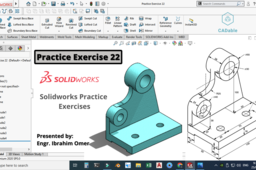
Practice Exercise 22 Solidworks | Solidworks Practice Exercises | Solidworks evaluate command | CADable
Ibrahim Omer
in
Design & CAD
4
0
Intermediate
Practice Exercise 22 Solidworks | Solidworks Practice Exercises | CADable Hi friends welcome back to CADable. This is Engr. Ibrahim Omer. In this tutorial, we will model a complex mechanical part in solidowrks. This is solidworks practice exercise 22. We will check part using solidworks evaluate and lastly I will apply appearance to the model. I hope you like it. It is a good exercise for beginners and it will be a good practice for beginners. Kindly use play pause technique for practice. Feel free to ask your queries in comment section. I will try to answer each and every question. Keep practicing as practice makes a man perfect. Follow our Channel: https://www.youtube.com/c/CADable #complexpartmodelingsolidworks #solidworksevaluate #solidworksexercise22 #CADable #advancedpartmodeling #solidworkscolortoeachfeature #3dmechanicalpartdesign
SOLIDWORKS
solidworks evaluate command
solidworks practice exercises
cadable tutorials
cadable
practice exercise 22 solidworks
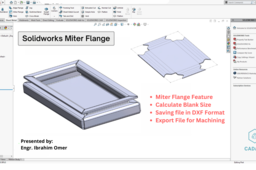
Solidworks Miter Flange | Calculate Blank Size in Solidworks | Export Solidworks File to AutoCAD DXF | CADable | CADable tutorials
Ibrahim Omer
in
Design & CAD
2
2
Intermediate
Welcome back to CADable with Engr. Ibrahim Omer! In today's tutorial, we're diving into a crucial feature in SolidWorks sheet metal: the miter flange. No worries if you're new – we'll walk through it step by step with an example. First up, we'll draw a rectangle and then transform it into a base flange/tab. Remember, miter flanges are a bit different from edge flanges – they need a sketch. We'll sketch four lines and tweak some settings to create a simple sheet metal box. Once our box is ready, it's time to figure out the blank size. We'll use the 'flatten' command for this. Next step? Exporting the file to machining software for cutting – think laser, wire cut, or EDM. We'll save it in DXF format, ready to go. Chapters of the tutorial: Introduction 0:00 Sketching centre rectangle 0:23 Sheetmetal base flange/tab feature 0:40 Creating sketch for miter flange 0:55 Solidworks miter flange feature 1:31 Calculate blank size of the box 2:32 Saving file in DXF format for machining 2:43 Conclusion 3:22 This tutorial is perfect for beginners looking to sharpen their skills. Take your time, hit pause if needed, and don't hesitate to drop your questions in the comments. Remember, practice makes perfect! Don't forget to subscribe to our channel for more tutorials like this: https://www.youtube.com/c/CADable #solidworkssheetmetal #solidworksmiterflange #miterflangesolidworks #blanksizeinsolidworks #CADable #CADabletutorials
SOLIDWORKS
how to use miter flange feature
cadable tutorials
cadable
export solidworks file to autocad dxf
calculate blank size in solidworks
solidworks miter flange
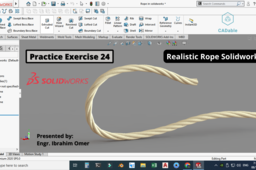
Sketch a rope in Solidworks | Practice Exercise 24 Solidworks | Realistic rope solidworks | CADable
Ibrahim Omer
in
Design & CAD
2
0
Beginner
Sketch a rope in Solidworks | Practice Exercise 24 Solidworks | Realistic rope solidworks | CADable Hi friends welcome back to CADable. This is Engr. Ibrahim Omer. In this tutorial, we will model a realistic rope in solidworks using advanced sweep command. This is solidworks practice exercise 24. After modelling rope, we will apply appearance to our part. I hope you like it. It is a good exercise for beginners and it will be a good practice for beginners. Kindly use play pause technique for practice. Feel free to ask your queries in comment section. I will try to answer each and every question. Keep practicing as practice makes a man perfect. For Files: https://grabcad.com/library/rope-29 Follow our Channel: https://www.youtube.com/c/CADable #createropeinsolidworks #realisticropesolidworks #solidworksexercise24 #CADable #CADabletutorials
SOLIDWORKS
create rope in solidworks
cadable tutorials
cadable
realistic rope solidworks
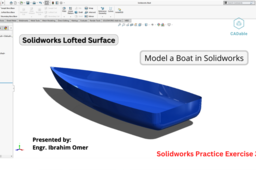
Solidworks Lofted Surface | Model a Boat in Solidworks | Solidworks Practice Exercise 33 | CADable
Ibrahim Omer
in
Design & CAD
2
0
Beginner
Solidworks Lofted Surface | Model a Boat in Solidworks | Solidworks Practice Exercise 33 | CADable | CADable tutorials Hi friends welcome back to CADable. This is Engr. Ibrahim Omer. Its been a month since I am not making any tutorial and the reason is I was doing preparation for my masters of engineering exam. In this tutorial, we will sketch a boat in solidworks using surfacing features. Commands and features used in this tutorial are listed below: 1) Lofted Surface 2) Planner Surface 3) Knit Surface 4) Fillet 5) Appearance It is a good exercise for beginners and it will be a good practice for beginners. Kindly use play pause technique for practice. Feel free to ask your queries in comment section. I will try to answer each and every question. Keep practicing as practice makes a man perfect. #solidworksloftedsurface #solidworksboat #modelaboatinsolidworks #solidworkscomplexsurfacing #CADable #CADabletutorials Follow our Channel: https://www.youtube.com/c/CADable
SOLIDWORKS
cadable tutorials
cadable
solidworks practice exercise 33
model a boat in solidworks
solidworks lofted surface
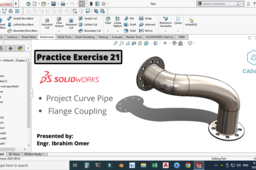
Practice Exercise 21 solidworks | Project curve pipe | Flange coupling | Solidworks project curve
Ibrahim Omer
in
Design & CAD
2
0
Intermediate
Practice Exercise 21 solidworks | Project curve pipe | Flange coupling Solidworks project curve | CADable Hi friends welcome back to CADable. This is Engr. Ibrahim Omer. In this tutorial, we will model a complex flange coupling using project curve in solidowrks. This is solidworks practice exercise 21. This is solidworks advanced part modelling tutorial. After modelling flange, we will apply appearance to our part. I hope you like it. We will learn the following features and commands: 1) Basic 2d Commands 2) Project Curve 3) Sweep Thin 4) Extrude Boss 5) Circular Sketch Pattern 6) Extrude Cut 7) Fillet 8) Chamfer 9) Appearance It is a good exercise for beginners and it will be a good practice for beginners. Kindly use play pause technique for practice. Feel free to ask your queries in comment section. I will try to answer each and every question. Keep practicing as practice makes a man perfect. Follow our Channel: https://www.youtube.com/c/CADable #solidworkspracticeexercises #solidworksprojectcurve #solidworksexercise21 #CADable #solidworksflangecoupling #solidworkssweepthin #CADabletutorials
SOLIDWORKS
cadable tutorials
cadable
solidworks flange coupling
practice exercise 21
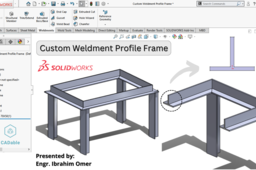
Custom Weldment Profile Frame | Create Custom Weldment Profile | Solidworks Weldment Frame | CADable | CADable tutorials
Ibrahim Omer
in
Drafting
1
0
Intermediate
Custom Weldment Profile Frame | Create Custom Weldment Profile | Solidworks Weldment Frame | CADable | CADable tutorials Hi friends welcome back to CADable. This is Engr. Ibrahim Omer. In this tutorial, we will create custom weldment profile in solidworks. First we will sketch custom weldment profile. After creating weldment profile we will sketch a frame using 3d sketch. Then we will use custom weldment profile in the frame. Please follow this tutorial and don't skip so that you can make your own custom weldment profiles in solidworks. I hope you like it. It is a good exercise for beginners and it will be a good practice for beginners. Kindly use play pause technique for practice. Feel free to ask your queries in comment section. I will try to answer each and every question. Keep practicing as practice makes a man perfect. Follow our Channel: https://www.youtube.com/c/CADable #customweldmentprofileframe #createcustomweldmentprofile #solidworksframeusing3dsketch #solidworksweldmentframe #CADable #CADabletutorials #tsectionprofilesolidworks
SOLIDWORKS
solidworks weldment structural frame
custom weldment profiles
cadable tutorials
cadable
custom weldment profile frame
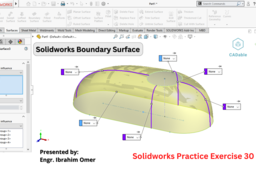
Solidworks Boundary Surface | Solidworks Practice Exercise 30 | Boundary Surface with Guide Curves | CADable | CADable tutorials
Ibrahim Omer
in
Design & CAD
1
0
Beginner
Hi friends welcome back to CADable. This is Engr. Ibrahim Omer. In this tutorial, we will practice boundary surface command in solidworks. Here we will use four guide curves. This will be solidworks practice exercise 30. I will also show you how you can create more realistic surfaces using curvature and zebra stripes. We will change our boundary surface to solid using thicken command and lastly we will apply appearance to our part. I hope you like it. It is a good exercise for beginners and it will be a good practice for beginners. Kindly use play pause technique for practice. Feel free to ask your queries in comment section. I will try to answer each and every question. Keep practicing as practice makes a man perfect. Follow our Channel: https://www.youtube.com/c/CADable #solidworksboundarysurface #solidworkspracticeexercise30 #solidworksexercise30 #CADable #CADabletutorials #solidworksguidecurves #solidworkscomplexsurfaces
SOLIDWORKS
cadable tutorials
cadable
solidworks guide curves
solidworks practice exercises
solidworks boundary surface
Solidworks Project Curve | Creating Pringles in Solidworks | Practice Exercise 29 | CADable | CADable tutorials
Ibrahim Omer
in
Design & CAD
1
0
Intermediate
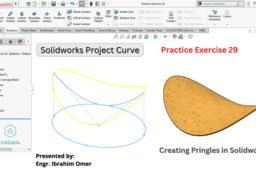
Solidworks Project Curve | Creating Pringles in Solidworks | Practice Exercise 29 | CADable | CADable tutorials Hi friends welcome back to CADable. This is Engr. Ibrahim Omer. In this tutorial, we will model pringles in solidworks using project curve command. This is solidworks practice exercise 29. After modelling pringle, we will apply appearance to our part. We can also use flex command after using project curve to create more complex shape which I have covered in the tutorial in the end. I hope you like it. It is a good exercise for beginners and it will be a good practice for beginners. Kindly use play pause technique for practice. Feel free to ask your queries in comment section. I will try to answer each and every question. Keep practicing as practice makes a man perfect. Follow our Channel: https://www.youtube.com/c/CADable #creatingpringlesinsolidworks #pringlesinsolidworks #solidworksexercise29 #CADable #CADabletutorials #solidworksprojectcurve #solidworksflexcommand
SOLIDWORKS
solidworks projected curve
cadable tutorials
cadable
creating pringles in solidworks
solidworks project curve
Solidworks Sweep Cut | Pipe Bending Die Solidworks | Solidworks Practice Exercise 38 | CADable
Ibrahim Omer
in
Design & CAD
1
0
Beginner
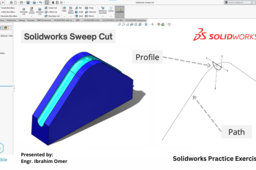
Solidworks Sweep Cut | Pipe Bending Die Solidworks | Solidworks Practice Exercise 38 | CADable | CADable tutorials Welcome back to CADable with Engr. Ibrahim Omer! It's been a while, and I'm excited to bring you another SolidWorks tutorial based on your feedback. As requested by 73% of our subscribers in the community poll, we're diving into the world of SolidWorks today. In this tutorial, we're diving into a crucial SolidWorks command – the sweep cut. Our hands-on exercise involves creating a 90-degree Pipe Bending Die to showcase how the sweep cut feature works in SolidWorks. Whether you're new to SolidWorks and eager to get the hang of things or if you're looking for some practical practice, this tutorial is tailor-made for you. Always remember, perfection comes with practice! Feel free to use the play-pause method for effective learning, and don't hesitate to drop any questions in the comments. I'm here to guide you through your SolidWorks journey. Let's kick off and boost our 3D modeling skills together! Follow our Channel: https://www.youtube.com/c/CADable #Solidworkssweepcut #Pipebendingdiesolidworks #90degreepipebendingdie #CADable #SolidworksAdvancedtutorials #CADabletutorials #cadcamsolidworks
SOLIDWORKS
90 degree pipe bending die
cadable tutorials
cadable
solidworks practice exercise 38
pipe bending die solidworks
solidworks sweep cut
Creating Reference Planes | How many types of reference planes we can make in Solidworks | CADable | CADable tutorials
Ibrahim Omer
in
Modeling
1
2
Intermediate
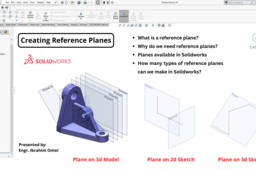
Welcome back to CADable with Engr. Ibrahim Omer. In this tutorial, we will delve into the crucial feature of creating reference planes in Solidworks. Throughout this video, we will cover the following topics: Understanding the concept of planes and their significance, exploring the various types of planes available in Solidworks, and delving into the detailed process of creating different types of reference planes using 3D models, 2D sketches, and 3D sketches. We will demonstrate the creation of planes using references such as vertices, edges, faces, and other planes. You will learn about parallel planes, multiple planes, mid planes, perpendicular planes, offset planes, tilted planes at any angle, and tangent planes. We will provide step-by-step explanations for creating planes based on 1-point, 2-point, and 3-point references. This tutorial is specifically designed to benefit beginners, providing them with a valuable exercise and practice opportunity. Feel free to use the play-pause technique for effective learning. If you have any questions or queries, please don't hesitate to ask in the comment section. We will make sure to address each and every question. Remember, practice makes perfect! Keep honing your skills and stay tuned for more CAD tutorials on the CADable channel. #creatingreferenceplanes #referenceplanesinsolidworks #solidworksadvancedtutorials #solidworksallreferenceplanes #CADable #CADabletutorials Follow our Channel: https://www.youtube.com/c/CADable
SOLIDWORKS
cadable tutorials
cadable
how many types of reference planes we can make in solidworks
creating reference planes
Practice exercise 20 solidworks | Advanced Part Modeling | Verify part using evaluate solidworks
Ibrahim Omer
in
Design & CAD
1
0
Intermediate
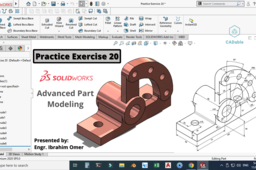
Advanced Part Modeling | Practice exercise 20 solidworks | CADable Hi friends welcome back to CADable. This is Engr. Ibrahim Omer. In this tutorial, we will model a complex mechanical part in solidowrks. This is solidworks practice exercise 20. I will use some advanced extrusion features. This is solidworks advanced part modelling tutorial. We will check part using solidworks evaluate and lastly I will apply appearance to the model. We will also solve error messages in solidworks. I hope you like it. It is a good exercise for beginners and it will be a good practice for beginners. Kindly use play pause technique for practice. Feel free to ask your queries in comment section. I will try to answer each and every question. Keep practicing as practice makes a man perfect. Follow our Channel: https://www.youtube.com/c/CADable #complexpartmodelingsolidworks #solidworksevaluate #solidworksexercise20 #CADable #advancedpartmodeling #solidworkscolortoeachfeature #3dmechanicalpartdesign #solvenosolutionerrorsolidworks
SOLIDWORKS
solve error messages solidworks
advanced extrusion solidworks
cadable tutorials
cadable
advanced part modeling
practice exercise 20 solidworks
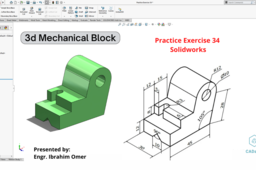
3D Mechanical Block | Solidworks Practice Exercise 34 | Solidworks Evaluate Command | CADable
Ibrahim Omer
in
Design & CAD
1
0
Beginner
3D Mechanical Block | Solidworks Practice Exercise 34 | Solidworks Evaluate Command | CADable | CADable tutorials Hi friends welcome back to CADable. This is Engr. Ibrahim Omer. In this tutorial, we will sketch 3d mechanical block in solidworks using solid modeling features. Commands and features used in this tutorial are listed below: 1) 2D Commands 2) Geometric Relations 3) Extrude Boss 4) Extrude Cut 5) Appearance 6) Evaluate It is a good exercise for beginners and it will be a good practice for beginners. Kindly use play pause technique for practice. Feel free to ask your queries in comment section. I will try to answer each and every question. Keep practicing as practice makes a man perfect. #3dmechanicalblock #solidmodelingsolidworks #practiceexercise34solidworks #solidworksevaluatecommand #CADable #CADabletutorials Follow our Channel: https://www.youtube.com/c/CADable
SOLIDWORKS
cadable tutorials
cadable
solidworks evaluate command
solidworks practice exercise 34
3d mechanical block
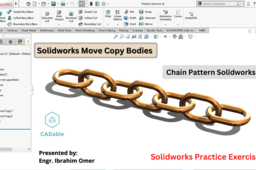
Solidworks Move Copy Bodies | Solidworks Chain Pattern | Solidworks Practice Exercise 32 | CADable | CADable tutorials
Ibrahim Omer
in
Assemblies
1
0
Beginner
Hi friends welcome back to CADable. This is Engr. Ibrahim Omer. In this tutorial, we will practice move copy bodies feature using a example by creating a chain pattern in solidworks. This will be solidworks practice exercise 32. After modeling the chain pattern, we will apply appearance to our part. I hope you like it. Here we will use the following commands and features: 1) Sweep Boss 2) Move Copy Body 3) Linear Pattern 4) Mirror 5) Appearance It is a good exercise for beginners and it will be a good practice for beginners. Kindly use play pause technique for practice. Feel free to ask your queries in comment section. I will try to answer each and every question. Keep practicing as practice makes a man perfect. Follow our Channel: https://www.youtube.com/c/CADable #solidworksmovecopybodies #solidworkspracticeexercise32 #solidworkschainpattern #solidworksexercise32 #CADable #CADabletutorials #solidworksmovecopyfeature
SOLIDWORKS
cadable tutorials
cadable
chain pattern solidworks
solidworks move copy bodies
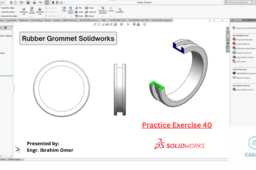
Rubber Grommet Solidworks | Create Rubber Grommet in Solidworks | Solidworks Exercise 40 | CADable | CADable tutorials
Ibrahim Omer
in
Modeling
1
0
Beginner
Welcome back to CADable! I'm Engr. Ibrahim Omer, and in today's tutorial, we're diving into Practice Exercise 40 where we'll be modeling a rubber grommet in SolidWorks. We'll start by sketching the cross-section of the grommet and then revolve it 360 degrees around the axis of revolution. Next, we'll add the necessary radii to the outer edges for a polished finish. Finally, to give our grommet that authentic rubber look, we'll apply a rubber appearance. Whether you're just starting out or looking to sharpen your SolidWorks skills, this tutorial is perfect for you. Follow along with the video, and if you have any questions, don't hesitate to drop them in the comments section below. For more exciting tutorials and SolidWorks tips, be sure to subscribe to CADable and stay tuned for our latest updates! #solidworksrubbergrommet #cadabletutorials #cadable #createrubbergrommetinsolidworks #solidworksexercises
SOLIDWORKS
solidworks exercise 40
cadable tutorials
cadable
create rubber grommet in solidworks
rubber grommet solidworks
1
2
3