Learn about the GrabCAD Platform
Get to know GrabCAD as an open software platform for Additive Manufacturing
Visit our new homepage
Home
Control
Shop
Streamline Pro
Partner Program
Print
Community
Log in
Library
Challenges
Groups
Questions
Tutorials
Engineers
Blog
Log in
hope torley
Follow
0
followers
United States
Tutorials
About
Models
0
Tutorials
1
More
Followers
0
Following
0
Likes
1
Following
0
Followers
0
Likes
1
Tutorials
Sort by:
Recent
Recent
Most liked
Most viewed
Most commented
how to put the object in the main views? Can you help me
hope torley
in
Design & CAD
0
0
Intermediate
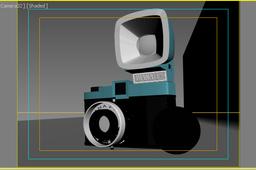
1] Best to start in the top viewport. Select your camera 2] Click the Motion tab 3] Click Assign Controller drop down 4] Select >Position: Path controller 5] Click icon to left below Assign Controller title 6] In Fly-out menu select "Path constraint" 7] In right parameter area, under >Look-at Parameters, select "Pick Target" if your camera isn't already showing in text area above it. 8] Under >Path Parameters, click "Add Path" button and select your circle. 9] To adjust your camera, you now have to use its PARENT, THE CIRCLE PATH which is now controls its rotation and movement. 10] Rotate the circle until your camera is in start position. (Check your Camera viewport) 11] In Top viewport, move the Camera Target to the center of your object. However many frames for the animation determines the 360' path speed of the camera. More frames, the slower the anim.
Autodesk 3ds Max
camera
3ds
max
views
diana