Learn about the GrabCAD Platform
Get to know GrabCAD as an open software platform for Additive Manufacturing
Visit our new homepage
Home
Control
Shop
Streamline Pro
Partner Program
Print
Community
Log in
Library
Challenges
Groups
Questions
Tutorials
Engineers
Blog
Log in
The Savvy Engineer
CAD CAM Engineer | CATIA Champion | Feedspot Best CAD CAM Blogger
Follow
Hire me
4
followers
Tunisia
Tutorials
About
Models
1
Tutorials
23
More
Followers
4
Following
0
Likes
0
Following
0
Followers
4
Likes
0
Tutorials
Sort by:
Recent
Recent
Most liked
Most viewed
Most commented
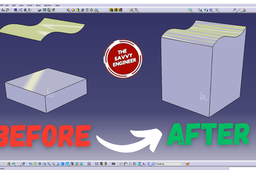
CATIA | How to Extrude a Part Face up to a Surface
The Savvy Engineer
in
Modeling
1
0
Beginner
Learning how to extrude a part face up to a surface in CATIA is an essential skill for anyone involved in 3D modeling, product design, or mechanical engineering. This feature allows designers to create highly accurate and complex geometries that match specific design requirements. Instead of extruding to a fixed distance, you can extrude precisely until your geometry meets another surface. This ensures that your part adapts to existing shapes or reference models, maintaining design intent and precision.
CATIA
engineering
surface
extrude
catia
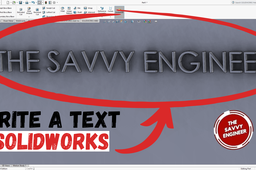
SolidWorks | How to Write a Text on a Piece Like a Pro
The Savvy Engineer
in
Modeling
1
0
Beginner
Learning how to write a text on a piece in SolidWorks is an essential skill for anyone interested in professional design, product development, or mechanical engineering. Adding text to a 3D model is not just about decoration—it plays an important role in communication, identification, and branding. Whether you’re engraving a company logo, serial number, label, or instructions, knowing how to add text directly to a model makes your designs more functional and professional.
SOLIDWORKS
write text
text
solidworks
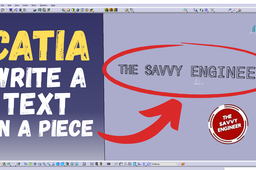
CATIA | How to Write a Text on a Piece like a Pro
The Savvy Engineer
in
Modeling
1
0
Beginner
Learning how to write text on a piece in CATIA is an important skill for anyone involved in product design, mechanical engineering, or 3D modeling. Text engraving or embossing is often overlooked by beginners, yet it plays a crucial role in making models more professional, identifiable, and ready for manufacturing. By mastering this feature, you can add functional and aesthetic details that enhance both the clarity and quality of your designs.
CATIA
text
write
catia
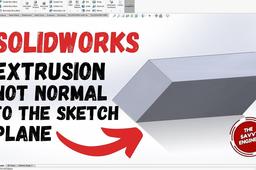
SolidWorks | How to Create an Extrusion not Normal to the Sketch Plane
The Savvy Engineer
in
Modeling
1
0
Beginner
Learning “How to Create an Extrusion Not Normal to the Sketch Plane” in SolidWorks is an important skill for engineers and designers who want to create advanced and realistic 3D models. In practical design work, not all features are perpendicular to their sketch planes—many mechanical parts, brackets, housings, and aerodynamic components require angled or directional extrusions. Knowing how to extrude in a non-normal direction allows you to produce such complex geometries with accuracy and control. This technique expands your modeling capabilities by enabling you to define custom extrusion directions based on edges, planes, or vectors. It eliminates the need to create additional reference planes for every angled feature, saving valuable time and improving design efficiency. Moreover, it enhances the precision and flexibility of your designs, ensuring they meet functional and aesthetic requirements in real-world applications. By mastering this feature in SolidWorks, you develop a deeper understanding of 3D geometry relationships and parametric control. It’s a crucial step toward becoming proficient in advanced part modeling and product development. Whether you work in mechanical, aerospace, or industrial design, being able to create extrusions not normal to the sketch plane demonstrates professional-level skill and a solid grasp of complex modeling concepts.
SOLIDWORKS
extrusion
solidworks
CATIA | How to Create an Extrusion Not Normal to the Sketch Plane
The Savvy Engineer
in
Modeling
1
0
Beginner
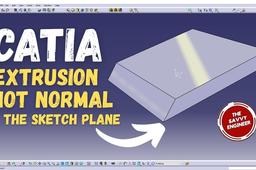
Learning “How to Create an Extrusion Not Normal to the Sketch Plane” in CATIA is essential for engineers, designers, and CAD professionals who want to create complex and realistic 3D models. In many real-world designs, parts are not always aligned perpendicularly to a sketch plane — for example, angled brackets, turbine blades, or aerodynamic surfaces. Understanding how to extrude features along a non-normal direction allows you to accurately represent these advanced geometries. This skill enhances your ability to model with precision and flexibility, giving you more control over the orientation and direction of your features. It helps you go beyond basic extrusions, enabling you to handle sophisticated assemblies and meet specific design requirements. Moreover, it improves your efficiency in mechanical design, product development, and simulation workflows, since you can generate accurate shapes without relying on multiple sketch planes or workarounds. By mastering this CATIA technique, you develop a deeper understanding of the software’s geometry control tools and gain a competitive edge in design engineering. Whether you work in automotive, aerospace, or industrial design, knowing how to extrude features not normal to the sketch plane is a powerful skill that reflects true professional-level modeling expertise.
CATIA
sketch plane
extrusion
catia
SolidWorks | How to Convert a STEP File into SLDPRT Like a Pro
The Savvy Engineer
in
Modeling
1
0
Beginner
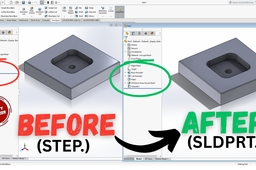
Learning how to convert a STEP file into an SLDPRT file like a pro is a valuable skill for anyone working with SolidWorks, whether you are a student, engineer, or product designer. STEP files are widely used across industries because they allow seamless data exchange between different CAD platforms. However, while STEP files carry geometry, they do not always maintain the feature history that SolidWorks uses for parametric modeling. This means that directly working with a STEP file can be limiting when you need to make modifications, apply advanced design techniques, or prepare the model for manufacturing.
SOLIDWORKS
engineering
sldprt
step
solidworks
CATIA | How to Convert a STEP File into CATPart Like a Pro
The Savvy Engineer
in
Modeling
1
0
Beginner
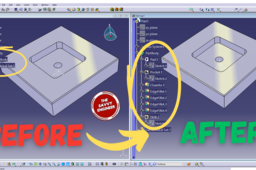
Learning how to convert a STEP file into a CATPart in CATIA is an essential skill for engineers, designers, and students who work with 3D models in collaborative environments. STEP files (.stp or .step) are widely used as a neutral format to exchange CAD data between different software platforms. Since not every team or partner uses CATIA, being able to import and convert STEP files into CATPart format allows you to fully integrate external designs into your CATIA projects. One key reason to learn this process is compatibility and collaboration. In real-world engineering, parts and assemblies often come from multiple suppliers or design teams. If you receive a model in STEP format, converting it into CATPart makes it editable and usable within CATIA. This ensures seamless collaboration without the need to remodel the geometry from scratch, saving time and reducing errors. Another important benefit is design modification and reuse. Once the STEP file is converted into a CATPart, you can take advantage of CATIA’s powerful tools for editing, analysis, and simulation. This means you can refine designs, make necessary changes, or use the geometry as a base for new components. Without conversion, the file would remain static, limiting your ability to adapt it to evolving project requirements. Additionally, understanding this process improves workflow efficiency. Instead of struggling with file incompatibility, you can quickly integrate external models into your design environment. This is particularly valuable in industries such as automotive, aerospace, and manufacturing, where different CAD systems are common. In conclusion, learning how to convert a STEP file into a CATPart in CATIA is not just a technical step—it is a vital skill for collaboration, design flexibility, and productivity. It enables engineers to bridge the gap between different CAD systems and work more efficiently in a global engineering environment.
CATIA
catpart
step
catia
SolidWorks | How to Cut a Solid With a Surface Like a Pro
The Savvy Engineer
in
Modeling
1
0
Beginner
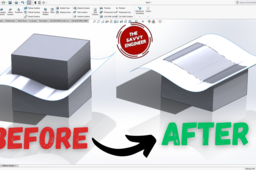
Learning how to cut a solid with a surface in SolidWorks is a vital skill for anyone looking to move beyond basic modeling into more advanced design techniques. This feature is especially useful in creating complex and precise geometries that cannot be achieved with standard sketch-based cuts. Unlike simple extrusions or revolves, cutting with a surface allows you to shape a solid body using freeform, lofted, or imported surfaces, giving you far greater design flexibility. One of the main reasons to master this technique is its importance in product design and engineering. Real-world parts often have irregular shapes, smooth transitions, or curved surfaces that need to be cut into a solid model. For instance, in automotive and aerospace industries, many components have aerodynamic surfaces that cannot be represented with standard sketches. Knowing how to use a surface as a cutting tool makes it possible to achieve the required level of precision and realism. Another key benefit is that it enhances your problem-solving capabilities within SolidWorks. Sometimes, a design cannot be modified easily with traditional cut features due to geometric restrictions. Using a surface cut lets you bypass these limitations, making it a powerful tool for tackling complex modeling challenges. Additionally, this skill is highly valuable in collaborative environments where models may be exchanged between different CAD systems. Imported geometry often comes in the form of surfaces, and being able to use those surfaces to trim or cut solids ensures seamless integration and modification of external data. In short, learning how to cut a solid with a surface in SolidWorks equips you with the ability to design more complex, functional, and aesthetically refined parts. It not only expands your modeling toolbox but also prepares you to handle real-world design challenges with greater efficiency and creativity.
SOLIDWORKS
surface
solid
cut
solidworks
CATIA | How to Cut a Solid with a Surface like a Pro (2025)
The Savvy Engineer
in
Modeling
1
0
Beginner
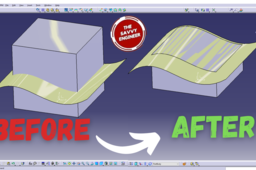
In CATIA, mastering the ability to cut a solid with a surface is an essential skill for anyone working in product design, engineering, or manufacturing. This operation is widely used in creating complex shapes, refining geometry, and ensuring that parts meet functional and aesthetic requirements. Learning this technique not only improves your modeling skills but also helps you create designs that are both practical and visually precise. One of the main reasons to learn this feature is its importance in handling advanced designs. Standard solid modeling tools can be limiting when working with freeform shapes or intricate geometries. By cutting a solid with a surface, you can achieve shapes that would otherwise be impossible or too time-consuming to create using only basic tools. This is particularly useful in industries like automotive, aerospace, and consumer product design, where complex forms are the norm. Another advantage is the flexibility it provides during the design process. Surfaces can be created with high precision and then used to trim or cut solids to exact specifications. This makes it easier to design features such as aerodynamic curves, ergonomic contours, or intricate cavities. It also allows for quick design changes, since modifying the cutting surface automatically updates the solid geometry. Additionally, this skill enhances problem-solving and creativity. When faced with challenging design tasks, knowing how to combine surface and solid modeling gives you more options to achieve the desired outcome. It bridges the gap between conceptual design and practical engineering, making your models more versatile and manufacturable. In short, learning how to cut a solid with a surface in CATIA equips you with advanced modeling capabilities, improves design accuracy, and expands your creative potential—making it an indispensable technique for any serious CAD user.
CATIA
1
2