Learn about the GrabCAD Platform
Get to know GrabCAD as an open software platform for Additive Manufacturing
Visit our new homepage
Home
Control
Shop
Streamline Pro
Partner Program
Print
Community
Anmelden
Library
Challenges
Groups
Questions
Tutorials
Engineers
Blog
Anmelden
Learn from thousands of free Tutorials.
New user?
Join the community
or
log in.
Tutorials
Most liked all time
Recent
Most liked
Most viewed
Most commented
This week
This month
All time
Category
Design & CAD
Modeling
Drafting
Assemblies
BOM
Dimensioning / Tolerancing
Translations
Manufacturing & CAM
3D Printing
Tooling
NC Machining
Composites
Measurement / Inspection
Simulation & CAE
FEM
CFD
Kinematics
Process Simulation
Engineering Fundamentals
Theory
Process
Standards
Other
Software
Snagit
Alibre Design
ArchiCAD
AutoCAD
AutoCAD Electrical
Autodesk 3ds Max
Autodesk Alias
Autodesk Inventor
Autodesk Maya
Autodesk Revit
Autodesk 123D
BricsCAD
Bentley MicroStation
BlenderCAD
BobCAD-CAM
CATIA
Delmia
DraftSight
FreeCAD
Femap
Fusion 360
Geomagic Design
IronCAD
JT
Kompas-3D
KeyCreator
KeyShot
Lagoa
Luxology
Mastercam
Moi3D
NX Unigraphics
OBJ
Onshape
OpenSCAD
Parasolid
Powermill
Powershape
Pro/Engineer Wildfire
PTC Creo Parametric
PTC Creo Elements
Rhino
SpaceClaim
SOLIDWORKS
solidThinking Evolve
Solid Edge
SolidFace
STEP / IGES
SketchUp
STL
TopSolid
TinkerCAD
T-Flex CAD
TurboCAD
VectorWorks
ViaCAD 3D
VRML / WRL
ZW3D
GrabCAD Print
Rendering
GrabCAD Community
GrabCAD Workbench
Text file
3D Manufacturing Format
Cinema 4D
Other
Skill level
All levels
Beginner
Intermediate
Expert
Drafting
×
AutoCAD
×
Solid Edge
×
AutoCAD - Complete Tutorial for Beginners - Exercises 8
MRCAD
in
Drafting
0
0
Intermediate
COMPLET COUESH FOR 100 EXERCISEC FUNCTION KEY:- Ø ESC : To cancel Command Ø F1 : Autocad Help Ø F2 : Text Window on/off To see recently used command, options, Points. Ø F3 : Osnap button on/off. Ø F4 : Tablet on/off (Autocad 2010 & Prior Versions) 3DOSNAP ON/OFF (Autocad 2011 & Autocad 2012) Ø F5 : To change isoplane in isometric drawing. Ø F6 : DUCS (Dynamic user co-ordinate system) button on/off. Ø F7 : Grid button on/off. By default grid spacing is 0.5 inch in X- direction and Y direction. Ø F8 : Ortho button on/off. Ø F9 : Snap button on/off If snap button is on mode from status bar than cursor will be Jump on the graphic one dot to another dot. Ø F10 : Polar button on/off. (Alternate off ortho button) Ø F11 : Otrack button on/off. (object snap tracking) Ø F12 : DYN button on/off. (Dynamic input) Short cut keys:- Ø Ctrl+A : select all Ø Ctrl+B : Snap on/off Ø Ctrl+C : Copy objects to clipboard Ø Ctrl+D : Dynamic UCS (DUCS) on/off Ø Ctrl+E : To change isoplane in isometric Ø Ctrl+F : Osnap on/off Ø Ctrl+G : Grid on/off Ø Ctrl+H : Set variable Ø Ctrl+I : Co-ordinate on/off Ø Ctrl+J : Repeat Last Command Ø Ctrl+K : Hyperlink Command Ø Ctrl+L : Ortho on/off Ø Ctrl+M : Repeat Last Command Ø Ctrl+N : To create new autocad file Ø Ctrl+O : To open autocad file Ø Ctrl+P : To print/plot autocad file Ø Ctrl+Q : To Quit/Exit from autocad Ø Ctrl+R : To cycle between viewports Ø Ctrl+S : To save autocad file Ø Ctrl+T : Tablet on/off Ø Ctrl+U : Polar on/off Ø Ctrl+V : Paste objects from clipboard Ø Ctrl+W : Otrack on/off (Autocad 2010 & prior ver.) Ø Ctrl+W : Selection cycling on/off (New Autocad 2011) Ø Ctrl+X : Cut objects to clipboard Ø Ctrl+Y : Redo Ø Ctrl+Z : Undo Ø Ctrl+0 : Clean Screen Ø Ctrl+1 : Properties Ø Ctrl+2 : Autocad design center Ø Ctrl+3 : Tool Palettes Ø Ctrl+4 : Sheet set Manager Ø Ctrl+5 : Info palette ( not working from Acad2008) Ø Ctrl+6 : Database Connect Ø Ctrl+7 : Markup set manager Ø Ctrl+8 : Quick calculator Ø Ctrl+9 : Show /Hide Commandline Window Ø Ctrl+Shift+C : Copy objects With basepoint Ø Ctrl+Shift+E : Presspull Command Ø Ctrl+Shift+H : Show /Hide Commandline window Ø Ctrl+shift+P : Quick properties Ø Ctrl+Shift+S : Save as Autocad file Ø Ctrl+Shift+V : Paste as block #Complete Tutorial for Beginners #AutoCAD - SolidWorks Beginners Tutorials - SolidWorks Sketching - SolidWorks Surface - SolidWorks Weldments - SolidWorks Assembly - SolidWorks Drawing - SolidWorks Sheet Metal - SolidWorks Mold Design - SolidWorks Simulation - SolidWorks Motion please subscribe our channel for more videos & projects in solidworks & dont forget to hit like & share the videos, thanks for watching.
AutoCAD
beginners
tutorial
complete
autocad
Trim and extend in AutoCAD
Karajko CAD
in
Drafting
0
0
Beginner
This tutorial will feature Trim and extend tools in AutoCAD.
AutoCAD
extend
trim
autocad
Auto-cad ALTERNATIVE DIMENSION MULTIPLICATION FACTORS - Tamil
Dharan A
in
Drafting
0
0
Expert
In This Video To Be Cover Auto-cad ALTERNATIVE DIMENSION MULTIPLICATION FACTORS - Tamil https://youtu.be/WoLkP52szjY
AutoCAD
https-youtu-be-wolkp52szjy
autocad
Layer command in autocad || Layers toolbar || Layer in Autocad
S Satish kumar
in
Drafting
0
0
Beginner
Hey guys in this video i explain how to use layer command in autocad 2020.I also explain what are the use of layers toolbar in Autocad. By using some example i have explain it such as 2d floorplan and a 3d screwjack. Keyword: How to use layer in Autocad How to use layers toolbar in autocad What is the use of layer command in autocad benefits of layer command in autocad layer in Autocad layer toolbar --------------------------------------------------------------------------------------------------------------------------- If u like this video make sure to subscribe my channel and don't forget to hit the bell icon. --------------------------------------------------Thank you--------------------------------------------------------
AutoCAD
benefits
what
how
use
command
layer
autocad
toolbar
layers
How to save your changes in AutoCAD?
Karajko CAD
in
Drafting
0
0
Beginner
This time you will learn how to save any change you made in AutoCAD as a drawing template.
AutoCAD
layers
templates
autocad
How to change crosshair size in AutoCAD?
Karajko CAD
in
Drafting
0
0
Beginner
A quick tip :)
AutoCAD
crosshair
autocad
Modern Kitchen Table in AutoCad
AutoCad Hindi
in
Drafting
0
0
Expert
If you like this Video, Leave a Like & Share your Valuable Comment. Don't forget to Subscribe. HD Images- https://drive.google.com/open?id=1XL2FcPmKechcL8jrSS1e6nvHmnaEaZVI Dwg. File:- https://drive.google.com/open?id=1Hw5tTdRyY1NZHPQP2I6k5mpPBwOCbHCq YouTube Subscribe Channel:- https://www.youtube.com/channel/UCJmohoyyq7F9-yo_NBIv2lg
AutoCAD
interior
hindi
autocad
table
kitchen
modern
Tutorial: how to make standard compliant sections in Solid Edge Draft
Ferro
in
Drafting
0
0
Intermediate
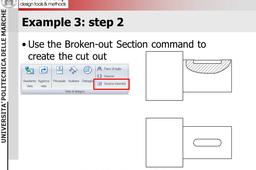
This tutorial show how to produce standard compliant sections with the Draft module of Solid Edge.
Solid Edge
view
orthographic
drawing
mechanical
draft
sections
WestJet Airlines SEA Terminal
shin chain
in
Drafting
0
0
Beginner
WestJet Airlines SEA Terminal with a focus on providing a seamless travel experience for its passengers. The check-in counters are efficiently organized, offering both self-service kiosks and traditional assistance. Travelers can expect a comfortable and modern waiting area equipped with ample seating and amenities. The terminal features clear signage and helpful staff to guide passengers through security and boarding procedures. WestJet's presence at SEA is marked by friendly service and a commitment to smooth transitions between flights. Overall, the terminal experience reflects WestJet's dedication to customer satisfaction and convenience.
AutoCAD
AutoCAD Tutorial | 2D Drawing
Christopher Moris
in
Drafting
0
0
Beginner
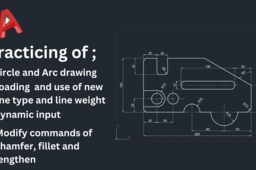
This tutorial shows the practice of using circle and arc drawing commands, The modify commands of chamfer, fillet and lengthen, also shows the practice of loading and using of new line type and line weight. Finally shows the way of activating and deactivating the dynamic input.
AutoCAD
AutoCAD 2019 Setting Units
L.E. Rich
in
Drafting
0
0
Beginner
This video will cover topics in AutoCAD 2019: Students will explore how to set unit types in AutoCAD. Students will demonstrate how to set unit types in AutoCAD.
AutoCAD
stem
training
education
2d
cad
2019
autodesk
autocad
AutoCAD 2019 Hatching an Object
L.E. Rich
in
Drafting
0
0
Beginner
This video tutorial covers topics in AutoCAD 2019: Students will explore the Hatching command. Students will be able to demonstrate how to use the Hatching command.
AutoCAD
drafting
engineering
design
2d
autodesk
cad
autocad
AutoCAD 2019 Create 3 Point Circle
L.E. Rich
in
Drafting
0
0
Beginner
This video tutorial will cover topics in AutoCAD 2019: Using the AutoCAD 2019 students will explore the 3-Point Circle command. Students will demonstrate the ability to use the Create 3-Point Circle command to create a circle.
AutoCAD
engineering
education
students
autocad 2019
autocad
autodesk
Solidworks ! Fingers Keyboard Modling - drafting-1
MRCAD
in
Drafting
0
0
Expert
Magnifico Moonlit Wired Keyboard features a slim full-sizedprofile wired keyboard with laser-etched, backlit keys that provide character illumination needed to give you a hassle free typing experience - day and night. Built with high-strength materials,this keyboard is ‘Chaudhvi ka Chand’ in looks and solid in performance! DOWNLOAD THE MODAL : https://engineering624.blogspot.com/2... COMPLET COUESH FOR 100 EXERCISES FUNCTION KEY:- Ø ESC : To cancel Command Ø F1 : Autocad Help Ø F2 : Text Window on/off To see recently used command, options, Points. Ø F3 : Osnap button on/off. Ø F4 : Tablet on/off (Autocad 2010 & Prior Versions) 3DOSNAP ON/OFF (Autocad 2011 & Autocad 2012) Ø F5 : To change isoplane in isometric drawing. Ø F6 : DUCS (Dynamic user co-ordinate system) button on/off. Ø F7 : Grid button on/off. By default grid spacing is 0.5 inch in X- direction and Y direction. Ø F
AutoCAD
drafting
modling
keyboard
fingers
solidworks
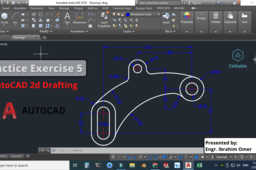
Autocad 2d drafting | Autocad Practice Exercise 5 | Autocad 2d practice drawing | CADable Tutorials
Ibrahim Omer
in
Drafting
0
0
Beginner
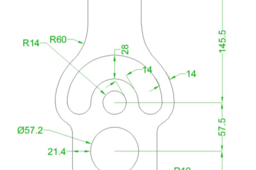
utocad 2d drafting | Autocad practice exercise 5 Hi friends welcome back to CADable. This is Engr. Ibrahim Omer. In this tutorial, we will learn how to make a 2d drawing in autocad. This is autocad practice exercise 5. I hope you like it. We will learn the following features and commands: 1) Line Weight 2) Use of Layers 3) Offset Command 4) Tan Tan Radius 5) Trim Command 6) Annotate Centre Mark 7) Join Command 8) Dimensions It is a good exercise for beginners and it will be a good practice for beginners. Kindly use play pause technique for practice. Feel free to ask your queries in comment section. I will try to answer each and every question. Keep practicing as practice makes a man perfect. Follow our Channel: https://www.youtube.com/c/CADable #autocad2ddrafting #autocadpracticeexercise5 #autocad2dpracticedrawing #CADable #CADabletutorials
AutoCAD
cadable tutorials
cadable
autocad practice exercise 5
autocad 2d drafting
1
…
12
13
14
…
18