

HSMWorks tutorial №5 - More 2D machining

In this tutorial we will learn how to machine a 2.5D part using the following steps:
▸ Create a Machining Assembly
▸ Sketch the Stock
▸ Create a Coordinate System
▸ Job Settings
▸ 2D Contour
▸ Pocket Machining
▸ Drilling
▸ Tapping
▸ Drilling 2
▸ Circular Pocket Machining
▸ Counter Sinking
▸ Chamfering
▸ Post Processing
Before proceeding, open the part Tutorial5.SLDPRT into HSMWorks.
The files used in this manual can be found in the examples folder in the folder where HSMWorks is installed. Typically, this is something like C:\Program Files\HSMWorks\examples\
𝐃𝐢𝐬𝐜𝐥𝐚𝐢𝐦𝐞𝐫: This tutorial is a representation of the original Help tutorial with the HSMWorks software suite.
This guide is intended for educational purposes and to make the features and tools of HSMWorks more accessible to the general public.
More information about purchasing, installing, and using HSMWorks can be found on the official website: https://www.autodesk.com/products/hsmworks
-
Step 1: Create a Machining Assembly
Before proceeding we will make a new machining assembly to keep the machining operations and toolpaths in.
➝ From the File menu choose Make Assembly from Part. This will create a new assembly file, and preselect the already opened part document as the component to insert.
➝ Click ✓ at the top of the property manager.
➝ Save the new assembly as Tutorial5.SLDASM in the examples folder, next to the part file, or choose a name and location of your own choice.
When saving the assembly you may receive a message that referenced models have been modified:
➝ The following models referenced in this document have been modified. They will be saved when the document is saved.
You receive this message if using a newer version than the one the tutorial part was created with, and you can safely select Save All.
It is almost always better to save machining operations and toolpaths as an assembly. This helps maintain associativity with the model by alerting you of any changes when the assembly is opened.
For more information see Machining assemblies
-
Step 2: Sketch the Stock
Since we need an entity to place our origin on, and because having the stock defined makes the stock simulation more accurate, we will set up the stock for this part.
When you have a part without any geometry at the machining origin, or if there are no planes in the machining direction, you may need to construct helper geometry to be used from HSMWorks.
This part, for example, we want to machine from a rectangular block of aluminum which is slightly larger than the part, and for easier setup we want keep the tool orientation origin at the corner of the stock piece.
There are two ways to set up a stock in an assembly:
➝ Create a separate model representing your stock (See Tutorial 3 - 3+2 Machining for an example of this)
➝ Create a 2D sketch of the stock silhouette. This works well if your stock is simple - like a block or a cylinder.
Create a rectangular sketch, representing a block of stock measuring 154mm by 44mm (ie. slightly larger than the extends of the part):
➝ Select the flat face on the top of the model:
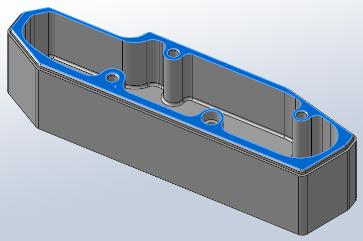
➝ Start a new Sketch on this face, available from the Insert menu or the Sketch toolbar
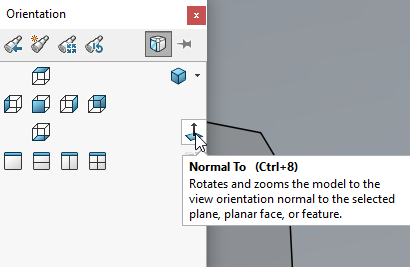
➝ Change the view to Normal To.
➝ Press Ctrl+8 or choose from the View toolbar:
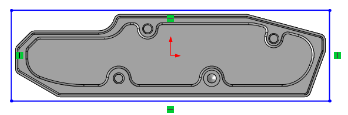
➝ Start sketching a rectangle.
➝ Sketch a rectangle enclosing the entire model, like this:
➝ Using the Smart Dimension tool, add dimensions to the stock sketch, like this:
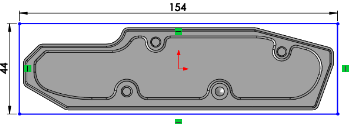
➝ Optional: Add extra dimensions between the sketch and the part, to fixate it:
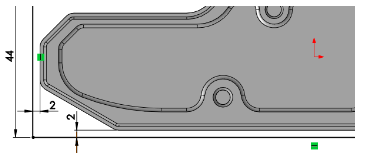
➝ Now, finish the sketch
-
Step 3: Create a Coordinate System
➝ From the Insert menu select Reference Geometry - Coordinate System.
➝ Select the point in the lower left corner of your sketch. This will make it the Origin of your coordinate system. Notice that the coordinate system is now drawn at this position, and that the point is selected in the Origin field on the property page.
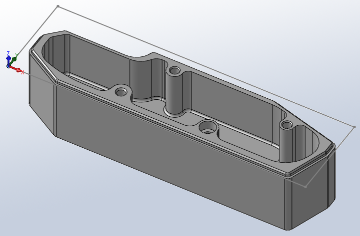
➝ Optional: Select the lower line in the sketch. This will make it the X axis.
➝ Optional: Select the left line in the sketch as well. This will make it the Y axis.
➝ Click ✓ at the top of the property manager.
-
Step 4: Job Settings
➝ Go to the HSMWorks operations manager by clicking on the Machining Operations tab
➝ Right click on Tutorial5 Operation(s) of the operation tree and select New Job.
1. Set the Work Coordinate System (WCS)
➝ Scroll down to the group Work Coordinate System (WCS).
➝ Make sure that Use Coordinate System is chosen in the Tool Orientation Selection box.
➝Make sure the WCS selection field is highlighted.
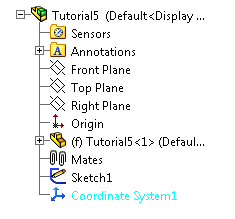
➝ In the model window click the + in front of Tutorial5 to unfold the Assembly tree.
➝ Select Coordinate System1:
 2. Define the Stock
Defining the stock on a simple example like this is not strictly necessary, but it does make the stock simulation more accurate.
On machining assemblies with multiple parts and/or fixtures in the assembly, this exercise will prove important.
➝ Scroll up to the group Stock.
➝ From the drop down, change Automatic to From Extruded Sketch.
➝ Select Sketch1 from the feature tree.
➝ Alternatively select the sketch directly on the model by clicking on one of the lines.
➝ In the Offset Z field, enter 1mm.
➝ In the Height field, enter 36mm.
3. Define the Model Surfaces
As for the stock, defining the machining surfaces are not strictly necessary. Again, we do it here as an exercise for more complicated setups.
➝ Scroll up to the group Model.
➝ Click the selection field to set the selection focus.
➝ Click the model in the model view window, to select the part as the machining surfaces:
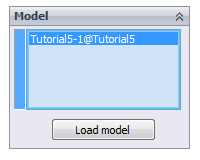
Click ✓ at the top of the property manager.
-
Step 5: 2D Contour
First of all we want to machine the outer planes of the part. We want to run the tool along the outer edges of the part.
➝ Click 2D Contour on the CAM toolbar or select it from the CAM, Toolpaths menu.
This creates a new operation, and opens the Property Manager where you can edit the individual parameters controlling the toolpath, as well as selecting the actual geometry to machine.
The property page is divided into a number of groups, and in this tutorial we will go through each one by one, changing the necessary settings in each group as we go along.
1. Tool
➝ Press Library
➝ From the library Tutorial under Sample Libraries, select tool #3 - Ø10mm flat
➝ Press Select
2. Geometry
We want to machine around the outside outline of the part. To do this, select a chain of edges from the model:
➝ Click the Geometry selection field
➝ Select the bottom front edge on the model:
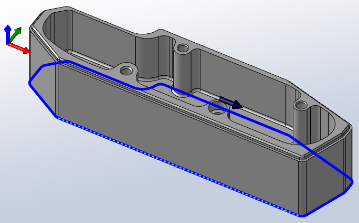
➝ If the direction arrow does not appear as shown, change the direction by clicking Reverse
Notice that HSMWorks automatically creates a chain around the part. This is because Tangent propagation and Propagate along Z are enabled by default.
Depending on which end of the edge you click you can determine the direction of the contour. By clicking closer to the desired start of an edge you can determine the direction of the contour. For climb milling click close to the bottom right side of the edge.
We can machine the indent around the top of the part in the same operation:
➝ Zoom in on the top right corner of the part
➝ Select the edge inside the indent:
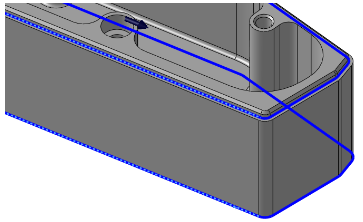
3. Heights
By default, the heights for the 2D Contour operation is set so the bottom of the toolpath is at the level of the selected contours, and the remaining heights depend on the stock and model geometry.
If you look from the side of the part (press Ctrl+6), it should look like this:
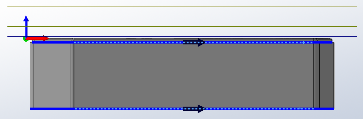
These defaults are fine in this example, and we do not need to change them.
4. Start calculation
Click ✓ at the top of the property manager. This will automatically start calculation of the toolpath.
The toolpath will now be calculated and a preview will be shown in the model view:
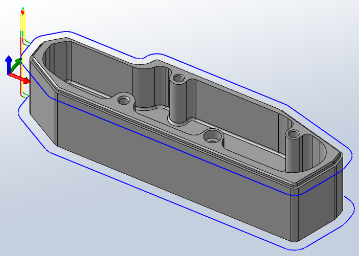
-
Step 6: Pocket Machining
As the next operation we want to machine the internal pocket of the part. In this operation we will use the 2D Pocket strategy with a 10mm bull nosed tool with a 1mm corner radius.
➝ Click 2D Pocket on the CAM toolbar or select it from the CAM, Toolpaths menu.
1. Tool
In this operation we will use a tool with a corner radius of 1mm to match the fillet radius at the bottom of the pocket.
➝ Press Library
➝ From the library Tutorial under Sample Libraries, select tool #11 - Ø10R1mm bullnose
➝ Press Select
2. Geometry
In this group we select the contour of pocket we want to clear.
➝ Make sure that both Tangent propagation and Propagate along Z are enabled for simpler chain selection
➝ Select one of the edges at the top of the pocket
The selection should now look like this:
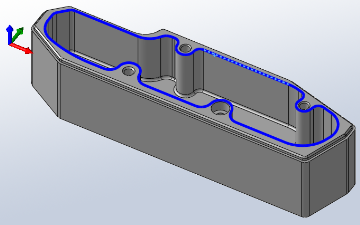
3. Heights
The parameters in this group control the different height where toolpath is generated.
In this example, we want the 2D Pocket operation to machine down to the bottom of the inside cut.
➝ For Bottom choose From Selection.
➝ For the Bottom Reference select one of the vertices along the bottom face:
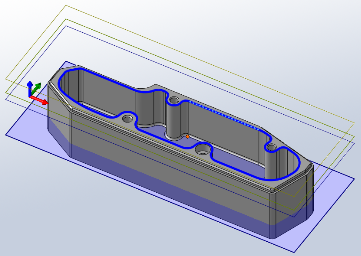
4. Passes
2D Pocket
This group controls how the 2D pocket toolpath will be calculated. We want to use this pocket toolpath to clear out the pocket. To do this we want to generate the toolpath in a number of z levels, starting from the top of the stock and going down in steps of 2mm to the bottom of the pocket. The depth of pocket is 25mm.
Change the following parameter values, and leave all others at their default:
➝ Set Maximum Stepover: 5.0mm
➝ Enable Multiple Depths
➝ Set Maximum Roughing Stepdown: 5.0mm
➝ Set Finishing Stepdowns: 2
Stock to Leave
We want to leave some stock on the sides, as we will need to finish the fillets with a smaller tool later on anyway.
The bottom, however can be finished by the pocket, and we should remove the vertical stock to leave:
➝ Set Axial (Floor) Stock To Leave: 0.0mm
5. Linking
Assuming that this part is made of a soft material, where we can do full width cuts, we can avoid some ramping by allowing the tool to stay down inside the pocket:
➝ Enable Keep Tool Down
➝ Change Maximum Stay-Down Distance: 250mm
Leads & Transitions
We will leave all settings in this group unchanged. We will use a helix ramp for plunge to material with the default settings from the program.
6. Start calculation
Click ✓ at the top of the property manager.
The toolpath will now be calculated and shown in the graphic area. The toolpath should look like in the picture below:
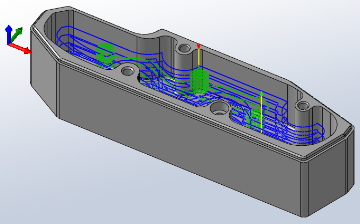
-
Step 7: Drilling
There are four holes in the part. One is clear and three are with thread. First, we will drill the three holes with a 4.3mm drill.
➝ Click Drill on the CAM toolbar or select it from the CAM, Toolpaths menu.
1. Tool
➝ Press Library
➝ From the library Tutorial under Sample Libraries, select tool #34 - Ø4.3mm drill
➝ Press Select
2. Geometry
Select the cylinder of one of the three 4mm holes
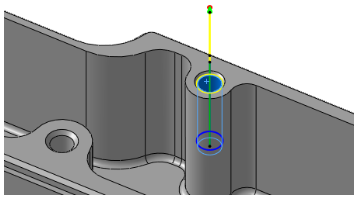
➝ Check Select same diameter
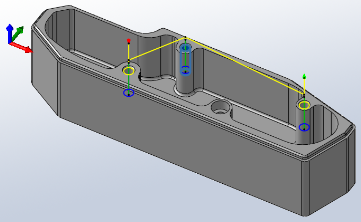
If Select same diameter is disabled (grayed out), you have most likely selected the edge of the cylinder instead of the face. You need to select cylindrical faces to use this feature.
When selecting faces instead of edges, it has the added benefit that the depth of each hole is automatically determined from the height of the cylinder.
Depending on the selection, you may want to enable Optimize order. The optimization reorders the holes in order to make the linking distance as short as possible.
If you check Order by depth, this will keep holes with the same depth and plane together. This may reduce the number of cycles in the output, but may not result in the shortest toolpath, even if Optimize order is enabled.
3. Heights
This group controls the heights of each hole, and the heights used when moving between the holes.
Because of the chamfer on the holes, the cylinders start a bit lower, and we will adjust for this by making the top start from the top of stock instead:
➝ For Top select From Stock Top
Having selected cylinders for our holes, all heights are relative to the top of the cylinder, and the depth is relative to the bottom.
This allows us to avoid entering the depths of the holes manually. If we had selected edges (which do not have a height), we would have to enter the depth manually.
4. Passes
Cycle
In this group select type of the cycle Chip breaking - partial retract.
➝ Change Pecking Depth: 2.5mm
5. Start calculation
Click ✓ at the top of the property manager.
This will calculate the toolpath, which should look like this:
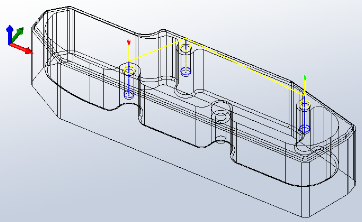
Drilling toolpaths are often best seen on a wireframe model.
Select Wireframe from the View, Display menu or the View toolbar to change to wireframe mode.
-
Step 8: Tapping
This tapping operation only differs in the type of cycle from the previous drilling operation; tapping will be done for the same geometry. To save all the work of entering this data, we will just copy the existing drilling toolpath and create the tapping toolpath by editing this copy.
➝ Right-click on the toolpath Drill1, select Duplicate (This creates a copy of the operation below the original one)
➝ Right-click on the new operation (Copy of Drill1)
➝ Choose Rename
➝ Type the new name, e.g. Tapping M5
Now we have to change the parameters and settings of the operation:
➝ Right-click on Tapping M5
➝ Select Edit from the context menu
1. Tool
➝ Press Library
➝ From the library Tutorial under Sample Libraries, select tool #43 - Ø5x1mm right tap
➝ Press Select
2. Heights
Now, to avoid breaking the tap, we need to reduce the depth so it is less than the drilled depth:
➝ Change Bottom: 2.0mm
This will reduce the depth by 2mm.
3. Passes
Cycle
Now, to change the drilling cycle to a tapping cycle:
➝ Go to the Cycle group
➝ From the Cycle type dropdown, to Tapping
All other setting in the groups can be left unchanged.
4. Start calculation
Click ✓ at the top of the property manager.
The toolpath will now be calculated and shown in the graphic area.
-
Step 9: Drilling 2
Next, we need to drill the single 4.5mm hole.
➝ Click Drill on the CAM toolbar or select it from the CAM, Toolpaths menu.
1. Tool
➝ Press Library
➝ From the library Tutorial under Sample Libraries, select tool #33 - Ø4.5mm drill
➝ Press Select
2. Geometry
Select the lower cylinder of the last hole
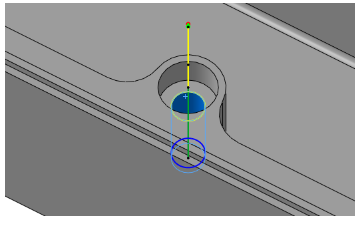
3. Heights
Because of the counter sink on this hole, the cylinder start a bit lower, and we will adjust for this by making the top start from the top of stock instead:
➝ For Top select From Stock Top

3. Passes
In this group select type of the cycle Chip breaking - partial retract.
All other setting in the groups can be left unchanged.
4. Start calculation
Click ✓ at the top of the property manager.
The toolpath will now be calculated and shown in the graphic area.
-
Step 10: Circular Pocket Machining
To machine the counter boring on the single 4.5mm hole, we will use a the 2D pocket strategy with a 4mm flat end tool.
➝ Click 2D Pocket on the CAM toolbar or select it from the CAM, Toolpaths menu.
1. Tool
For this pocket we need a flat tool with a diameter less than 4.5mm so we can plunge into the pre-drilled hole.
➝ Press Library
➝ From the library Tutorial under Sample Libraries, select tool #5 - Ø4mm flat
➝ Press Select
2. Geometry
In this group we select the contour of pocket we want to clear.
➝ Select the edge at the bottom of the counter-sink:
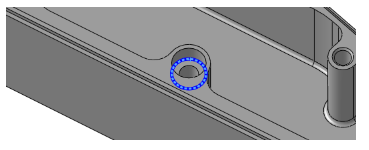
3. Passes
2D Pocket
Change the following parameter values, and leave all others at their default:
➝ Set Maximum Stepover: 0.5mm
Stock to Leave
➝ Disable Stock To Leave
4. Linking
Leads & Transitions
To make sure that we plunge at the center of the hole, we will disable the lead-in:
➝ Disable Lead-In (Entry)
And to get a smoother exit can adjust the lead-out a bit:
➝ Set Horizontal Lead-Out Radius: 1.0mm
➝ Set Linear Lead-Out Distance: 0.0mm
Since we have already drilled at this position, we can make the tool plunge into the drill hole:
➝ For Ramping select Plunge
5. Start calculation
Click ✓ at the top of the property manager.
The toolpath should look like in the picture below:
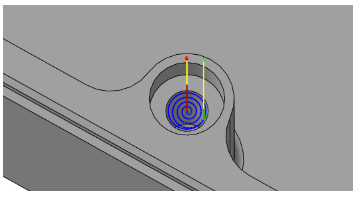
-
Step 11: Counter Sinking
Three of the drill holes have small counter sinks. We can machine all three in a single Drill operation by using a Counter Sink tool.
➝ Click Drill on the CAM toolbar or select it from the CAM, Toolpaths menu.
1. Tool
➝ Press Library
➝ From the library Tutorial under Sample Libraries, select tool #60 - Ø10mm 90deg counter sink
➝ Press Select
2. Geometry
➝ Check Select same diameter
➝ Select the counter sink faces of the two first holes:
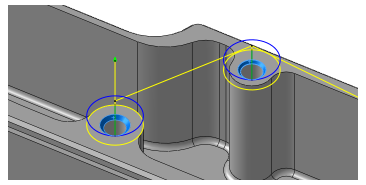
The counter sink face of the third hole should be automatically selected since it is identical to the second.
3. Start calculation
Click ✓ at the top of the property manager.
The toolpath should look like in the picture below:
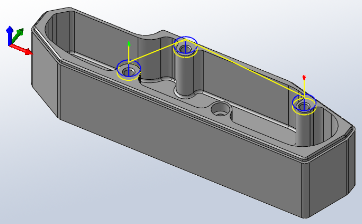
-
Step 12: Chamfering
To machine the chamfer along the outside edge we can use the 2D Contour strategy with a chamfer mill.
➝ Click 2D Contour on the CAM toolbar or select it from the CAM, Toolpaths menu.
1. Tool
➝ Press Library
➝ From the library Tutorial under Sample Libraries, select tool #50 - Ø10mm 45deg chamfer
➝ Press Select
2. Geometry
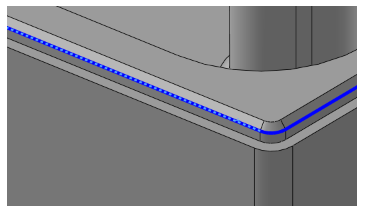
In this model, the chamfer already exists as a part of the model, which means that we have two edges to choose from as the geometry. One at the top of the chamfer and one of the bottom. HSMWorks allows either to be used, but in most cases choosing the bottom one allows for the easiest setting of parameters. In both cases, however, HSMWorks will automatically calculate the correct horizontal offset, and you only have to enter the additional vertical tip offset.
➝ Select the edge at the bottom of the counter-sink:
3. Passes
2D Contour
When choosing a Chamfer Mill as the tool, the Chamfer option was automatically enabled, thereby showing the chamfering parameters Chamfer Width and Chamfer Tip Offset.
Since we have chosen an edge on an actual chamfer feature in the model we don't have to set the Chamfer Width, but we do need to set the Chamfer Tip Offset so that the tool tip is not coincident with the lower edge of the chamfer:
➝ Set Chamfer Tip Offset: 0.25mm
4. Start calculation
Click ✓ at the top of the property manager.
The toolpath should look like in the picture below:
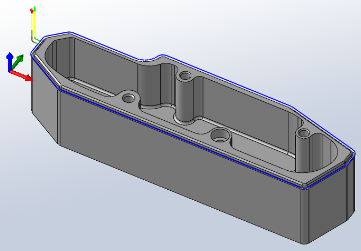
This completes the toolpaths for this part and you can now simulate and post-process the result.
-
Step 13: Post Processing
We are ready to post process all toolpaths in order to make the NC-code which can be used by the machine tool.
➝ Right-click on Job in the operation manager.
➝ Select Post Process (All).
➝ From the pull down Post processor configuration select heidenhain.cps - Generic Heidenhain
➝ Select an output folder of your choice.
➝ Start the post processor by clicking Post. By default the post processed file will be loaded into HSMWorks Edit.
By default the post processed file will be opened in Autodesk HSM Edit which allows you to inpect the generated NC-code as well as transferring it to your machine.
Congratulations! You have completed this tutorial.

