Learn about the GrabCAD Platform
Get to know GrabCAD as an open software platform for Additive Manufacturing
Visit our new homepage
Home
Control
Shop
Streamline Pro
Partner Program
Print
Community
Log in
Library
Challenges
Groups
Questions
Tutorials
Engineers
Blog
Log in
Learn from thousands of free Tutorials.
New user?
Join the community
or
log in.
Tutorials
Most liked this month
Recent
Most liked
Most viewed
Most commented
This week
This month
All time
Category
Design & CAD
Modeling
Drafting
Assemblies
BOM
Dimensioning / Tolerancing
Translations
Manufacturing & CAM
3D Printing
Tooling
NC Machining
Composites
Measurement / Inspection
Simulation & CAE
FEM
CFD
Kinematics
Process Simulation
Engineering Fundamentals
Theory
Process
Standards
Other
Software
Snagit
Alibre Design
ArchiCAD
AutoCAD
AutoCAD Electrical
Autodesk 3ds Max
Autodesk Alias
Autodesk Inventor
Autodesk Maya
Autodesk Revit
Autodesk 123D
BricsCAD
Bentley MicroStation
BlenderCAD
BobCAD-CAM
CATIA
Delmia
DraftSight
FreeCAD
Femap
Fusion 360
Geomagic Design
IronCAD
JT
Kompas-3D
KeyCreator
KeyShot
Lagoa
Luxology
Mastercam
Moi3D
NX Unigraphics
OBJ
Onshape
OpenSCAD
Parasolid
Powermill
Powershape
Pro/Engineer Wildfire
PTC Creo Parametric
PTC Creo Elements
Rhino
SpaceClaim
SOLIDWORKS
solidThinking Evolve
Solid Edge
SolidFace
STEP / IGES
SketchUp
STL
TopSolid
TinkerCAD
T-Flex CAD
TurboCAD
VectorWorks
ViaCAD 3D
VRML / WRL
ZW3D
Rendering
GrabCAD Print
GrabCAD Community
GrabCAD Workbench
Text file
3D Manufacturing Format
Cinema 4D
Other
Skill level
All levels
Beginner
Intermediate
Expert
Drafting
×
Assemblies
×
NC Machining
×
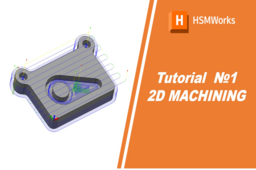
HSMWorks tutorial №1 - 2D Machining
Omellejr
in
NC Machining
1
0
Beginner
𝐓𝐮𝐭𝐨𝐫𝐢𝐚𝐥 𝟏 - 𝟐𝐃 𝐌𝐚𝐜𝐡𝐢𝐧𝐢𝐧𝐠 In this tutorial you will learn how to machine the part through the following steps: ▸ Facing ▸ Contouring ▸ Pocket Machining ▸ Counterboring ▸ Drilling ▸ Tapping ▸ Post Processing Before proceeding, please open the part "Tutorial1.SLDPRT" into HSMWorks, by choosing "Open" from the File menu, and then browsing to the file. 𝐃𝐢𝐬𝐜𝐥𝐚𝐢𝐦𝐞𝐫: This tutorial is a representation of the original Help tutorial with the HSMWorks software suite. This guide is intended for educational purposes and to make the features and tools of HSMWorks more accessible to the general public. More information about purchasing, installing, and using HSMWorks can be found on the official website: https://www.autodesk.com/products/hsmworks
cam
milling
solidworks
nc
2d machining
hsmworks
Onshape Assemblies for Beginners
Engineering Juice
in
Assemblies
1
0
Beginner
https://youtu.be/D5FXHJ5jCc0
Onshape
onshape mates
onshape tutorial
onshape
Make 2020 Aluminum Frame from Weldments
David M
in
Assemblies
1
0
Intermediate
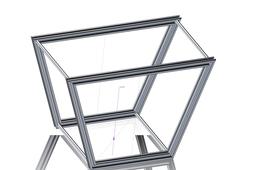
The key to this tutorial is the downloaded example. To make any 3D frame from 2020 aluminum extrusions, this is the workflow to make it. This tutorial retraces my steps to set up the profile files necessary and build a 3D sketch, then use weldments to form a custom frame design. After you learn this, any frame design is easy! This tutorial is made for users with basic solidworks experience - you maybe new to 3D sketches and to weldments. I'm just publishing this simple example and the tutorial is intended as a self-paced discovery. [Purpose] The purpose of using weldments is to capture the benefits that include: ► long beams automatically form to the desired cut length. ► miters are available, or straight cuts. ► planning the frame, adjusting the shape, and visualizing is done together. ► automatically compute the materials needed to order & cut. ► if designer chooses a new frame material, you can choose a new profile & recompute ► all of the geometry is made from one simple sketch, inside the profile, that you control.
SOLIDWORKS
chassis
design
3d sketch
frame
aluminum
2020
profile
weldment
Sketching
Syed Shayan Ahmed
in
Drafting
0
0
Beginner
Basic sketching
SOLIDWORKS
design
tools
sketching
basic
solidworks
beginner
drafting
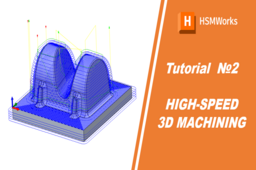
HSMWorks tutorial №2 - High-speed 3D machining
Omellejr
in
NC Machining
0
0
Beginner
In this tutorial you will learn how to machine the part above on a high speed machine tool through the following steps: ▸Creating a Tool Library ▸Roughing: Adaptive Clearing ▸Rest Roughing: Pocket ▸Contour Machining ▸Scallop Machining ▸Scallop ▸Horizontal ▸Pencil Milling ▸Collapsed Pencil ▸Post Processing Before proceeding, open the part Tutorial2.SLDPRT into HSMWorks. The files used in this manual can be found in the examples folder in the folder where HSMWorks is installed. Typically, this is something like C:\Program Files\HSMWorks\examples\ 𝐃𝐢𝐬𝐜𝐥𝐚𝐢𝐦𝐞𝐫: This tutorial is a representation of the original Help tutorial with the HSMWorks software suite. This guide is intended for educational purposes and to make the features and tools of HSMWorks more accessible to the general public. More information about purchasing, installing, and using HSMWorks can be found on the official website: https://www.autodesk.com/products/hsmworks
hsmworks
3d machining
nc
solidworks
milling
cam
Assembly
Syed Shayan Ahmed
in
Assemblies
0
0
Intermediate
Simple Assembly to advanced mates
SOLIDWORKS
cad
mechanical
mates
simple
intermediate
solidworks
assembly
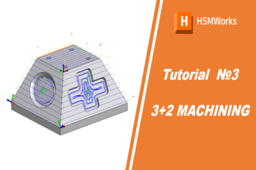
HSMWorks tutorial №3 - 3+2 Machining
Omellejr
in
NC Machining
0
0
Beginner
In this tutorial you will learn how to set up 3+2 Machining toolpaths. ▸ Job Setup ▸ Adaptive Machining, Pocket ▸ Pocket Clearing Before proceeding, open the part Tutorial3.SLDASM into HSMWorks. The files used in this manual can be found in the examples folder in the folder where HSMWorks is installed. Typically, this is something like C:\Program Files\HSMWorks\examples\ We will assume that the stock we start from is already roughed to a shape that only requires the machining of the two pockets using 3+2 toolpaths. The file for this tutorial is an assembly and contains the final component as well as the stock shape we start from. 𝐃𝐢𝐬𝐜𝐥𝐚𝐢𝐦𝐞𝐫: This tutorial is a representation of the original Help tutorial with the HSMWorks software suite. This guide is intended for educational purposes and to make the features and tools of HSMWorks more accessible to the general public. More information about purchasing, installing, and using HSMWorks can be found on the official website: https://www.autodesk.com/products/hsmworks
hsmworks
32 machining
nc
solidworks
milling
cam