

Basic Technial Illustration Photoshop

Part 3
-
Step 1:
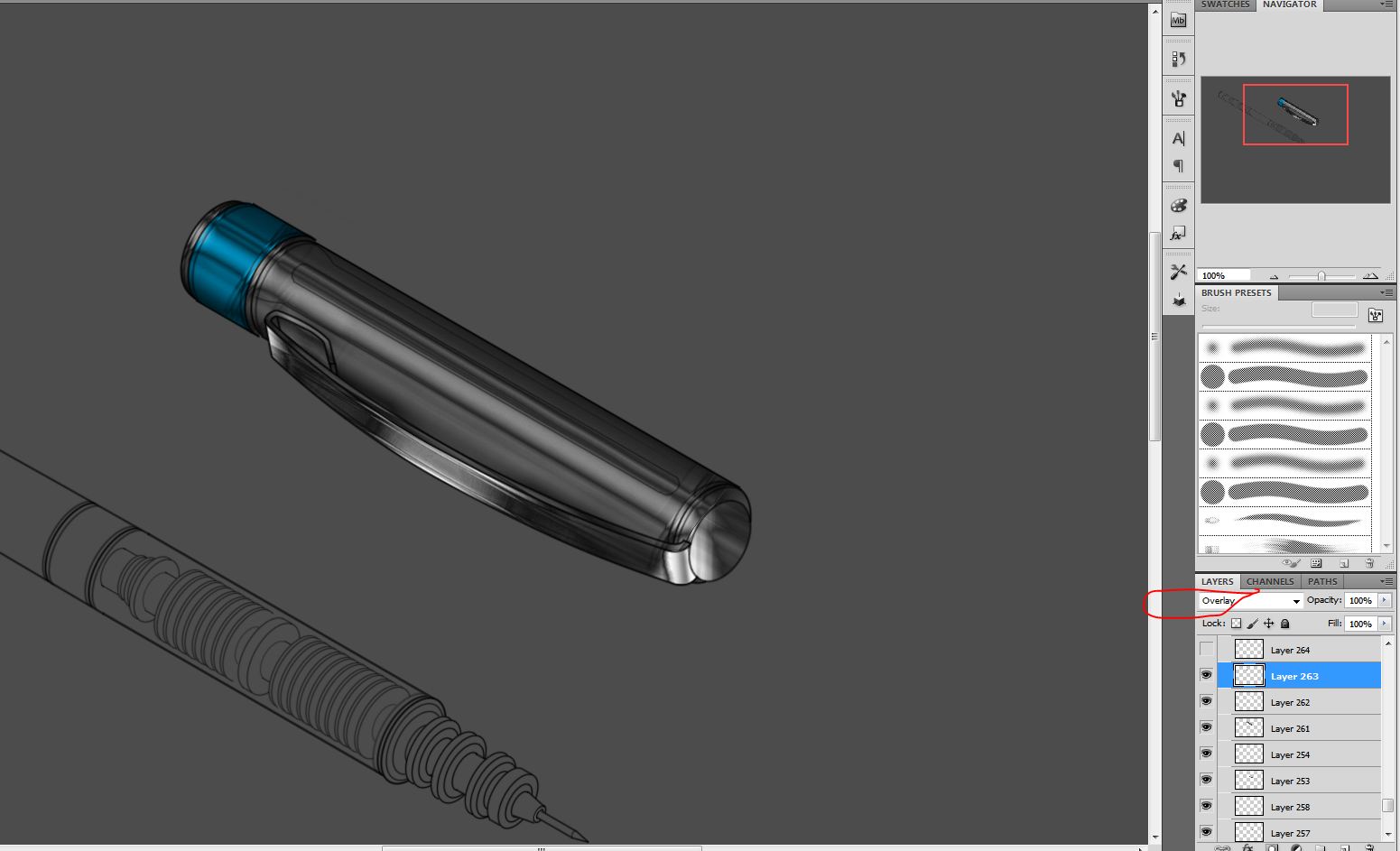
Isolate the cap at the end fill with blue and set blending mode of layer to overlay
-
Step 2:
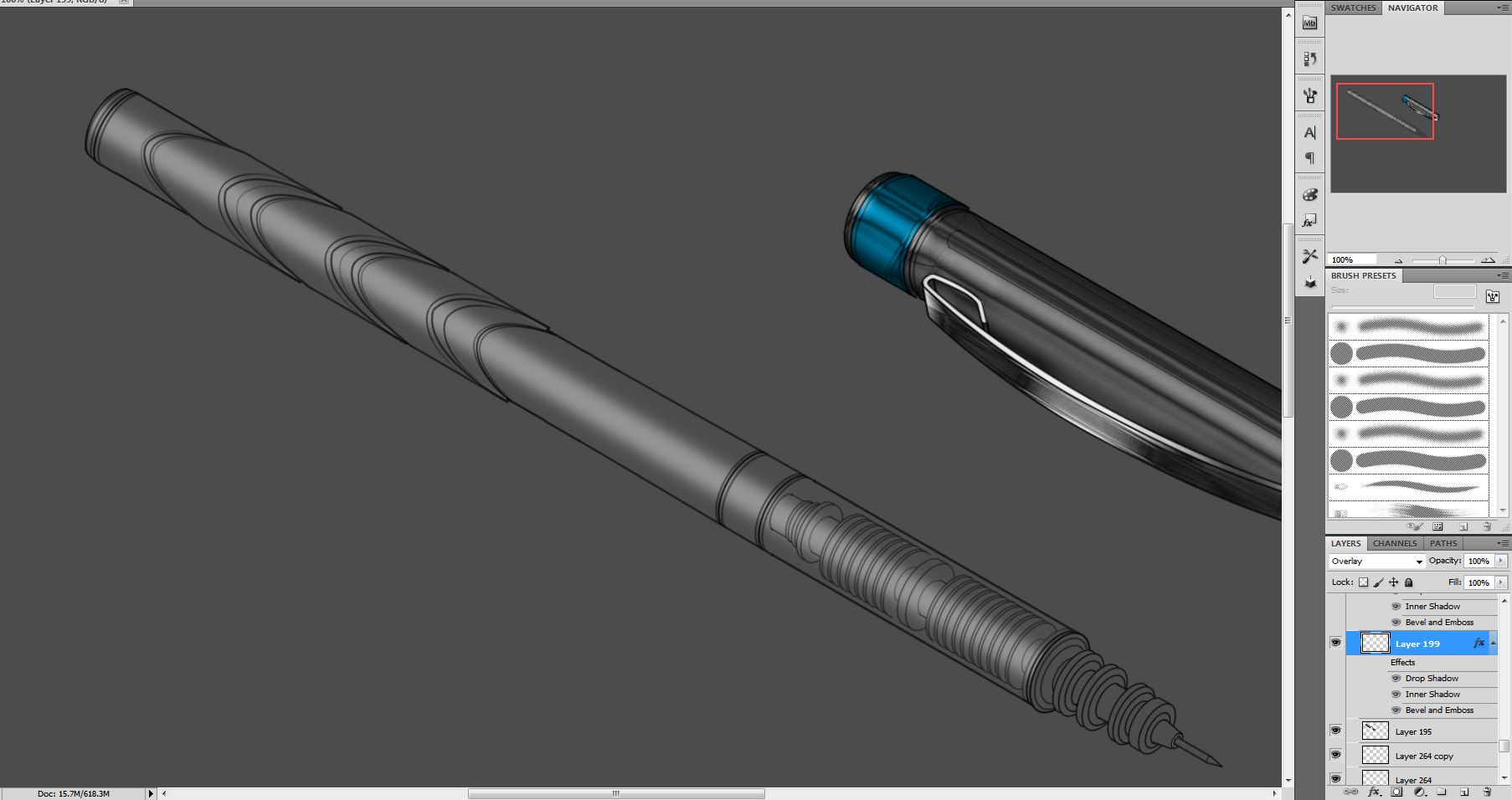
Now for the pen part. Just like before. New layer get a nice smooth brush white color set blending mode to overlay and crate highlights for the pen
-
Step 3:
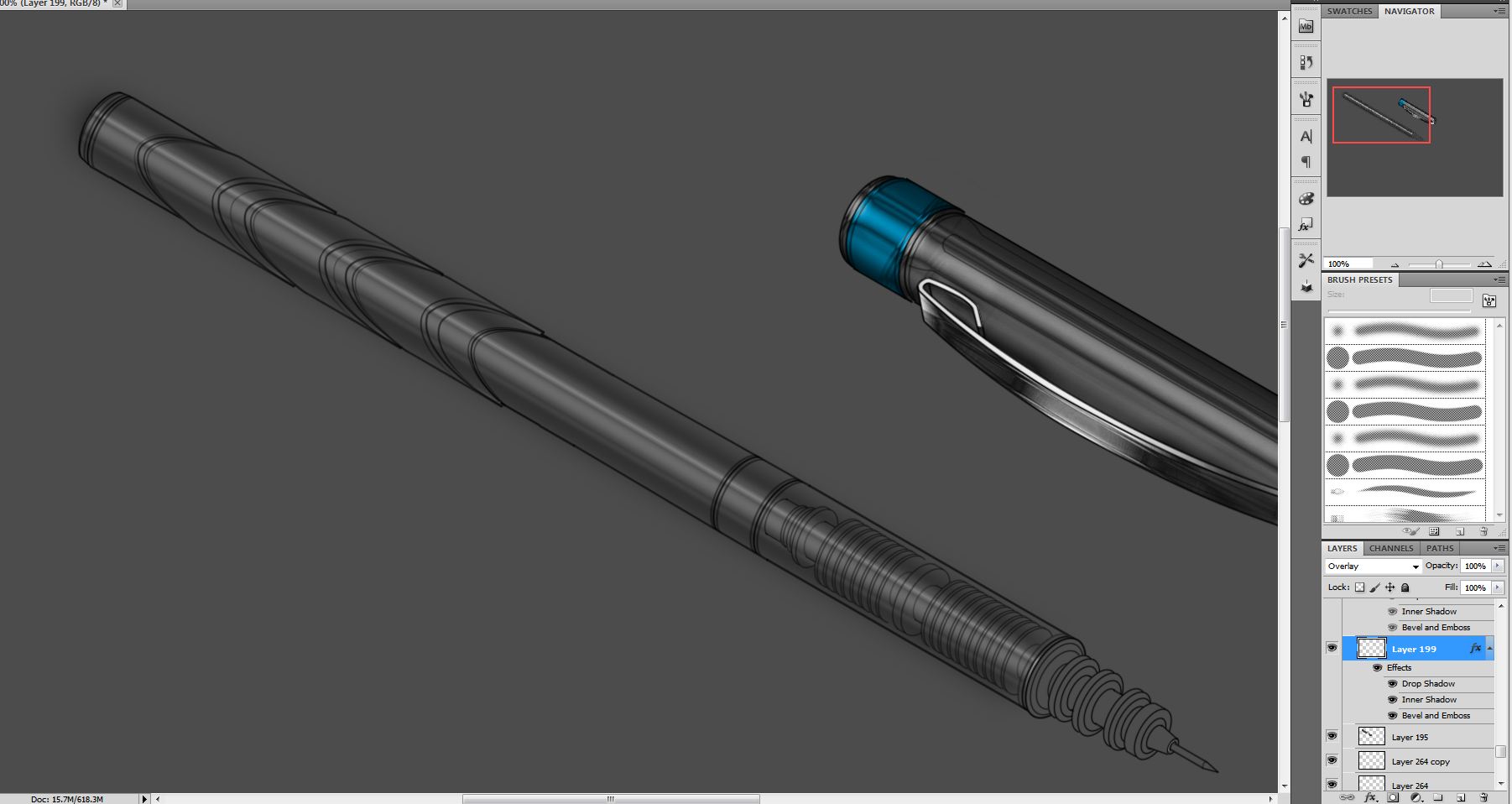
Ad some effects and BAM!
-
Step 4:
Drop Shadow
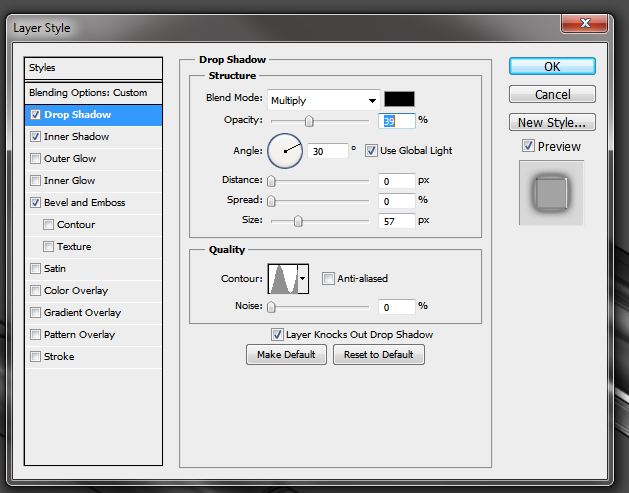
-
Step 5:
Inner shadow

-
Step 6:
Bevel and Emboss
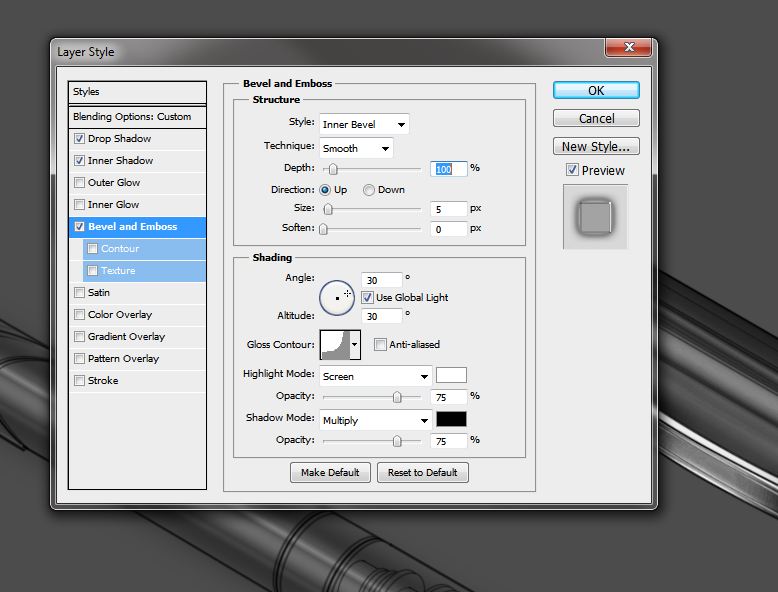
-
Step 7:
New Layer fill with white and set blending mode to overlay. this will enhance the highlights more

-
Step 8:
Select specific area new layer fill with white and set to overlay
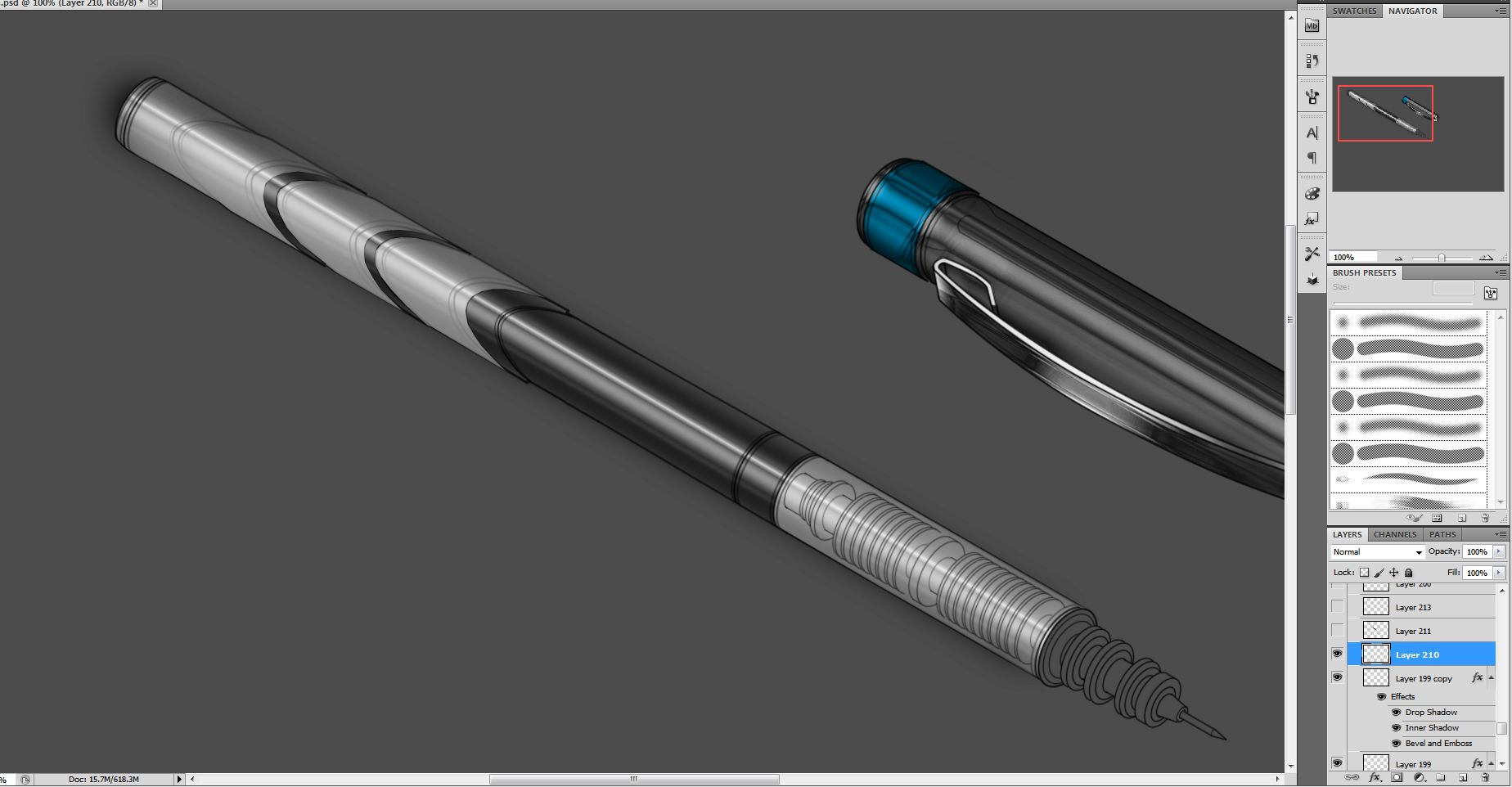
-
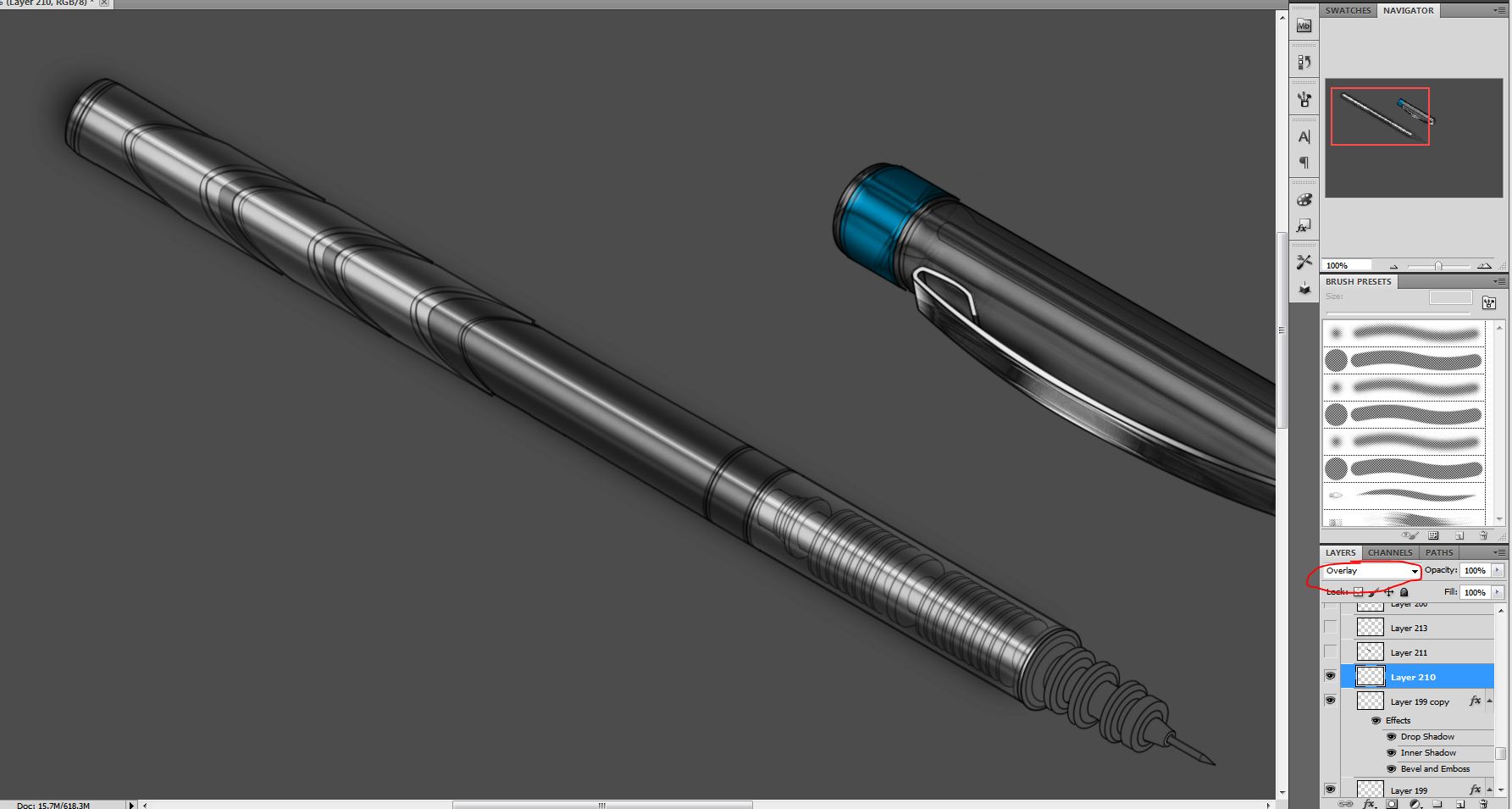
Step 9:
overlay
-
Step 10:
Select specific area, new layer, Hold ALT Layers tab merge visible. you get his


