Learn about the GrabCAD Platform
Get to know GrabCAD as an open software platform for Additive Manufacturing
Visit our new homepage
Home
Control
Shop
Streamline Pro
Partner Program
Print
Community
Log in
Library
Challenges
Groups
Questions
Tutorials
Engineers
Blog
Log in
Learn from thousands of free Tutorials.
New user?
Join the community
or
log in.
Tutorials
Most liked all time
Recent
Most liked
Most viewed
Most commented
This week
This month
All time
Category
Design & CAD
Modeling
Drafting
Assemblies
BOM
Dimensioning / Tolerancing
Translations
Manufacturing & CAM
3D Printing
Tooling
NC Machining
Composites
Measurement / Inspection
Simulation & CAE
FEM
CFD
Kinematics
Process Simulation
Engineering Fundamentals
Theory
Process
Standards
Other
Software
Snagit
Alibre Design
ArchiCAD
AutoCAD
AutoCAD Electrical
Autodesk 3ds Max
Autodesk Alias
Autodesk Inventor
Autodesk Maya
Autodesk Revit
Autodesk 123D
BricsCAD
Bentley MicroStation
BlenderCAD
BobCAD-CAM
CATIA
Delmia
DraftSight
FreeCAD
Femap
Fusion 360
Geomagic Design
IronCAD
JT
Kompas-3D
KeyCreator
KeyShot
Lagoa
Luxology
Mastercam
Moi3D
NX Unigraphics
OBJ
Onshape
OpenSCAD
Parasolid
Powermill
Powershape
Pro/Engineer Wildfire
PTC Creo Parametric
PTC Creo Elements
Rhino
SpaceClaim
SOLIDWORKS
solidThinking Evolve
Solid Edge
SolidFace
STEP / IGES
SketchUp
STL
TopSolid
TinkerCAD
T-Flex CAD
TurboCAD
VectorWorks
ViaCAD 3D
VRML / WRL
ZW3D
GrabCAD Print
Rendering
GrabCAD Community
GrabCAD Workbench
Text file
3D Manufacturing Format
Cinema 4D
Other
Skill level
All levels
Beginner
Intermediate
Expert
Drafting
×
AutoCAD
×
Solid Edge
×
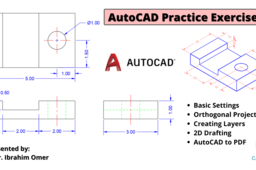
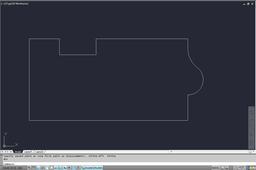
Autocad practice exercise 2 | Orthogonal projections | Layers in Autocad | Isometric to orthographic
Ibrahim Omer
in
Drafting
0
0
Beginner
In this tutorial, we will learn how convert isometric drawing to orthographic drawing. This is autocad practice exercise 2. . I hope you like it. We will learn the following features and commands: 1) Basic Settings 2) Orthogonal Projections 3) Creating Layers 4) 2D Drafting 5) AutoCAD to PDF It is a good exercise for beginners and it will be a good practice for beginners. Kindly use play pause technique for practice. Feel free to ask your queries in comment section. I will try to answer each and every question. Keep practicing as practice makes a man perfect. Follow our Channel: https://www.youtube.com/c/CADable #3dto2dconversionautocad #layersinautocad #autocadpracticeexercise2 #CADable #isometrictoothographic
AutoCAD
cadable tutorials
create layers in autocad
cadable
autocad isometric to orthographic
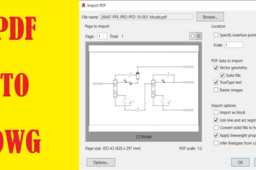
Cara Convert File PDF to DWG Autocad
Abdul Azis
in
Drafting
0
0
Beginner
Pernah mengalami masalah saat convert PDF to DWG. disini solusinya ! Catatan : 1. Convert File PDF langsung dari DWG bukan scent" melalui printer lalu ke PDF itu nanti gambarnya akan pecah. Ikuti Juga ! Facebook : https://web.facebook.com/pg/JagoAutoC... Instagram : https://www.instagram.com/jagoautocad/ Brlogger : https://jagoautocad.blogspot.com/ #JagoAutoCAD
AutoCAD
jagoautocad
2d Autocad
parvez imam
in
Drafting
0
0
Expert
In my YouTube channel, all the information related to basic to advanced will be found in videos related to AutoCAD.
AutoCAD
tswv
nom
kwm
foom
nyaj
lauj
channel
ibyam
hmoob
xwm
xov
https://youtu.be/ntHvnLu_GFo
parvez imam
in
Drafting
0
0
Beginner
Please watch: "AutoCAD ALIGN Command in HINDI | how to Using the ALIGN command in AutoCAD 2013 👍" https://www.youtube.com/watch?v=xxEvWb2Mlls --~-- Hi friends, 👌 In this video you learn How to EXTEND any line from one point to another point must watch very very important for drawing
AutoCAD
2016
inauto
cad
auto
2014
using
2007
autocad
command
extend
shop
handicraft
indian
tour
mind
advance
young
channel
y-a-m
AutoCAD - Complete Tutorial for Beginners - Exercises 1
MRCAD
in
Drafting
0
0
Intermediate
COMPLET COUESH FOR 100 EXERCISEC FUNCTION KEY:- Ø ESC : To cancel Command Ø F1 : Autocad Help Ø F2 : Text Window on/off To see recently used command, options, Points. Ø F3 : Osnap button on/off. Ø F4 : Tablet on/off (Autocad 2010 & Prior Versions) 3DOSNAP ON/OFF (Autocad 2011 & Autocad 2012) Ø F5 : To change isoplane in isometric drawing. Ø F6 : DUCS (Dynamic user co-ordinate system) button on/off. Ø F7 : Grid button on/off. By default grid spacing is 0.5 inch in X- direction and Y direction. Ø F8 : Ortho button on/off. Ø F9 : Snap button on/off If snap button is on mode from status bar than cursor will be Jump on the graphic one dot to another dot. Ø F10 : Polar button on/off. (Alternate off ortho button) Ø F11 : Otrack button on/off. (object snap tracking) Ø F12 : DYN button on/off. (Dynamic input) Short cut keys:- Ø Ctrl+A : select all Ø Ctrl+B : Snap on/off Ø Ctrl+C : Copy objects to clipboard Ø Ctrl+D : Dynamic UCS (DUCS) on/off Ø Ctrl+E : To change isoplane in isometric Ø Ctrl+F : Osnap on/off Ø Ctrl+G : Grid on/off Ø Ctrl+H : Set variable Ø Ctrl+I : Co-ordinate on/off Ø Ctrl+J : Repeat Last Command Ø Ctrl+K : Hyperlink Command Ø Ctrl+L : Ortho on/off Ø Ctrl+M : Repeat Last Command Ø Ctrl+N : To create new autocad file Ø Ctrl+O : To open autocad file Ø Ctrl+P : To print/plot autocad file Ø Ctrl+Q : To Quit/Exit from autocad Ø Ctrl+R : To cycle between viewports Ø Ctrl+S : To save autocad file Ø Ctrl+T : Tablet on/off Ø Ctrl+U : Polar on/off Ø Ctrl+V : Paste objects from clipboard Ø Ctrl+W : Otrack on/off (Autocad 2010 & prior ver.) Ø Ctrl+W : Selection cycling on/off (New Autocad 2011) Ø Ctrl+X : Cut objects to clipboard Ø Ctrl+Y : Redo Ø Ctrl+Z : Undo Ø Ctrl+0 : Clean Screen Ø Ctrl+1 : Properties Ø Ctrl+2 : Autocad design center Ø Ctrl+3 : Tool Palettes Ø Ctrl+4 : Sheet set Manager Ø Ctrl+5 : Info palette ( not working from Acad2008) Ø Ctrl+6 : Database Connect Ø Ctrl+7 : Markup set manager Ø Ctrl+8 : Quick calculator Ø Ctrl+9 : Show /Hide Commandline Window Ø Ctrl+Shift+C : Copy objects With basepoint Ø Ctrl+Shift+E : Presspull Command Ø Ctrl+Shift+H : Show /Hide Commandline window Ø Ctrl+shift+P : Quick properties Ø Ctrl+Shift+S : Save as Autocad file Ø Ctrl+Shift+V : Paste as block - SolidWorks Beginners Tutorials - SolidWorks Sketching - SolidWorks Surface - SolidWorks Weldments - SolidWorks Assembly - SolidWorks Drawing - SolidWorks Sheet Metal - SolidWorks Mold Design - SolidWorks Simulation - SolidWorks Motion please subscribe our channel for more videos & projects in solidworks & dont forget to hit like & share the videos, thanks for watching.
AutoCAD
beginners
tutorial
complete
AutoCAD - Complete Tutorial for Beginners - Exercises 10
MRCAD
in
Drafting
0
0
Intermediate
COMPLET COUESH FOR 100 EXERCISEC FUNCTION KEY:- Ø ESC : To cancel Command Ø F1 : Autocad Help Ø F2 : Text Window on/off To see recently used command, options, Points. Ø F3 : Osnap button on/off. Ø F4 : Tablet on/off (Autocad 2010 & Prior Versions) 3DOSNAP ON/OFF (Autocad 2011 & Autocad 2012) Ø F5 : To change isoplane in isometric drawing. Ø F6 : DUCS (Dynamic user co-ordinate system) button on/off. Ø F7 : Grid button on/off. By default grid spacing is 0.5 inch in X- direction and Y direction. Ø F8 : Ortho button on/off. Ø F9 : Snap button on/off If snap button is on mode from status bar than cursor will be Jump on the graphic one dot to another dot. Ø F10 : Polar button on/off. (Alternate off ortho button) Ø F11 : Otrack button on/off. (object snap tracking) Ø F12 : DYN button on/off. (Dynamic input) Short cut keys:- Ø Ctrl+A : select all Ø Ctrl+B : Snap on/off Ø Ctrl+C : Copy objects to clipboard Ø Ctrl+D : Dynamic UCS (DUCS) on/off Ø Ctrl+E : To change isoplane in isometric Ø Ctrl+F : Osnap on/off Ø Ctrl+G : Grid on/off Ø Ctrl+H : Set variable Ø Ctrl+I : Co-ordinate on/off Ø Ctrl+J : Repeat Last Command Ø Ctrl+K : Hyperlink Command Ø Ctrl+L : Ortho on/off Ø Ctrl+M : Repeat Last Command Ø Ctrl+N : To create new autocad file Ø Ctrl+O : To open autocad file Ø Ctrl+P : To print/plot autocad file Ø Ctrl+Q : To Quit/Exit from autocad Ø Ctrl+R : To cycle between viewports Ø Ctrl+S : To save autocad file Ø Ctrl+T : Tablet on/off Ø Ctrl+U : Polar on/off Ø Ctrl+V : Paste objects from clipboard Ø Ctrl+W : Otrack on/off (Autocad 2010 & prior ver.) Ø Ctrl+W : Selection cycling on/off (New Autocad 2011) Ø Ctrl+X : Cut objects to clipboard Ø Ctrl+Y : Redo Ø Ctrl+Z : Undo Ø Ctrl+0 : Clean Screen Ø Ctrl+1 : Properties Ø Ctrl+2 : Autocad design center Ø Ctrl+3 : Tool Palettes Ø Ctrl+4 : Sheet set Manager Ø Ctrl+5 : Info palette ( not working from Acad2008) Ø Ctrl+6 : Database Connect Ø Ctrl+7 : Markup set manager Ø Ctrl+8 : Quick calculator Ø Ctrl+9 : Show /Hide Commandline Window Ø Ctrl+Shift+C : Copy objects With basepoint Ø Ctrl+Shift+E : Presspull Command Ø Ctrl+Shift+H : Show /Hide Commandline window Ø Ctrl+shift+P : Quick properties Ø Ctrl+Shift+S : Save as Autocad file Ø Ctrl+Shift+V : Paste as block #Complete Tutorial for Beginners #AutoCAD - SolidWorks Beginners Tutorials - SolidWorks Sketching - SolidWorks Surface - SolidWorks Weldments - SolidWorks Assembly - SolidWorks Drawing - SolidWorks Sheet Metal - SolidWorks Mold Design - SolidWorks Simulation - SolidWorks Motion please subscribe our channel for more videos & projects in solidworks & dont forget to hit like & share the videos, thanks for watching.
AutoCAD
channel
your
solidworks
cam
cad
beginners
tutorial
complete
autocad
Pengaturan Dimension Style Autocad I Jago Autocad
Abdul Azis
in
Drafting
0
0
Beginner
Dimension Style adalah tempat untuk mengatur dimensi sesuai dengan keinginan anda. Ikuti Juga ! Facebook : https://web.facebook.com/pg/JagoAutoC... Instagram : https://www.instagram.com/jagoautocad/ Brlogger : https://jagoautocad.blogspot.com/ #JagoAutoCAD
AutoCAD
autocad
jagoautocad
Stretch command in AutoCAD
Karajko CAD
in
Drafting
0
0
Beginner
A presentation of stretch command in AutoCAD.
AutoCAD
stretch
autocad
How to add a hatch in AutoCAD?
Karajko CAD
in
Drafting
0
0
Beginner
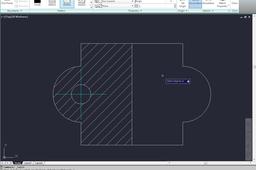
How to add a hatch in AutoCAD?
AutoCAD
hatch
autocad
How to change cross hair and pickbox size in autocad
civilmadesimple
in
Drafting
0
0
Beginner
How to change cross hair and pickbox size in autocad
AutoCAD
autocad
size
pickbox
hair
cross
change
how
Dibujo de manijas
carlos torres
in
Drafting
0
0
Intermediate
En el video realizaremos dos modelos de manijas con las opciones de tangencias desde el comando Line, en el que solamente necesitamos posterior al comando Line, escribir Tan to, dar click en un circulo y posteriormente escribir de nuevo: Tan to, click en el siguente circulo y tendremos tangentes correctas entre circunferencias. independientemente del diámetro que tengan.
AutoCAD
drafting
autocad
tangentes
lines
2nd Exercise 2D DESIGN OF AUTOCAD BY MD RASHID
MD RASHID
in
Drafting
0
0
Beginner
2nd Exercise 2D DESIGN OF AUTOCAD BY MD RASHID If You Have Any Question In Your Mind,You Can ask Questions by writing in the comment box. Thank You So Much... Our Social Link:- YoueTube Channel :- https://www.youtube.com/channel/UCAyBvazNmREcTfbAOkwHHtw?view_as=subscriber Linkdind:- https://www.linkedin.com/in/mohammad-rashid-910a28143/ Facebook:- https://www.facebook.com/mdrashid20 Twitter:- https://twitter.com/Mohamma76006272 Email Id- rashid20294@gmail.com
AutoCAD
rashid
md
by
autocad
design
2d
exercise
2nd
6th Exercise 2D DESIGN OF AUTOCAD BY MD RASHID
MD RASHID
in
Drafting
0
0
Expert
6th Exercise 2D DESIGN OF AUTOCAD BY MD RASHID If You Have Any Question In Your Mind,You Can ask Questions by writing in the comment box. Thank You So Much... Our Social Link:- YoueTube Channel :- https://www.youtube.com/channel/UCAyBvazNmREcTfbAOkwHHtw?view_as=subscriber Linkdind:- https://www.linkedin.com/in/mohammad-rashid-910a28143/ Facebook:- https://www.facebook.com/mdrashid20 Twitter:- https://twitter.com/Mohamma76006272 Email Id- rashid20294@gmail.com
AutoCAD
rashid
md
by
autocad
design
2d
exercise
6th
Creating System Layouts
cavicom
in
Drafting
0
0
Beginner
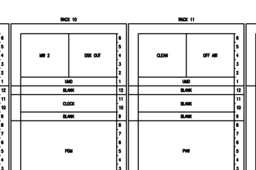
Tutorial 2d layouts You need to know required RU height, equipment depth, knowing this will determine type of rack and how much space you need. Note; factor in extra space, whether its for ventilation, cabling, or extra equipment.
AutoCAD
1
…
16
17
18