Learn about the GrabCAD Platform
Get to know GrabCAD as an open software platform for Additive Manufacturing
Visit our new homepage
Home
Control
Shop
Streamline Pro
Partner Program
Print
Community
Log in
Library
Challenges
Groups
Questions
Tutorials
Engineers
Blog
Log in
Learn from thousands of free Tutorials.
New user?
Join the community
or
log in.
Tutorials
Most liked all time
Recent
Most liked
Most viewed
Most commented
This week
This month
All time
Category
Design & CAD
Modeling
Drafting
Assemblies
BOM
Dimensioning / Tolerancing
Translations
Manufacturing & CAM
3D Printing
Tooling
NC Machining
Composites
Measurement / Inspection
Simulation & CAE
FEM
CFD
Kinematics
Process Simulation
Engineering Fundamentals
Theory
Process
Standards
Other
Software
Snagit
Alibre Design
ArchiCAD
AutoCAD
AutoCAD Electrical
Autodesk 3ds Max
Autodesk Alias
Autodesk Inventor
Autodesk Maya
Autodesk Revit
Autodesk 123D
BricsCAD
Bentley MicroStation
BlenderCAD
BobCAD-CAM
CATIA
Delmia
DraftSight
FreeCAD
Femap
Fusion 360
Geomagic Design
IronCAD
JT
Kompas-3D
KeyCreator
KeyShot
Lagoa
Luxology
Mastercam
Moi3D
NX Unigraphics
OBJ
Onshape
OpenSCAD
Parasolid
Powermill
Powershape
Pro/Engineer Wildfire
PTC Creo Parametric
PTC Creo Elements
Rhino
SpaceClaim
SOLIDWORKS
solidThinking Evolve
Solid Edge
SolidFace
STEP / IGES
SketchUp
STL
TopSolid
TinkerCAD
T-Flex CAD
TurboCAD
VectorWorks
ViaCAD 3D
VRML / WRL
ZW3D
GrabCAD Print
Rendering
GrabCAD Community
GrabCAD Workbench
Text file
3D Manufacturing Format
Cinema 4D
Other
Skill level
All levels
Beginner
Intermediate
Expert
OBJ
×
Solid Edge
×
Other
×
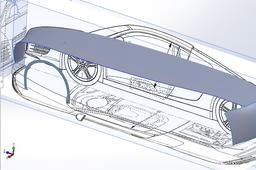
How to create boundary surface in solidworks without errors?
Abhijeet
in
Design & CAD
3
0
Intermediate
PFA
Other
Project implementation
Võ Mạnh Trường
in
Assemblies
3
1
Intermediate
Basic process to carry out a mechanical project - Design and manufacturing standards: Related standards from ISO
Other
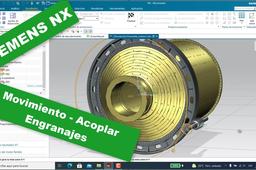
Siemens NX motion simulation | acoplamiento engranajes
Bruno Peña
in
Modeling
3
0
Intermediate
Build3Design - Analysis and Design on mechanical engineering: Hola amigos, en esta ocasión vamos a realizar una simulación del movimiento cinemático entre un piñón y su corona perteneciente a un molino SAG, para ello utilizaremos la función acoplar. -------------------------------------------------------------------------------------- For any question please contact us on: bruno.pemore@gmail.com --------------------------------------------------------------------------------- Thanks for subscribe and share --------------------------------------------------------------------------------- Cuéntame tu experiencia, comenta si te hizo útil esta herramienta y como lo aplicas en tus diseños. ♥ ¿Te ha gustado este vídeo? Suscríbete, comparte con tus amigos para que más gente tenga la información libre para todos, y ayúdame a seguir publicando más material y llegar a los 1K suscriptores y podamos ser una comunidad que apasiona el diseño CAD y CAE. Saludos
Other
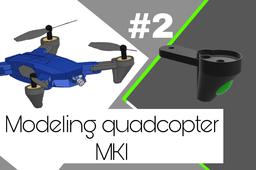
Modeling quadcopter MKI(#2leg)
Amir Nouri
in
Modeling
3
0
Intermediate
*Part 2*Learn how to model quadcopter propeller on shaper 3d app For more tutorials follow my YouTube account
Other
autocad
modulardesign
fpv
solidwork
modeling
drone
shaper3d
quadcopter
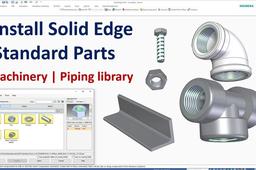
Install Solid Edge 2021 Standard Parts | Machinery Library, Piping Library, Fastener System
CAD CAM Learning
in
Assemblies
3
0
Beginner
Install Solid Edge 2021 Standard Parts Machinery Library, Piping Library, Fastener System
Solid Edge
pipinglibrary
machinerylibrary
stadardpartlibrary
solidedge2021
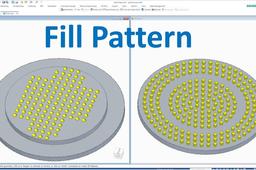
How to use Fill Pattern in Solid Edge
CAD CAM Learning
in
Modeling
3
0
Beginner
Bellow is video tutorials show how to use Fill Pattern in Solid Edge
Solid Edge
solidedgedesign
fillpattern
solidedgetutorials
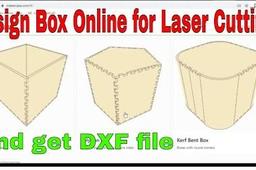
Make Boxes online and Download DXF files in just 3 minutes for CNC Laser Cutting Machines
Usman Akhtar
in
Modeling
3
0
Expert
This is very important video for laser cutter operators, in this video I will show you an online platform where you can design boxes online and then download box plans in dxf or svg file format. All you need to do is to provide your desired box dimensions and get your dxf files ready to download.
Other
modeling
cad
online
box
make
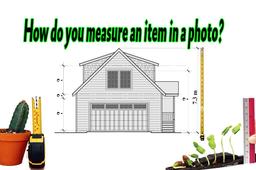
How do you measure an item in a photo?
Ali Nasser
in
Drafting
3
0
Beginner
How do you measure an item in a photo? using imagej English language tutorial https://youtu.be/VcQAnfpNwzw
Other
measure in pictures
measure in photo
measure on picture
imagej
how do you measure an item in a photo
What is the defination of Core and Fine Mesh in HyperMesh?
Prabhakar Purushothamman
in
Design & CAD
3
0
Beginner
Basic Introduction to Hyper Mesh Tutorial (pre processor of FEA software Like ANSYS,OPTISTRUCT, etc
Other
How to create a pipe 3d in Solidworks ?
Altug Tuncel
in
Design & CAD
3
0
Intermediate
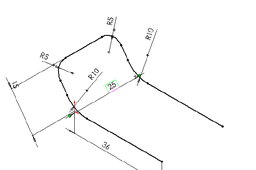
example drawing
Other
Tutorial: how to correctly upload an assembly model
Ferro
in
Translations
3
0
Beginner
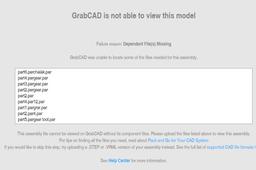
Looking through the uploaded models, I found many assembly models that are actually useless because the assembly parts are missing. While uploading an assembly model created with Solidworks, Slid Edge, Catia, NX or other MCAD systems, you should be aware that the upload of the .asm (or .product) it is not enough. You must upload also the part files (.par or .CATPart) in order to make the full assembly visible and usable.
Other
ptc
edge
solid
catia
solidworks
nx
How to do analysis of universal coupling using ansys
harikrushna dodiya
in
Design & CAD
3
1
Intermediate
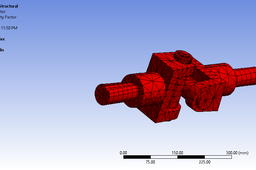
By following way u can do
Other
static
analysis
ansys
coupling
universal
joint
Solid Edge import files with vertex colour
juergen grewe
in
Modeling
3
0
Intermediate
How to create and import files into Solid Edge with vertex colour. With this little tutorial, it is possible to import into Solid Edge (2020) files that had before texture and mesh. For this you need Mesh Lab, TCvis (Teamcenter) or PLMvis and Solid Edge (2020). In Mesh Lab you can import every file it can read and export it to WRL (VRML).
Solid Edge
export
import
jt
teamcenter
plmvis
tcvis
edge
solid
3D Modeling and Animation of a Soldier in DAZ Studio - Part I
Yoana Ivanova
in
Modeling
2
0
Intermediate
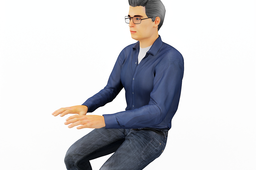
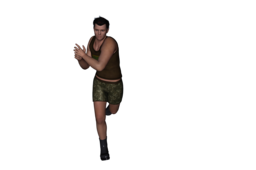
The aim of the practice is to use the capabilities of the software to create realistic 3D models of characters. The main steps are as follows: 1. A selection of „Interface Layouts”: from Window > Workspace > Select Layout > „Hollywood Blvd”. "Hollywood Blvd" includes several activities ("Activities"), initially starting with the first - Actors, Wardrobe & Props. The Smart Content Pane opens and then select Files. 2. Place a character in the scene: from Files > Figures > Creatures/People. After selecting the desired character, it is placed in the workspace (Viewport) by dragging (with the left mouse button pressed) or double-clicking. In this example the model selected is Genesis 8 Basic Male. 3. A selection of clothing and accessories: from Files > Wardrobe. If a change is required subsequently, it is necessary to select that part of the clothing to be deleted. This is done using the Surface Selection Tool and then press Delete. 4. Fitting the clothing: it is necessary to make a correction if the clothing does not cover the body properly when it is directly placed on the model. This part ot the clothing is selected and from the panel on the right select Fit to and press the None button. In the window that appears, select Genesis 8 Male from the drop-down menu and press the Accept button. If an Auto-Fit:... window appears, it is necessary to specify for which model the specific garment is originally intended. There is an option to select just a piece of clothing and click on Parameters, from where the size and position of the selected item can be edited precisely using the Scale and Translate options. A similar procedure is used when parts of the character's body (hair, facial features, body structure) need to be edited. 5. A transformation of the base model: it is necessary to select the entire model with the clothing using Region Navigator Tool. The base model can be transformed with help from Actor, Wardrobe & Props For this purpose, Editor and Shaping must be active. 6. Rendering the scene: use the editor (Editor), which is located in the right panel. If the software is installed on a computer with a 64-bit version of Windows, then it can work with Engine: NVIDIA Iray (not supported on a 32-bit version). Select Render > Editor: Render Mode > Photoreal/ Interactive and then click the Render button and select a graphic file format.
Other
soldier animation
soldier
character animation
character modeling
daz studio
Tutorial - Solving 2D Truss problem using Mechanical APDL (ANSYS)?
Sudhir Gill
in
Design & CAD
2
2
Beginner
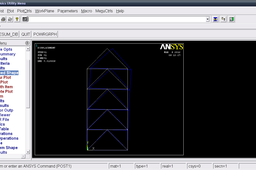
In general, a finite element solution may be broken into the following three stages. 1. Preprocessing: defining the problem; - Define keypoints/lines/areas/volumes - Define element type and material/geometric properties - Mesh lines/areas/volumes as required 2. Solution: assigning loads, constraints and solving; 3. Postprocessing: - Lists of nodal displacements - Element forces and moments - Deflection plots - Stress contour diagrams We will go through these and solve the problem. I will suggest you to go through this tutorial before solving this problem. http://grabcad.com/questions/tutorial-2d-truss-analysis-in-mechanical-apdl-ansys-part-1
Other
two
mechanical
truss
bridge
2d
problem
ansys
tutorial
analysis
dimensional
cae
solution
apdl
1
…
6
7
8
…
35