Learn about the GrabCAD Platform
Get to know GrabCAD as an open software platform for Additive Manufacturing
Visit our new homepage
Home
Control
Shop
Streamline Pro
Partner Program
Print
Community
Log in
Library
Challenges
Groups
Questions
Tutorials
Engineers
Blog
Log in
Learn from thousands of free Tutorials.
New user?
Join the community
or
log in.
Tutorials
Most liked all time
Recent
Most liked
Most viewed
Most commented
This week
This month
All time
Category
Design & CAD
Modeling
Drafting
Assemblies
BOM
Dimensioning / Tolerancing
Translations
Manufacturing & CAM
3D Printing
Tooling
NC Machining
Composites
Measurement / Inspection
Simulation & CAE
FEM
CFD
Kinematics
Process Simulation
Engineering Fundamentals
Theory
Process
Standards
Other
Software
Snagit
Alibre Design
ArchiCAD
AutoCAD
AutoCAD Electrical
Autodesk 3ds Max
Autodesk Alias
Autodesk Inventor
Autodesk Maya
Autodesk Revit
Autodesk 123D
BricsCAD
Bentley MicroStation
BlenderCAD
BobCAD-CAM
CATIA
Delmia
DraftSight
FreeCAD
Femap
Fusion 360
Geomagic Design
IronCAD
JT
Kompas-3D
KeyCreator
KeyShot
Lagoa
Luxology
Mastercam
Moi3D
NX Unigraphics
OBJ
Onshape
OpenSCAD
Parasolid
Powermill
Powershape
Pro/Engineer Wildfire
PTC Creo Parametric
PTC Creo Elements
Rhino
SpaceClaim
SOLIDWORKS
solidThinking Evolve
Solid Edge
SolidFace
STEP / IGES
SketchUp
STL
TopSolid
TinkerCAD
T-Flex CAD
TurboCAD
VectorWorks
ViaCAD 3D
VRML / WRL
ZW3D
GrabCAD Print
Rendering
GrabCAD Community
GrabCAD Workbench
Text file
3D Manufacturing Format
Cinema 4D
Other
Intermediate
All levels
Beginner
Intermediate
Expert
material
×
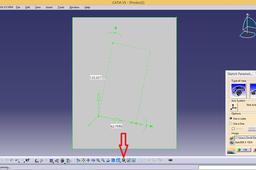
Error sketch tracer
özgür kesebir
in
Design & CAD
12
4
Intermediate
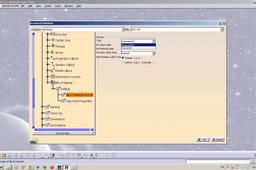
Change view mode to shading with material.
CATIA
wrong
mode
change
paintings
view
see
material
it
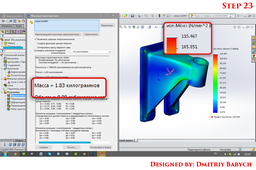
Tutorial: How to optimize design using SW Simulation?
Dmitriy Babych
in
Design & CAD
10
3
Intermediate
optimize design
SOLIDWORKS
ansys
work
simulation
2d
render
grabcad
design
drawing
3d
flow
material
mechanical
motion
solidworks
steel
How to create a linked BOM and balloons in a CATIA drawing
Pablo Sánchez
in
BOM
9
0
Intermediate
We can do an assembly drawing with a Bill of Material explaining to the manufacturer important info about each part. Also, we can number the parts with balloons, so that it can be easy to find and identify them. It will be explained all the necessary steps in Assembly Design and Drafting module.
CATIA
design
assembly
catia
material
bill
bom
balloon
drafting
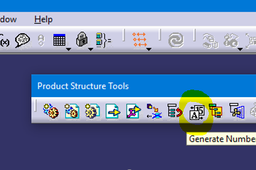
How can we add numbers to sub-assemblies in CATIA to see them in balloons and bom list automatically in drawing?
özgür kesebir
in
Design & CAD
5
0
Intermediate
Here is the tutorial and files. Have fun...
CATIA
material
bom
bill
engmanager
#6 Static Loading of Ductile Material | ANSYS | ABIS CADDworks ABIS CADDworks
Ismail A Mohammed
in
FEM
3
0
Intermediate
Static Loading of Ductile Material
material
ductile
loading
static
Add and Customize Materials in SolidWorks | SOLIDWORKS Tutorial 2023
3D Polygon
in
Modeling
3
2
Intermediate
Learn how to create and customize new materials in SolidWorks in this comprehensive tutorial. I'll cover everything from creating a new material, to customizing its properties and applying it to your models. This tutorial is perfect for anyone who wants to take their SolidWorks skills to the next level and create more realistic and accurate models. Whether you're a beginner or an advanced user, you'll find valuable information in this tutorial.
SOLIDWORKS
tutorial
alloy
material
solidworks
How can we add numbers to sub-assemblies in CATIA to see them in balloons and bom list automatically in drawing?
Neil Meredith
in
Design & CAD
3
0
Intermediate
This is somewhat related, but I'm not using numbers for the BOM. Instead I'm trying to use balloons to label the top level assemblies AND parts directly. The auto balloon and balloon tool will only pick-up the part names, not the sub-assembly name so I have to annotate these with leaders instead of balloons. Any ideas? Here is what I'm trying to accomplish:
CATIA
material
bom
bill
engmanager
3ds max interior design tutorial - How to use vray materials in slate material editor (part 2)
TeachLAB27
in
Modeling
2
0
Intermediate
Lesson 6 Content : - Vray material setting in slate material editor
Autodesk 3ds Max
3ds
tutorials
design
interior
tutorial
material
setting
vray
#7 Static Loading of Brittle Material | ANSYS | ABIS CADDworks ABIS CADDworks
Ismail A Mohammed
in
FEM
2
0
Intermediate
Static Loading of Brittle Material
material
brittle
loading
analysis
static
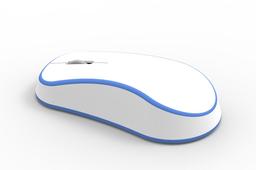
Learn mouse surface modeling in Solidworks & rendering in Keyshot
Ibrahim Omer
in
Modeling
2
0
Intermediate
In this tutorial, we'll learn how to make a mouse in Solidworks using surfacing commands. It is a basic exercise for beginners and it will be a good practice for beginners. Here, we'll learn these commands and features: 1) Basic 2D commands 2) Reference Plane 3) Sweep Surface 4) Extrude Surface 5) Trim Surface 6) Planar Surface 7) Knit Surface 8) Thicken 9) Fillet 10) Extrude Boss 11) Circular Pattern 12) Extrude Cut 13) Appearance 14) Rendering I have divided this tutorial into two parts. In the first part we will model the mouse in Solidworks & we'll also apply appearances to the model. In the 2nd part we will render mouse in Keyshot using Keyshot plug-in. Kindly use play pause technique for practice. I have attached files in the description for practice. Feel free to ask your queries in comment section. I will try to answer each and every question Insha Allah. Keep practicing as practice makes a man perfect. #mouse #surfacing #cadable Mouse Files: https://grabcad.com/library/mouse-492 Please Subscribe our Channel for more Videos and Projects in Solidworks. Please Like and Share Our Videos. Thanks for Watching. Follow our Channel: https://www.youtube.com/c/CADable
SOLIDWORKS
cadable
3d
material
keyshot
rendering
surfacing
modeling
surface
mouse
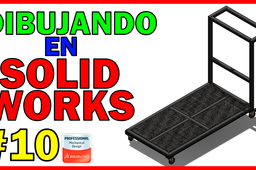
Dibujando en Solidworks - Pieza 10 - Carro con ruedas giratorias
Diego Conde
in
Modeling
1
0
Intermediate
Dibujando en Solidworks - Pieza 10 - Carro con ruedas giratorias EDK Creative Design Hola ¡¡ Como el título indica estaremos dibujando en #solidworks diferentes piezas y ensamblajes que nos servirán de práctica para mejorar nuestras habilidades con Solidworks. Hoy dibujamos un carro con ruedas giratorias. Para ello utilizaremos el sistema de piezas soldadas que trae Solidworks para realizar el ensamblaje de nuestro carro con ruedas giratorias. No te olvides de que si este contenido te resulta útil, o te parece correcto dar tu apoyo a la iniciativa. Suscríbete y deja tu pulgar arriba, una operación totalmente gratuita. Muchas gracias por tu visita, espero verte pronto ¡¡¡
SOLIDWORKS
material
ing
giratorias
ruedas
carro
modeling
solidworks