Learn about the GrabCAD Platform
Get to know GrabCAD as an open software platform for Additive Manufacturing
Visit our new homepage
Home
Control
Shop
Streamline Pro
Partner Program
Print
Community
Log in
Library
Challenges
Groups
Questions
Tutorials
Engineers
Blog
Log in
Learn from thousands of free Tutorials.
New user?
Join the community
or
log in.
Tutorials
Most liked all time
Recent
Most liked
Most viewed
Most commented
This week
This month
All time
Category
Design & CAD
Modeling
Drafting
Assemblies
BOM
Dimensioning / Tolerancing
Translations
Manufacturing & CAM
3D Printing
Tooling
NC Machining
Composites
Measurement / Inspection
Simulation & CAE
FEM
CFD
Kinematics
Process Simulation
Engineering Fundamentals
Theory
Process
Standards
Other
Software
Snagit
Alibre Design
ArchiCAD
AutoCAD
AutoCAD Electrical
Autodesk 3ds Max
Autodesk Alias
Autodesk Inventor
Autodesk Maya
Autodesk Revit
Autodesk 123D
BricsCAD
Bentley MicroStation
BlenderCAD
BobCAD-CAM
CATIA
Delmia
DraftSight
FreeCAD
Femap
Fusion 360
Geomagic Design
IronCAD
JT
Kompas-3D
KeyCreator
KeyShot
Lagoa
Luxology
Mastercam
Moi3D
NX Unigraphics
OBJ
Onshape
OpenSCAD
Parasolid
Powermill
Powershape
Pro/Engineer Wildfire
PTC Creo Parametric
PTC Creo Elements
Rhino
SpaceClaim
SOLIDWORKS
solidThinking Evolve
Solid Edge
SolidFace
STEP / IGES
SketchUp
STL
TopSolid
TinkerCAD
T-Flex CAD
TurboCAD
VectorWorks
ViaCAD 3D
VRML / WRL
ZW3D
GrabCAD Print
Rendering
GrabCAD Community
GrabCAD Workbench
Text file
3D Manufacturing Format
Cinema 4D
Other
Intermediate
All levels
Beginner
Intermediate
Expert
performance
×
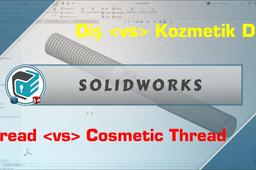
SOLIDWORKS - Thread vs Cosmetic Thread 🎯
NonCad Keys
in
Modeling
1
0
Intermediate
👀 In this video, we examined one of the most requested content from us, threading. In the past, we were able to do thread cutting by drawing a thread profile and a sweep path (helix). Now we can perform thread cutting operations much faster and easier with the "Thread" command. However, instead of this type of threading, threads opened with the cosmetic thread command will be more beneficial for the user in every way. Below we have reviewed 3 important criteria that we try to demonstrate in the video. 👉🏼 Visuality: Of course, geometric threading takes a step forward here. Because visually you get the most realistic image. The cosmetic thread will only be seen as texture. 👉🏼 Technical Drawing: In this criterion, cosmetic thread take the lead in terms of technical information. Because we can get thread information automatically and cosmetic thread symbol is seen in all technical drawing views. Geometric threading processes, on the other hand, have no advantages in technical drawing. 👉🏼 Performance: A very important criterion, especially for SolidWorks users. Operations with geometric threading commands significantly reduce SolidWorks performance. You can also see this in the Performance Evaluation command at the end of the video. Users will begin to experience performance problems with the multi-use of parts created by such processes in assembly. ✅ Our advice is do not give up the cosmetic threading command. #Solidworks #cosmetics #thread #performance #Visuality #drawing @NonCADKeys #Details #statement
SOLIDWORKS
drawing
visuality
performance
thread
cosmetics
solidworks
S-shaped battery cooling geometry in ANSYS
Amit Kumar Yadav
in
Modeling
1
0
Intermediate
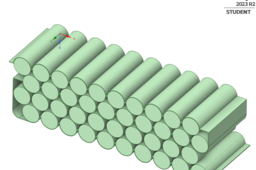
Creating an S-shaped cooling geometry in ANSYS or any other simulation software requires a good understanding of fluid dynamics, heat transfer, and simulation tools. It may also involve several iterations to achieve the desired battery system cooling performance.
SpaceClaim
automation
simulation
performance
cooling
system
battery
heat transfer
fluid dynamics
Customizing SolidWorks Interface, Toolbars and options to increase Modeling Speed.
Sudhir Gill
in
Modeling
0
0
Intermediate
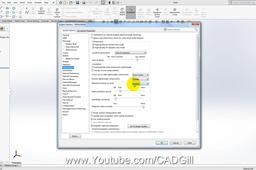
In this video tutorial we will learn to change toolbars and enable some options that will help us improve modeling speed.
SOLIDWORKS
modeling
guestures
mouse
performance
speed
improve
toolbars
solidworks
Solidwork Resource Monitor
Oleksandr Grinenko
in
Other
0
0
Intermediate
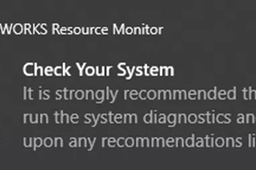
When starting Solidworks on your PC, you may encounter message pop-up that asks to check your system OR run diagnostics. Please ensure first that your computer meets minimum system requirements, found on official Solidworks website. Then check if your graphic card drivers are up to date or correspond version of SW installed on the PC. If you opening large drawings ensure that they aren't opened in Detailing Mode.
performance
resource monitor
solidworks