Learn about the GrabCAD Platform
Get to know GrabCAD as an open software platform for Additive Manufacturing
Visit our new homepage
Home
Control
Shop
Streamline Pro
Partner Program
Print
Community
Log in
Library
Challenges
Groups
Questions
Tutorials
Engineers
Blog
Log in
Learn from thousands of free Tutorials.
New user?
Join the community
or
log in.
Tutorials
Most liked all time
Recent
Most liked
Most viewed
Most commented
This week
This month
All time
Category
Design & CAD
Modeling
Drafting
Assemblies
BOM
Dimensioning / Tolerancing
Translations
Manufacturing & CAM
3D Printing
Tooling
NC Machining
Composites
Measurement / Inspection
Simulation & CAE
FEM
CFD
Kinematics
Process Simulation
Engineering Fundamentals
Theory
Process
Standards
Other
Software
Snagit
Alibre Design
ArchiCAD
AutoCAD
AutoCAD Electrical
Autodesk 3ds Max
Autodesk Alias
Autodesk Inventor
Autodesk Maya
Autodesk Revit
Autodesk 123D
BricsCAD
Bentley MicroStation
BlenderCAD
BobCAD-CAM
CATIA
Delmia
DraftSight
FreeCAD
Femap
Fusion 360
Geomagic Design
IronCAD
JT
Kompas-3D
KeyCreator
KeyShot
Lagoa
Luxology
Mastercam
Moi3D
NX Unigraphics
OBJ
Onshape
OpenSCAD
Parasolid
Powermill
Powershape
Pro/Engineer Wildfire
PTC Creo Parametric
PTC Creo Elements
Rhino
SpaceClaim
SOLIDWORKS
solidThinking Evolve
Solid Edge
SolidFace
STEP / IGES
SketchUp
STL
TopSolid
TinkerCAD
T-Flex CAD
TurboCAD
VectorWorks
ViaCAD 3D
VRML / WRL
ZW3D
GrabCAD Print
Rendering
GrabCAD Community
GrabCAD Workbench
Text file
3D Manufacturing Format
Cinema 4D
Other
Skill level
All levels
Beginner
Intermediate
Expert
Autodesk 123D
×
solidThinking Evolve
×
SolidFace
×
Convert STEP/IGES files to STL on Mac
Robert Riegel
in
Design & CAD
3
1
Intermediate
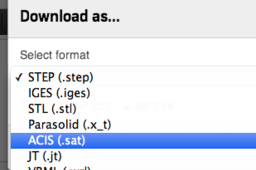
We’ve added a translator on Workbench that allows users to download a CAD file in STEP, IGES and STL formats, regardless of the format it was uploaded in. This makes it easy to share models with partners who don’t use the same CAD system you do. With just one click your supplier can download any of the neutral formats based on the original file you uploaded.
SolidFace
step
iges
stl
conversion
3D Modeling of a Braitenberg Vehicle in 4 Steps using Autodesk 123D Design
Yoana Ivanova
in
Modeling
2
0
Intermediate
This tutorial is suitable for designers who have a basic knowledge of using the open source product Autodesk 123D Design. The steps to build a Breitenberg vehicle are as follows: 1. Modeling a wheel: a cylinder with a diameter of 2 cm and a height of 0.5 cm is placed in the workspace. Drill a hole in it by drawing a circle with a diameter of 0.3 cm and extruding - 0.5 cm with the Extrude tool. We soften the edges of the cylinder with Fillet Radius: 0.5. 2. Clone the wheel: rotate the resulting wheel 90° along the Z axis and copy it with Ctrl+C and Ctrl+V. 3. Modeling the vehicle body: regarding the design of the vehicle body, there are various options. In this case the author models a classic vehicle, which is most often shown in the bibliographic sources. After drawing and extruding a surface with the desired shape we apply Fillet with radius 35 on the back edge and with 30 on the front edge for a contemporary design (i could provide more images if it is needed). On the selected side edges we successively apply Fillet with a radius of 9. 4. Make a special place for the sensor: it is necessary to select the square plane that is located in the middle of the case and successively apply Sketch > Project, Sketch > Offset and Construct > Extrude with a negative value.
Autodesk 123D
breitenberg vehicle
cswa
jonathan gonzalez
in
Modeling
1
1
Beginner
Piezas de certificación cswa mande correo jonathaneko@gmail.com
solidThinking Evolve
solidworks
Exercise 7 || 90 Degree PVC Equal Tee
ARVIND KUMAR
in
Modeling
0
0
Beginner
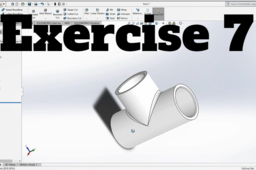
Designing 90 Degree PVC Equal Tee using solidwork. A pipe tee is used for distributing or collecting the fluid from the run pipe. It is a short piece of pipe with a 90-degree branch at the center. Two types of Tee are used in piping: Equal / Straight Tee and Reducing / Unequal Tee.
SolidFace
designing
solidwork
90 degree equal tee
equal tee
Tutorial title: SolidFace Professional Training Tutorials #02
SolidFace Technology
in
Design & CAD
0
0
Beginner
Welcome to the SolidFace Professional Training! Moving on at our lessons in 2D CAD, we'll get more profound on the commands: Rectangle, Relative Point, Circle, Multiple Lines, Osnap, Centerline, Dimensions, Dimensions Edition. Bem-Vindos ao Treinamento da SolidFace Profissional! Dando continuidade as nossas lições no CAD 2D, os features serão: Rectangle, Relative Point, Circle, Multiple Lines, Osnap, Centerline, Dimensions, Dimensions Edition.
SolidFace
drawing
engineering
software
2d
cad
3d
tutorial
solidface
RAM LALLA
DEEPAK
in
Modeling
0
0
Beginner
JAI SREE RAM (RAM LALLA)IN COREL DRAW
solidThinking Evolve
Vx²
lesly guirand-schoëlcher
in
Modeling
0
0
Expert
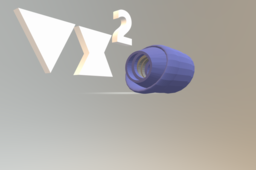
Vx² is a corrected version. Let's imagine that the coverings are connected separately on each of our internal layers. Externally, secondary coils will be able to impact the frequency on the connected ionic output filaments. Let's imagine a small muscle capable of compressing a large pressure density of air, gas, liquid, etc. A high dynamic superior to its scale by the intensities.
Autodesk 123D
ionic propulsion spectral jet
SolidFace Professional Training Tutorials #01
SolidFace Technology
in
Design & CAD
0
0
Beginner
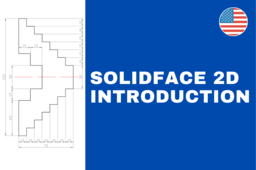
Welcome to the SolidFace Professional Training! This video is an introduction to the SolidFace interface when we'll see some essential functions on the CAD 2D. We'll see the features Line, Multiple Lines, Linear Dimensions, Centerline, and the differences between Parametric and Non-Parametric Dimensions. Bem-Vindos ao Treinamento da SolidFace Profissional! Esse vídeo é uma introdução da interface do SolidFace, onde nós vamos ver algumas funções básicas na parte de CAD 2D, vamos ver os features Line, Multiple Lines, Linear Dimensions, Centerline, e as diferenças entre cotas paramétricas e não paramétricas.
SolidFace
engineering
tutorial
3d
cad
2d
software
drawing
solidface