Learn about the GrabCAD Platform
Get to know GrabCAD as an open software platform for Additive Manufacturing
Visit our new homepage
Home
Control
Shop
Streamline Pro
Partner Program
Print
Community
Log in
Library
Challenges
Groups
Questions
Tutorials
Engineers
Blog
Log in
Learn from thousands of free Tutorials.
New user?
Join the community
or
log in.
Tutorials
Most liked all time
Recent
Most liked
Most viewed
Most commented
This week
This month
All time
Category
Design & CAD
Modeling
Drafting
Assemblies
BOM
Dimensioning / Tolerancing
Translations
Manufacturing & CAM
3D Printing
Tooling
NC Machining
Composites
Measurement / Inspection
Simulation & CAE
FEM
CFD
Kinematics
Process Simulation
Engineering Fundamentals
Theory
Process
Standards
Other
Software
Snagit
Alibre Design
ArchiCAD
AutoCAD
AutoCAD Electrical
Autodesk 3ds Max
Autodesk Alias
Autodesk Inventor
Autodesk Maya
Autodesk Revit
Autodesk 123D
BricsCAD
Bentley MicroStation
BlenderCAD
BobCAD-CAM
CATIA
Delmia
DraftSight
FreeCAD
Femap
Fusion 360
Geomagic Design
IronCAD
JT
Kompas-3D
KeyCreator
KeyShot
Lagoa
Luxology
Mastercam
Moi3D
NX Unigraphics
OBJ
Onshape
OpenSCAD
Parasolid
Powermill
Powershape
Pro/Engineer Wildfire
PTC Creo Parametric
PTC Creo Elements
Rhino
SpaceClaim
SOLIDWORKS
solidThinking Evolve
Solid Edge
SolidFace
STEP / IGES
SketchUp
STL
TopSolid
TinkerCAD
T-Flex CAD
TurboCAD
VectorWorks
ViaCAD 3D
VRML / WRL
ZW3D
GrabCAD Print
Rendering
GrabCAD Community
GrabCAD Workbench
Text file
3D Manufacturing Format
Cinema 4D
Other
Skill level
All levels
Beginner
Intermediate
Expert
SOLIDWORKS
×
2019
×
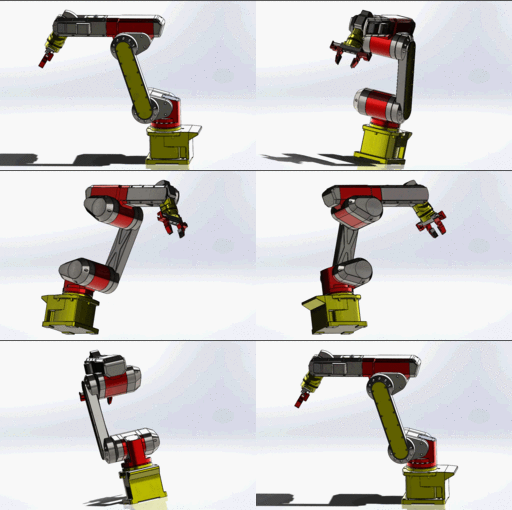
{VIDEO Tutorial} Industry Robot Arm
Mr Hieu Phuong
in
Assemblies
48
1
Beginner
Video Tutorial series teaching you how to create an Industry Robot Arm!
SOLIDWORKS
industry
assembly
arm
robotic
learn
2019
tutorial
solidworks
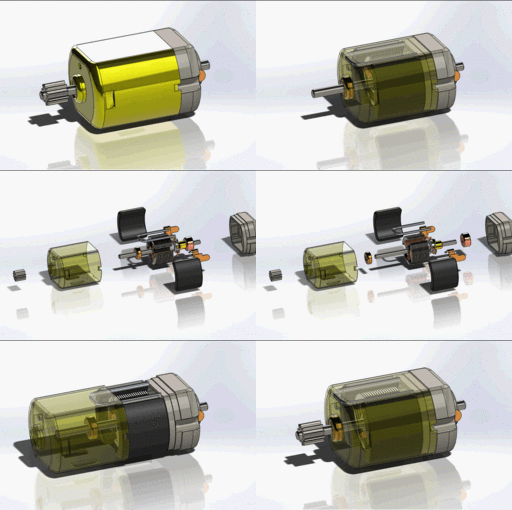
(Video Tutorial Series) DC Motor - SOLIDWORKS!
Mr Hieu Phuong
in
Assemblies
28
1
Beginner
A Video Series Teaching you how to create a DC Motor in Solidworks
SOLIDWORKS
motor
dc
beginners
hp
2019
2018
tutorial
solidworks
SOLIDWORKS TUTORIAL - DESIGN BOTTLE CAP (PEPSI)
Resa Ant
in
Modeling
4
0
Beginner
Free Solidworks Video Tutorial step by step. This is a video tutorial on how to make a bottle cap design in Solidworks. You can also add a Pepsi logo decal in this tutorial. Please support our channel for more videos https://www.youtube.com/c/DesainCAD/videos SUBSCRIBE, LIKE and SHARE #solidworkstutorial#bottlecap #pepsi
SOLIDWORKS
2021
2020
2019
learn
cap
bottle
tutorial
solidworks
Solidworks Tutorial for Beginners #29: Repair Sketch. [2019]
CAD Pond
in
Modeling
3
0
Beginner
This tutorial is to introduce to you the Solidworks "Repair sketch" tool. At the end of this tutorial, you would be able to understand how this tool works, and how you can utilize this in modifying your sketches to suit your design intent.
SOLIDWORKS
how
2019
sketch
repair
beginner
modeling
tutorial
solidworks
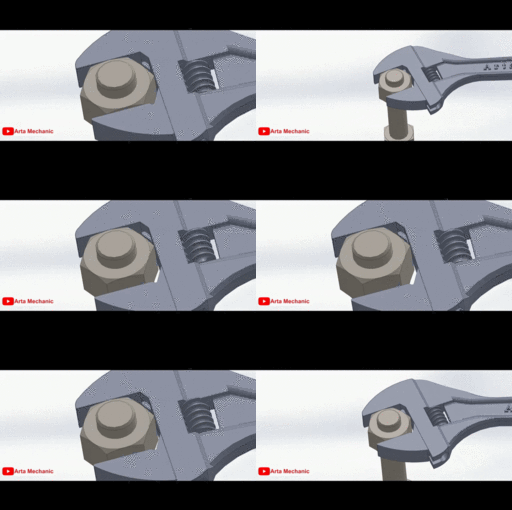
Practical training of mating and creating animation from an adjustable spanner in SolidWorks
Arta Mechanic
in
Assemblies
2
0
Intermediate
Practical training of mating and creating animation from an adjustable spanner in SolidWorks. In this video, the modeled files are first entered into SolidWorks, then assembled and mated. Normal, advanced and mechanical types of mate are used in this training. Then they go to the motion study environment and the mates are moved and finally an animation file is prepared from their movement. Watch tutorial video on youtube. https://youtu.be/FB1VkkB5Iis You can download the files used in the video from the following link. https://grabcad.com/library/adjustable-spanner-23 download files https://www.youtube.com/channel/UCXhJo1UcPs8Smf2_9vlQyow?sub_confirmation=1
SOLIDWORKS
2019
spanner
adjustable
mate
advanced
animation
tutorial
solidworks
Solidworks Tutorial for Beginners #23: Mirror Tool. [2019]
CAD Pond
in
Modeling
1
2
Beginner
Tutorial 23: This tutorial is to introduce to you the Solidworks "Mirror" tool. At the end of this tutorial, you would be able to understand how this tool works, and how to tailor it towards your desire.
SOLIDWORKS
reflect
mirror
dassault
software
cgi
model
3d
tutorial
2019
solidworks
Solidworks Tutorial for Beginners #20: Intersection Curve. [2019]
CAD Pond
in
Modeling
1
0
Beginner
Tutorial 20: This tutorial would demonstrate to you the basic functions of the Intersection Curve. At the end of this tutorial, you would the basic requirements for this tool to function, understand the difference between this tool and the convert entities, and be able to create your intersection curves.
SOLIDWORKS
curve
intersection
dassault
software
model
3d
beginners
tutorial
2019
solidworks
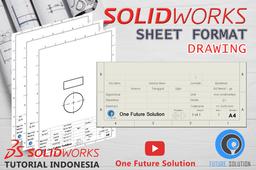
SolidWorks Tutorial Indonesia #078 - Sheet Format (Preview)
Ridwan Sept
in
Modeling
1
0
Beginner
Link Tutorial Lengkap SolidWorks Essential Indonesia : -SEGERA- SolidWorks Tutorial Indonesia #078 - Sheet Format (Preview) Materi : Sheet Format (Preview) Speaker : Ridwan S ( https://www.instagram.com/ridwan.sept/ ) Materi (Content) : 1. Membuat Drawing Baru (New) 2. "Sheet Format" Standar 3. Mengedit "Sheet Format" 4. Mengedit "Sheet Format" Melalui "Command Manager" 5. Membuat Custom "Sheet Format" 6. Membuat 3D Part/Assembly Sebagai Referensi Isi Sheet Format 7. Menentukan "File Properties" Dari 3D Model 8. Menyimpan 3D Model (Save) 9. Menghapus "Sheet Format" Dari Drawing Sheet 10. Membuat "Sheet Format - A4 Potrait" 11. Memasukkan Drawing View Ke Dalam Drawing Sheet - "View Palette" 12. Menambahkan Border - "Automatic Border" (Edit Sheet Format) 13. Membuat Sheet Format - Menambahkan Garis "Line" 14. Membuat Sheet Format - "Offset Entities" 15. Membuat Sheet Format - "Linear Sketch Pattern" 16. Membuat Sheet Format - "Trim Entities" 17. Membuat Sheet Format - Menambahkan Gambar Logo "Insert Picture" 18. Membuat Sheet Format - Menambahkan Text "Note" 19. Membuat Sheet Format - Membuat Simbol Proyeksi "Line" 20. Membuat Sheet Format - Membuat Simbol Proyeksi "Scale Entities" 21. Membuat Sheet Format - Membuat Simbol Proyeksi "Make Block" 22. Menambahkan Text "Note" Yang Link Dengan Model - "Link To Property" 23. Menambahkan "File Properties" Dari 3D Model Melalui Drawing 24. Merapikan Bentuk Tabel Sheet Format - "Trim Entities" 25. Menghapus "Drawing View" 26. Menyimpan "Sheet Format" 27. Membuat File Part Baru (New) 28. Mencopy File Properties Dari File Part Yang Sudah Ada 29. Menyimpan "Part Template" Mengganti Yang Lama 30. Mengisi "File Properties" Dari Part Baru 31. Mengganti Material Model 32. Membuat File Drawing Baru Dengan "Sheet Format Custom" 33. Memasukkan Model 3D Part/Assembly Ke Dalam Drawing 34. Memperbaiki Link "File Properties" Dari 3D Model 35. Perbedaan "Drawing Template" & "Sheet Format" 36. Mendefinisikan Sheet Format Yang Bisa Langsung Diedit - "Title Block Fields" 37. Merename Nama "Sheet" 38. Menyimpan File Drawing (Save) Catch us : Email : onefuturesolutions@gmail.com Instagram : https://www.instagram.com/1futuresolution/ Youtube : http://bit.ly/ytc-onefuturesolution FB : https://www.facebook.com/1futuresolution/
SOLIDWORKS
free
download
indonesia
2019
drawing
basic
tutorial
solidworks
solidwork
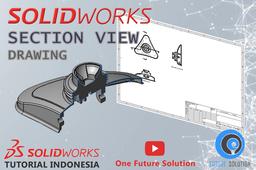
SolidWorks Tutorial Indonesia #068 - Section View (Preview)
Ridwan Sept
in
Modeling
0
0
Beginner
Link Tutorial Lengkap SolidWorks Essential Indonesia : -SEGERA- SolidWorks Tutorial Indonesia #068 - Section View (Preview) Materi : Section View (Preview) Speaker : Ridwan S ( https://www.instagram.com/ridwan.sept/ ) Materi (Content) : 1. Membuat Drawing Baru Dari File Part 2. Memasukkan Drawing View Kedalam Drawing Sheet 3. Membuat "Section View - Vertical" 4. Mengatur Posisi Proyeksi Drawing View - "View Alignment" 5. Membuat "Section View Menggunakan Sketch" 6. Memposisikan View "Section View" Secara Langsung 7. Menghapus "Section View" 8. Mengedit "Section View" 9. Mengatur Annotation "Section View" 10. Pengaturan "Section View" 11. Mengedit Arsiran Dari "Section View" - "Area Hatch/Fill" 12. Menyimpan File Drawing (Save) Catch us : Email : onefuturesolutions@gmail.com Instagram : https://www.instagram.com/1futuresolution/ Youtube : http://bit.ly/ytc-onefuturesolution FB : https://www.facebook.com/1futuresolution/
SOLIDWORKS
gratis
download
lengkap
indonesia
2019
2018
tutorial
solidworks
drawing
soldiworks
solidwork
SolidWorks Tutorial Indonesia #069 - Detail View (Preview)
Ridwan Sept
in
Modeling
0
0
Beginner
Link Tutorial Lengkap SolidWorks Essential Indonesia : -SEGERA- SolidWorks Tutorial Indonesia #069 - Detail View (Preview) Materi : Detail View (Preview) Speaker : Ridwan S ( https://www.instagram.com/ridwan.sept/ ) Materi (Content) : 1. Membuat Drawing Baru Dari Jendela Part 2. Memasukkan Drawing View Ke Dalam Drawing Sheet 3. Mengatur Skala Untuk Drawing View - "Sheet Scale" 4. Mengatur Skala Untuk Drawing View - "Use Custom Scale" 5. Membuat "Detail View" 6. Mengedit "Detail View" Yang Terbentuk 7. Pengaturan "Detail View" 8. Membuat "Detail View" Dari Sketch 9. Menyimpan File Drawing (Save) Catch us : Email : onefuturesolutions@gmail.com Instagram : https://www.instagram.com/1futuresolution/ Youtube : http://bit.ly/ytc-onefuturesolution FB : https://www.facebook.com/1futuresolution/
SOLIDWORKS
download
2018
2019
drawing
tutorial
solidworks
indonesia
soldiworks
solidwork
SolidWorks Tutorial Indonesia #070 - Auxiliary View (Preview)
Ridwan Sept
in
Modeling
0
0
Beginner
Link Tutorial Lengkap SolidWorks Essential Indonesia : -SEGERA- SolidWorks Tutorial Indonesia #070 - Auxiliary View (Preview) Materi : Auxiliary View (Preview) Speaker : Ridwan S ( https://www.instagram.com/ridwan.sept/ ) Materi (Content) : 1. Membuat Drawing Baru Dari Jendela Part 2. Memasukkan Drawing View Ke Dalam Drawing Sheet 3. Memproyeksikan Drawing View - "Projected View" 4. Menggunakan "Auxiliary View" 5. Mengedit Properties Dari "Auxiliary View" 6. Pengaturan Dari "Auxiliary View" 7. Menyimpan File Drawing (Save) Catch us : Email : onefuturesolutions@gmail.com Instagram : https://www.instagram.com/1futuresolution/ Youtube : http://bit.ly/ytc-onefuturesolution FB : https://www.facebook.com/1futuresolution/
SOLIDWORKS
belajar
indonesia
drawing
update
solidwokrs
download
tutorial
2019
solidworks
solidwork
SolidWorks Tutorial Indonesia #076 - Auto Baloon 'Universal Joint' (Preview)
Ridwan Sept
in
Modeling
0
0
Beginner
Link Tutorial Lengkap SolidWorks Essential Indonesia : -SEGERA- SolidWorks Tutorial Indonesia #076 - Auto Baloon 'Universal Joint' (Preview) Materi : Auto Baloon 'Universal Joint' (Preview) Speaker : Ridwan S ( https://www.instagram.com/ridwan.sept/ ) Materi (Content) : 1. Membuka File Drawing (Open) 2. Menambahkan "Auto Baloon" 3. Pengaturan "Auto Baloon - Property Manager" 4. "Magnetic Line" 5. Menambahkan "Magnetic Line" 6. Menambahkan "Baloon" 7. "Zoom To Fit" 8. Menyimpan File Drawing (Save) Catch us : Email : onefuturesolutions@gmail.com Instagram : https://www.instagram.com/1futuresolution/ Youtube : http://bit.ly/ytc-onefuturesolution FB : https://www.facebook.com/1futuresolution/
SOLIDWORKS
2019
download
gratis
drawing
indonesia
tutorial
solidwork
solidworks
Solidworks Tutorial for Beginners #18: Extend. [2019]
CAD Pond
in
Modeling
0
0
Beginner
This tutorial would demonstrate to you all there is about the extend tool. At the end of this tutorial, you would be able to understand how the extend tool works, and instances when it wouldnt. With your extend tool, your sketches can be edited to terminate at new locations.
SOLIDWORKS
2019
beginner
design
dassault
extend
tutorial
solidworks
Solidworks Tutorial for Beginners #19: Convert Entities. [2019]
CAD Pond
in
Modeling
0
0
Beginner
Tutorial 19: This tutorial would demonstrate to you how the Convert Entities tool functions. At the end of this tutorial, you would be able to understand how the convert entities tool works, and instances when it wouldn't.
SOLIDWORKS
software
daasault
cgi
model
3d
entities
convert
beginners
tutorial
2019
solidworks
Solidworks Tutorial for Beginners #28: Stretch Entities. [2019]
CAD Pond
in
Modeling
0
0
Beginner
Tutorial 28: This tutorial is to introduce to you the Solidworks "Stretch Entities" tool. At the end of this tutorial, you would be able to understand how this tool works, and how you can stretch your sketches to suit your design intent.
SOLIDWORKS
entities
stretch
how
dassault
learn
model
3d
2019
solidworks
tutorial
1
2
3