Learn about the GrabCAD Platform
Get to know GrabCAD as an open software platform for Additive Manufacturing
Visit our new homepage
Home
Control
Shop
Streamline Pro
Partner Program
Print
Community
Log in
Library
Challenges
Groups
Questions
Tutorials
Engineers
Blog
Log in
Learn from thousands of free Tutorials.
New user?
Join the community
or
log in.
Tutorials
Most liked all time
Recent
Most liked
Most viewed
Most commented
This week
This month
All time
Category
Design & CAD
Modeling
Drafting
Assemblies
BOM
Dimensioning / Tolerancing
Translations
Manufacturing & CAM
3D Printing
Tooling
NC Machining
Composites
Measurement / Inspection
Simulation & CAE
FEM
CFD
Kinematics
Process Simulation
Engineering Fundamentals
Theory
Process
Standards
Other
Software
Snagit
Alibre Design
ArchiCAD
AutoCAD
AutoCAD Electrical
Autodesk 3ds Max
Autodesk Alias
Autodesk Inventor
Autodesk Maya
Autodesk Revit
Autodesk 123D
BricsCAD
Bentley MicroStation
BlenderCAD
BobCAD-CAM
CATIA
Delmia
DraftSight
FreeCAD
Femap
Fusion 360
Geomagic Design
IronCAD
JT
Kompas-3D
KeyCreator
KeyShot
Lagoa
Luxology
Mastercam
Moi3D
NX Unigraphics
OBJ
Onshape
OpenSCAD
Parasolid
Powermill
Powershape
Pro/Engineer Wildfire
PTC Creo Parametric
PTC Creo Elements
Rhino
SpaceClaim
SOLIDWORKS
solidThinking Evolve
Solid Edge
SolidFace
STEP / IGES
SketchUp
STL
TopSolid
TinkerCAD
T-Flex CAD
TurboCAD
VectorWorks
ViaCAD 3D
VRML / WRL
ZW3D
GrabCAD Print
Rendering
GrabCAD Community
GrabCAD Workbench
Text file
3D Manufacturing Format
Cinema 4D
Other
Skill level
All levels
Beginner
Intermediate
Expert
Autodesk Alias
×
Autodesk Inventor
×
OBJ
×
Text file
×
Tutorial: How to check dimensions and derive ?
Ondřej Novák
in
Design & CAD
1
0
Beginner
This is my entery to Tip and trics challange
Autodesk Inventor
tipsntricks
Tutorial: How to import sketches in Autodesk Inventor?
Abhijeet
in
Design & CAD
1
0
Beginner
Tutorial.
Autodesk Inventor
sketch
tutorial
image
import
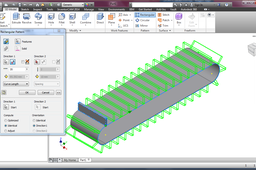
How to model a conveyer belt in inventor?
HSN_ADI
in
Design & CAD
1
1
Intermediate
Hi Lonwabo It's so simple . you can create a simple conveyer belt in 8 simple step Here is a tutorial :
Autodesk Inventor
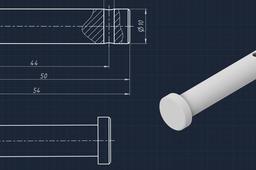
Clevis pin. Autodesk Inventor. 3D CAD practice. How to make cbp–05042023–006.04☝️
Sergey Torshin
in
Modeling
1
0
Beginner
In this video, I share how to create a 3D part in Autodesk Inventor (2021). This is the part «Палец» (Clevis pin) of the assembly 006–СП «Серьга подвесная» (Clevis mount). You'll see how to use dimensions and constrain on sketch, Extrude, Revolve, Chamfer commands. I hope you enjoy it! You can find this drawing in my Instagram, Telegram, ВКонтакте, Яндекс.Дзен. You can find the links here https://taplink.cc/cadblueprints. 0:00 Intro 0:08 Drawing 0:13 3D modeling 2:03 Outro, Suggested Videos & Playlist
Autodesk Inventor
educational
autodesk inventor
design
beginner
tips
pin
clevis
clevis mount
How to Create Responsive Sheet Metal Using Rules and Dimension in Autodesk Inventor
Uche Ajuonuma
in
Modeling
1
0
Beginner
In this video, I demonstrate the creation of a sheet metal box that responds to changes in a single parameter (dimension) and automatically generates different configurations of the box as the size increases or decreases
Autodesk Inventor
configurations
autodesk
dimension
inventor
ilogic
ipart
sheet metal
Autodesk Inventor Tutorial #374 || Inventor Tutorial for beginners || Cad Practice Tutorial || 3d
ROHAN GUPTA
in
Modeling
1
0
Beginner
Autodesk Inventor Tutorial #374 || Inventor Tutorial for beginners || Cad Practice Tutorial || 3d https://youtu.be/8FAaf0LhebI
Autodesk Inventor
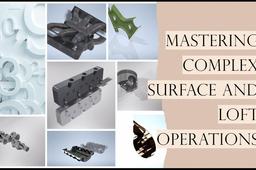
How to Execute Complex Surface and Loft Operations for an Air Turbo of a V6 Engine in Autodesk Inventor
Sourabh Bhalke
in
Assemblies
1
1
Beginner
In the world of automotive design, precision and complexity often go hand in hand. One such challenging task is creating the intricate geometry of an air turbo for a V6 engine. The process involves advanced surface modeling techniques and careful attention to detail. In this article, I’ll walk you through the steps I took to create an air turbo model using Autodesk Inventor, focusing on the key operations: 3D sketching, lofting, surface trimming ,stitching and other operations. * Please note that, although i have used Autodesk Inventor Professional 2024 to create this model, the language and narrative of this article is kept intentionally generalized so that you can use any other software to achieve similar results.
Autodesk Inventor
patch surface
trim surface
3d sketch
surface modeling
loft operation
v6 engine
air turbo
autodesk inventor
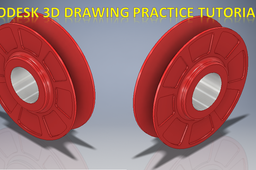
Autodesk Inventor 3d drawing Practice Tutorial #414 || Inventor3d Drawing || Drawing || Autodesk 3d
ROHAN GUPTA
in
Modeling
1
0
Beginner
Autodesk Inventor 3d drawing Practice Tutorial #414 || Inventor3d Drawing || Drawing || Autodesk 3d https://youtu.be/hs16RwsK0wk
Autodesk Inventor
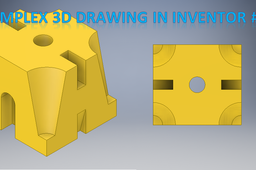
Complex 3d Drawing Tutorial in Autodesk Inventor || Inventor 3d Drawing Tutorial || 3d Cad Drawing
ROHAN GUPTA
in
Modeling
1
0
Beginner
Complex 3d Drawing Tutorial in Autodesk Inventor || Inventor 3d Drawing Tutorial || 3d Cad Drawing https://youtu.be/JfCc7rk-bN8
Autodesk Inventor
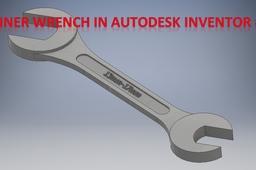
Spanner Wrench in Autodesk Inventor || Inventor Tutorial || Cad Tutorial for Beginners || Spanner
ROHAN GUPTA
in
Modeling
1
0
Beginner
Spanner Wrench in Autodesk Inventor || Inventor Tutorial || Cad Tutorial for Beginners || Spanner https://youtu.be/5Y9cOVBjW-k
Autodesk Inventor
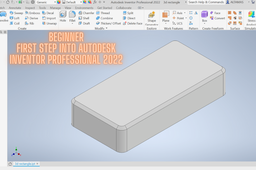
Getting Started with Autodesk Inventor Professional 2022 | Beginner 3D Modeling Tutorial
Muhammed Altamash Khan
in
Modeling
1
0
Beginner
Welcome to 'DesignEngineered'! In this video, we’ll take you step-by-step through the basics of Autodesk Inventor Professional 2022. If you’re new to 3D modelling or want to explore how to create precise mechanical parts, this is the perfect tutorial for you. In this video, you’ll learn: How to set up a new project in Autodesk Inventor How to sketch and dimension a part How to extrude a 2D sketch into a 3D model How to add features like fillets and chamfers Tips for saving and exporting your design Stay tuned as we dive deeper into more advanced features in future videos! Thanks for watching!
Autodesk Inventor
designengineered
3d modeling
autodesk inventor
cad
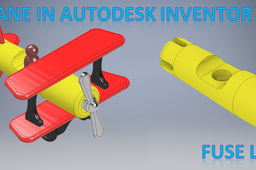
Toy Plane in Autodesk Inventor Part 1 || Toy Making || Propeller Plane || Inventor Assembly Tutorial
ROHAN GUPTA
in
Modeling
1
0
Beginner
Toy Plane in Autodesk Inventor Part 1 || Toy Making || Propeller Plane || Inventor Assembly Tutorial https://youtu.be/K6tySahxDs4
Autodesk Inventor
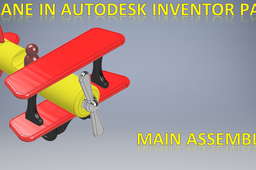
Toy Plane Assembly in Autodesk Inventor Part 17 || Inventor Tutorial || Inventor 3d Assembly
ROHAN GUPTA
in
Modeling
1
0
Beginner
Toy Plane Assembly in Autodesk Inventor Part 17 || Inventor Tutorial || Inventor 3d Assembly https://youtu.be/jxdIxSJQpm4
Autodesk Inventor
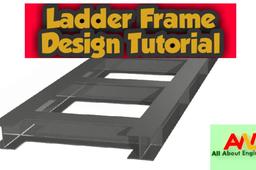
Ladder Frame Design Tutorial-Chassis Design
Auwaludin Chadafid
in
Modeling
1
0
Beginner
Autodesk Inventor 2020 Tutorial Video - basic how to designing Ladder Frame using Frame generator. step by step process.
Autodesk Inventor
structure
automotive
design
Frame Generator Tips : Fixing Your Bridge Construction - Editing Intersection Point
Auwaludin Chadafid
in
Assemblies
1
0
Intermediate
Frame Generator Tips : Fixing Your Bridge Construction - Editing Intersection Point Frame Generator to create internal frame and external frame assemblies for machines. Frame Generator is available in the assembly and weldment environments. You need a skeleton part on which to insert frame members. You can either: Create a model to use as a frame skeleton and place it in an assembly file (Place Component). Define the structure of a frame in the context of the assembly (Create Component). You can select sketch lines and edges from multiple parts to add to a skeletal part. As you select lines and edges, they are added to a skeletal part in the frame assembly. In the finished frame assembly, each frame member must have a corresponding line in the reference skeleton part. In the process to insert a frame member into an assembly, you select a Frame Member family from the Content Center. Then you define the size, material, and appearance parameters. After you select the frame member, you select one or more edges or a beginning and ending point for placement of the frame member. After you place frame members onto the structure, you add end treatments. End treatments specify the miters and cuts to join them. For a straight frame member with a miter on each end, such as an angled beam between two opposite inside corners, the correct frame length computes automatically. Frame Generator automates both the selection and placement of the standard frame members onto the skeleton or assembly components, and the addition of end treatments. For a frame member with a double miter (miter on each end), such as an angled beam between two opposite corners, the correct frame length computes automatically.
Autodesk Inventor
autodeskinventor
framegenerator
assembly
3d
autodesk
1
…
26
27
28
…
93