Learn about the GrabCAD Platform
Get to know GrabCAD as an open software platform for Additive Manufacturing
Visit our new homepage
Home
Control
Shop
Streamline Pro
Partner Program
Print
Community
Log in
Library
Challenges
Groups
Questions
Tutorials
Engineers
Blog
Log in
Learn from thousands of free Tutorials.
New user?
Join the community
or
log in.
Tutorials
Most liked all time
Recent
Most liked
Most viewed
Most commented
This week
This month
All time
Category
Design & CAD
Modeling
Drafting
Assemblies
BOM
Dimensioning / Tolerancing
Translations
Manufacturing & CAM
3D Printing
Tooling
NC Machining
Composites
Measurement / Inspection
Simulation & CAE
FEM
CFD
Kinematics
Process Simulation
Engineering Fundamentals
Theory
Process
Standards
Other
Software
Snagit
Alibre Design
ArchiCAD
AutoCAD
AutoCAD Electrical
Autodesk 3ds Max
Autodesk Alias
Autodesk Inventor
Autodesk Maya
Autodesk Revit
Autodesk 123D
BricsCAD
Bentley MicroStation
BlenderCAD
BobCAD-CAM
CATIA
Delmia
DraftSight
FreeCAD
Femap
Fusion 360
Geomagic Design
IronCAD
JT
Kompas-3D
KeyCreator
KeyShot
Lagoa
Luxology
Mastercam
Moi3D
NX Unigraphics
OBJ
Onshape
OpenSCAD
Parasolid
Powermill
Powershape
Pro/Engineer Wildfire
PTC Creo Parametric
PTC Creo Elements
Rhino
SpaceClaim
SOLIDWORKS
solidThinking Evolve
Solid Edge
SolidFace
STEP / IGES
SketchUp
STL
TopSolid
TinkerCAD
T-Flex CAD
TurboCAD
VectorWorks
ViaCAD 3D
VRML / WRL
ZW3D
GrabCAD Print
Rendering
GrabCAD Community
GrabCAD Workbench
Text file
3D Manufacturing Format
Cinema 4D
Other
Skill level
All levels
Beginner
Intermediate
Expert
DraftSight
×
OBJ
×
Powermill
×
GrabCAD Workbench
×
Create an OBJ Cube With Your Favorite Images
Anirudh Krishnakumar
in
Modeling
17
2
Beginner
Ever wanted to create a CAD file with your favorite pictures? There are many ways to apply images and textures to CAD files. However, for most of these operations, expensive programs or CAD experience might be required. This tutorial shows you how to make a simple OBJ cube, while explaining some of the basic OBJ nomenclature. It then explains the steps to map pictures on the cube's faces. The only tools you will need is a text editor like notepad and your favorite images!
OBJ
photo
cube
cad
map
texture
obj
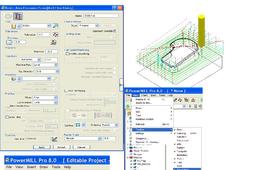
Tutorials:-Working with Power MILL " PART I" To Generate the Programs(G-coded & M-coded) For Various CNC Machines.
Sourbh
in
Design & CAD
8
1
Beginner
Let Start With Beginning..
Powermill
cnc
tools
engineering
mill
mechanical
power
mould
mold
machining
educational
basic
program
sourbh
How do i track changes by others?
Sara Sigel
in
Design & CAD
5
1
Intermediate
Your partner can upload a new version, leave a sketch, or write a comment to let you know about a change. If you have notifications setup, then you'll get an email when any of these happen. https://grabcad.com/email/edit You can also compare changes between versions, which is very useful. For a visual comparison of what is different from one version to the next, see the steps, below.
GrabCAD Workbench
file
grabcad
cad
workbench
management
version
revision
Tutorials:-Working with Power MILL "PART IV" Finish Machining Strategies.
Sourbh
in
Design & CAD
4
0
Intermediate
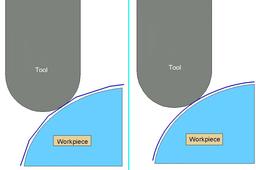
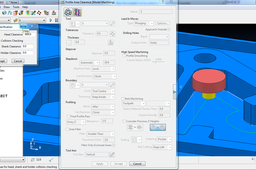
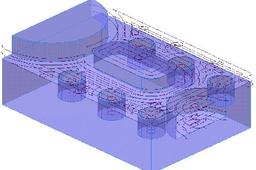
Finishing strategies machine the actual component form and where applicable, follow on from the Area Clearance operation. Suitable values are required to control the accuracy and amount of excess material to be left on a component by a tool path. The parameters used for this purpose are called Thickness and Tolerance
Powermill
suman
sourbh
powermill
clearance
tutorials
educational
cam
power
area
3d
mill
engineering
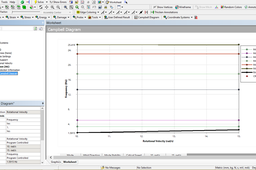
how to draw campbell diagram in ansys pls hlp me
harikrushna dodiya
in
Design & CAD
3
0
Intermediate
campbell diagram step start from 9 plz see step 9
GrabCAD Workbench
Tutorials:-Working with Power MILL " PART II" Machining Setup
Sourbh
in
Design & CAD
3
0
Beginner
Here is the Next Part of Working with Power Mill.. Follow the Steps and You will found your way with Power Mill. Some text are Referenced from Book and Online Training Tutorials Thanks and Enjoy..!!
Powermill
cnc
mill
power
cam
machining
educational
tutorials
programming
sourbh
Tutorials:-Working with Power MILL "PART IV" Finish Machining Strategies.
Sourbh
in
Design & CAD
2
0
Intermediate
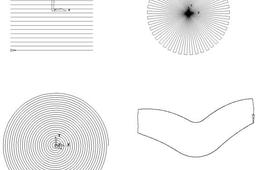
Raster, Radial, Spiral, and Pattern Finishing. Introduction. This section will cover Finishing strategies created by the downward projection of a Pattern, which include four types, Raster, Radial, Spiral and (user defined) Pattern. PowerMILL generates the toolpaths by projecting a wireframe form down the Z-axis onto the model. The standard patterns applied in Raster, Radial, and Spiral are achieved by entering values directly into the Finishing Form. The resultant Pattern can be displayed by selecting Preview before executing the command by selecting Apply. The Pattern option requires a user-defined geometric form (active Pattern), which is projected down Z onto the model as a tool path.
Powermill
suman
sourbh
powermill
clearance
tutorials
educational
cam
power
area
3d
mill
engineering
Tutorials:-Working with Power MILL " PART I" To Generate the Programs(G-coded & M-coded) For Various CNC Machines.
Sourbh
in
Design & CAD
2
0
Beginner
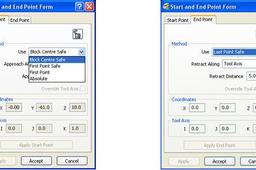
After Step 12 here the Remain Things you Have to do...:-
Powermill
cnc
tools
engineering
mill
mechanical
power
mould
mold
machining
educational
basic
program
sourbh
When the toolpath is to be verified to be checked for gouges?
fariborz
in
Design & CAD
2
0
Intermediate
Hello. I hope your answer is yes
Powermill
How can I change picture order after uploading a model ?
shubham gupta
in
Design & CAD
2
4
Intermediate
Please go through this tutorial.
GrabCAD Workbench
order
image
gif
Tutorials:-Working with Power MILL "PART III" 3D Area Clearance.
Sourbh
in
Design & CAD
2
0
Beginner
next here
Powermill
engineering
mill
3d
area
power
cam
educational
tutorials
clearance
sourbh
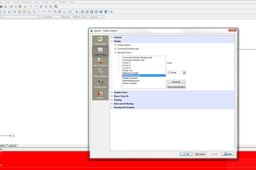
Tutorial: Change color scheme in DraftSight
Adam Pohl (POHL3D)
in
Design & CAD
1
0
Beginner
Change color scheme in Draftsight
DraftSight
window
color
sight
draft
colour
background
command
draftsight
dassualt
ds
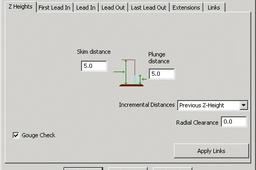
Tutorials:-Working with Power MILL "PART V" Toolpath Leads and Links
Sourbh
in
Design & CAD
1
0
Intermediate
Hello Friends, This tutorial continues for power mill Guidance.
Powermill
paths
sourbh
powermill
lead
links
tool
problem : powermill changes the orientation of files imoprted in igs format from solidworks
Sourbh
in
Design & CAD
1
0
Intermediate
Don't worry about the orientation just simply rotate it through your mouse. and If you are thinking of wrong axis direction than just follow these steps:-
Powermill
solidworks
powermill
how do I choose a picture (rendering) that will appear first in the library?
Inspire
in
Design & CAD
1
0
Intermediate
1yshetynrw7uywru yuuywrywr
GrabCAD Workbench
1
2