

Tutorial how to make engine part 3

How to make engine - part 3 -
Crank
(please follow the tutorials step by step. I will generate tutorials that can help you to make V12 engine from zero)
part 1: http://grabcad.com/questions/tutorial-how-to-make-engine-part-1
part 2: http://grabcad.com/questions/tutorial-how-to-make-engine-part-2--1
part 3: http://grabcad.com/questions/tutorial-how-to-make-engine-part-3
part 4: http://grabcad.com/questions/tutorial-how-to-make-engine-part-4
part 5: http://grabcad.com/questions/tutorial-how-to-make-engine-part-5
part 6: http://grabcad.com/questions/tutorial-how-to-make-engine-part-6
part 7: http://grabcad.com/questions/tutorial-how-to-make-engine-part-7
part 8: http://grabcad.com/questions/tutorial-how-to-make-engine-part-8
part 9: http://grabcad.com/questions/tutorial-how-to-make-engine-part-9
part 10: http://grabcad.com/questions/tutorial-how-to-make-engine-part-10
part 11: http://grabcad.com/questions/tutorial-how-to-make-engine-part-11
part 12: http://grabcad.com/questions/tutorial-how-to-make-engine-part-12
part 13: http://grabcad.com/questions/tutorial-how-to-make-engine-part-13
part 14: http://grabcad.com/questions/tutorial-how-to-make-engine-part-14
part 15: http://grabcad.com/questions/tutorial-how-to-make-engine-part-15
part 16: http://grabcad.com/questions/tutorial-how-to-make-engine-part-16
part 17: http://grabcad.com/questions/tutorial-how-to-make-engine-part-17
part 18: http://grabcad.com/questions/tutorial-how-to-make-engine-part-18
part 19: http://grabcad.com/questions/tutorial-how-to-make-engine-part-19
part 20: http://grabcad.com/questions/tutorial-how-to-make-engine-part-20
part 21: http://grabcad.com/questions/tutorial-how-to-make-engine-part-21
part 22: http://grabcad.com/questions/tutorial-how-to-make-engine-part-22
part 23: http://grabcad.com/questions/tutorial-how-to-make-engine-part-23
part 24: http://grabcad.com/questions/tutorial-how-to-make-engine-part-24
part 25: http://grabcad.com/questions/tutorial-how-to-make-engine-part-25
part 26: http://grabcad.com/questions/tutorial-how-to-make-engine-part-26
38 Answers
How to use combine command
Only if you have problem with the combine command, follow this tutorial. if not, go to part 4.
Answered with a tutorial: https://grabcad.com/tutorials/tutorial-how-to-make-engine-part-3
using 'move copy body' command for coping
(if you have a problem with this command, follow the tutorial. if not, go to next part)
Answered with a tutorial: https://grabcad.com/tutorials/tutorial-how-to-make-engine-part-3--1
using ' move/copy body' command for rotating
Answered with a tutorial: https://grabcad.com/tutorials/tutorial-how-to-make-engine-part-3--2

Just wanted to comment that STEP 2 is STEP 3 and the other way around.

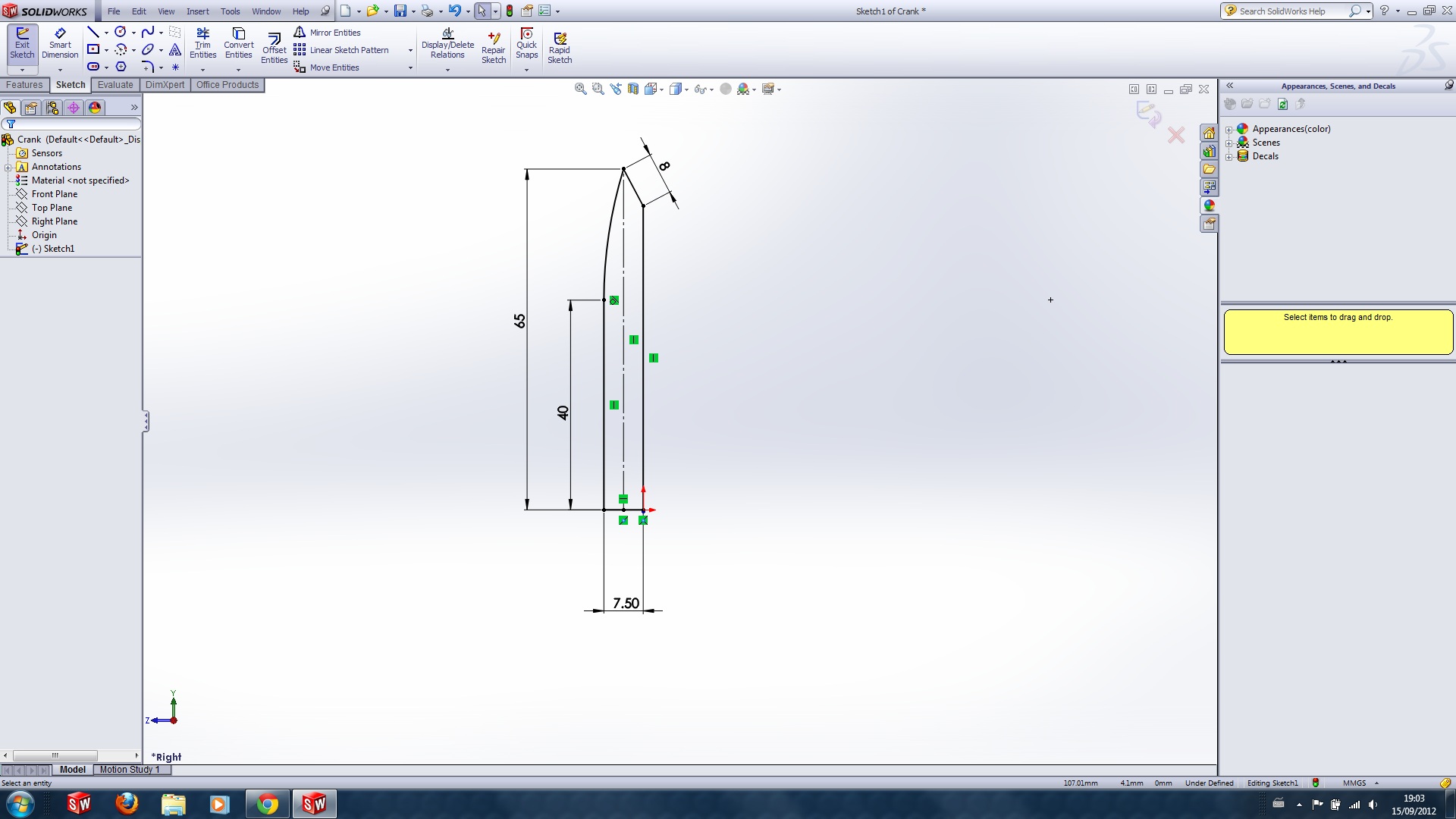
Step 1 wasn't very clear so I added these dimensions, if you have your own that look better, please post!

how can i do it in catia from step 8

To perform step 8 in Catia V5
Answered with a tutorial: https://grabcad.com/tutorials/tutorial-how-to-make-engine-part-3--4

Step one is confusing, these dimensions work great. If you were unclear about it, try these.
Answered with a tutorial: https://grabcad.com/tutorials/tutorial-how-to-make-engine-part-3--6
Hello I need some help I am a beginner I've reached step 7 and I don't know how to copy if someone could help I will be thankfull
Hi! To perform step 8 in Inventor you can follow the next steps.
Answered with a tutorial: https://grabcad.com/tutorials/tutorial-how-to-make-engine-part-3--5

This part gonna be hard... attention and patience... I got
Measures that can be used in step 1. If you measure 8, such as spoken Hadleigh Murad, an error will occur in accordance with step 4. Use of these.
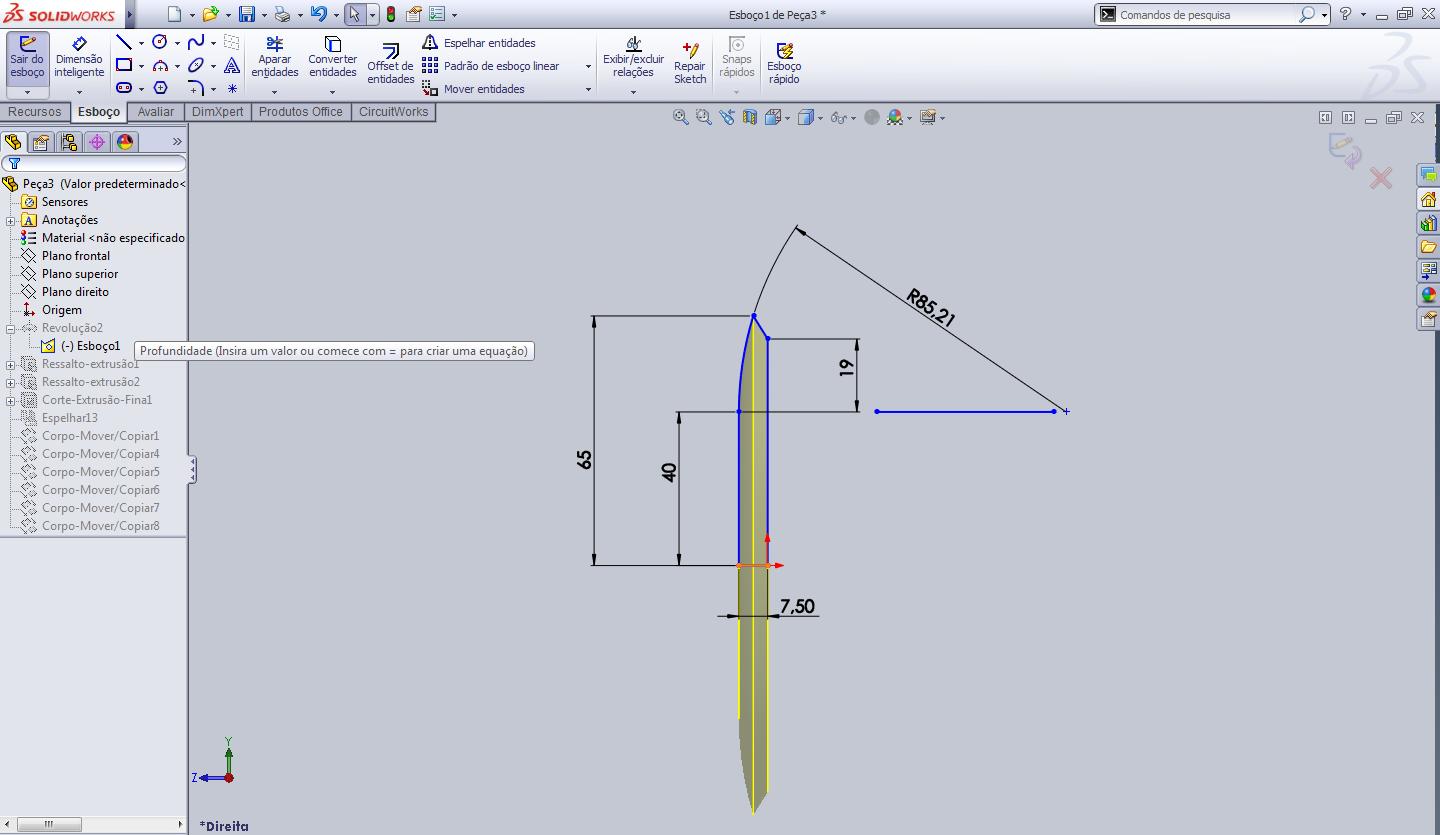
It's really very helpful to learn some extra feature.
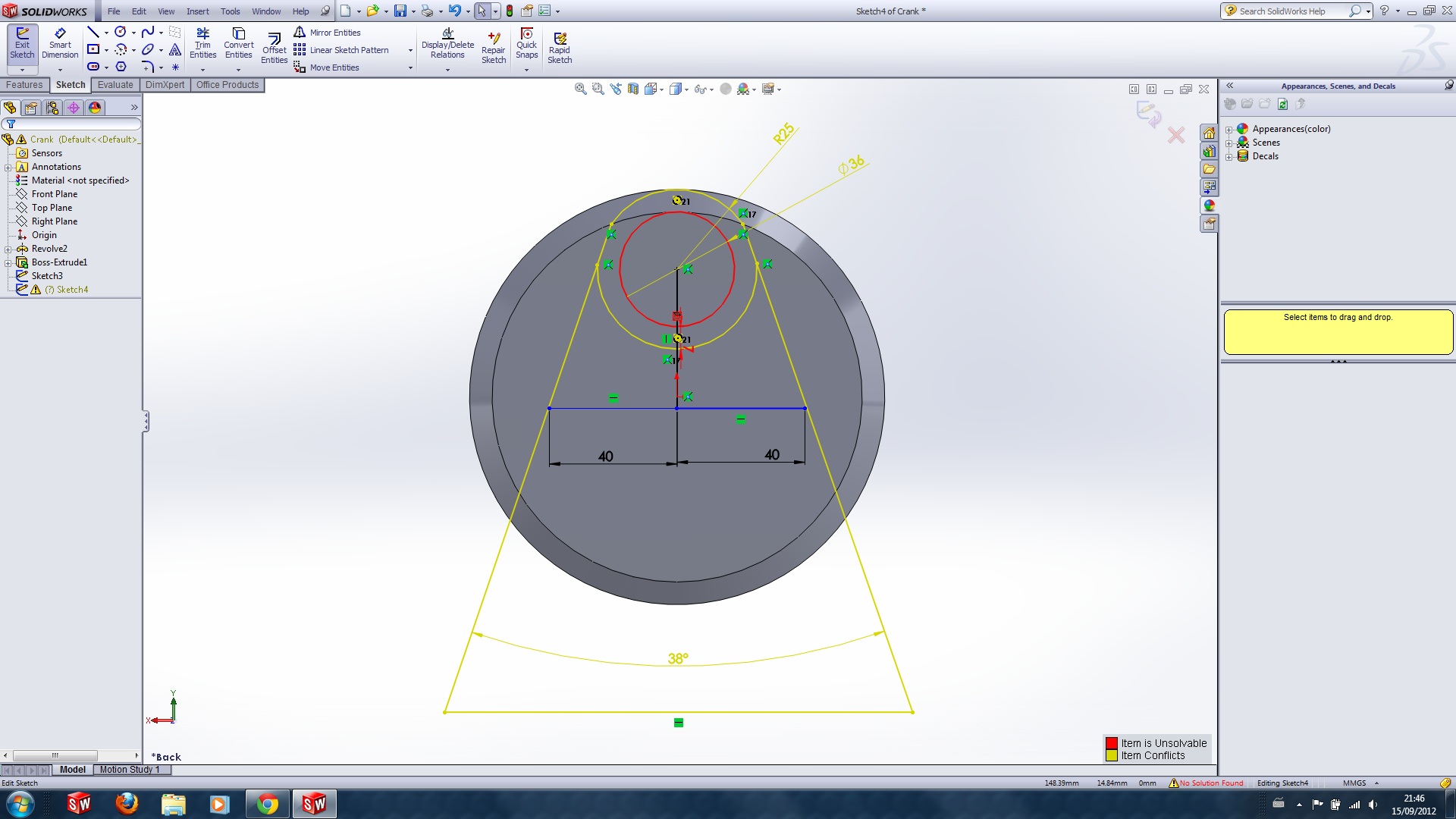
Also step 5 again, not many dimensions so i've added this picture if anyone needs advice.
(note: the sketch is over defined on purpose just to show the dims)

how can i copy the object in the step 8? i am using catia v5.

Do we really have to combine the copied bodies? I'm having problems with combine.
why do we give 95mm while copy/move command the crank...
Step 9
now we will change z coordinate. enter the shown value (95mm)... why 95 mm? pls tell me
Your not fully defining your sketches.. this can cause a lot of problems. It also makes it very hard for someone learning to follow the tutorial

step 5 still not clear.....
Hello, I am working with inventor and I don't know what to do from step 9
thats no clear the step 1, How can i make the sketch?
step 1 no clearm,what are the dimensions?
From step 8-14, how can i do this in autodesk inventor ? can enyone help ??
i do the pattern, so i have all 6 joints, but i dont know how to rotate the each single joint, how do i do in inventor ??

hey i'm working at autodesk inventor
how I can do this copy operation and the rotation I can't do also
hi I have a problem, a cant combine the copies. help me! please

Thanks

nice tutorial
Admired you!
nice work, you have all dimension in orginal tutorial :) but you need go some step foward :D
I can only get up to step 6 because i cant seem to cut around the sketch, only extrude or cut the sketch itself or the face i drew it on, this is on inventor 2012
Hey y'all, this is an awesome tutorial absolutely loving it, however I am very new at the program and cant seem to figure out step 7. I'm not afraid to try things out, and am very used to the "ctrl+z" command to undo whatever I accidentally apply, just cant figure it out :/ please help.

How can I do the step 8 (move copy body) in solidworks? what's the command?

can any post how to do this in creo
Can anyone share the complete 2d drawings with dimension of latest engine i will be very thankful please help me.
which software it is... its not autocad i thnk...

